> ## Documentation Index
> Fetch the complete documentation index at: https://docs.a2v2.ai/llms.txt
> Use this file to discover all available pages before exploring further.
# Add-ons & Extras
> Buy extra agent slots and team-member seats without jumping to a bigger plan.
Your plan fits perfectly — except you need one more agent for a new product line,
or a second teammate to help manage conversations. You don't have to upgrade the
whole tier for that. **Add-ons** let you buy exactly the extra capacity you need,
billed monthly alongside your plan.
Find them under **Billing → Add-ons & Extras** ("Flexible upgrades") in your
organization settings.
## Prerequisites
* You must be the organization **Owner** — add-ons are marked **Owner Only**.
* An active subscription (see [Plans](/billing/plans)).
## What you can add
| Add-on | What it gives you | Where it helps |
| -------------------------------- | ------------------------------------------ | ------------------------------------------------------------------- |
| **Additional Chatbot Slots** | More agents beyond your plan's limit | Launching a separate agent for a new brand, product, or audience |
| **Additional Team Member Slots** | More seats for people in your organization | Bringing in extra teammates to build agents or handle conversations |
Each add-on is priced **per additional slot**, billed monthly. The Add-ons panel
shows the **price per slot** and, for any add-on you've already bought, an
**Active Add-on** card with your current **+N slots** and its **Monthly Cost**.
## Add slots
In **Add-ons & Extras**, choose **Add Additional Chatbot Slots** or **Add
Additional Team Member Slots** (or **Add More Slots** on an existing add-on).
Set the **Quantity**. The dialog shows the **Price per slot** and your new
**Monthly total**.
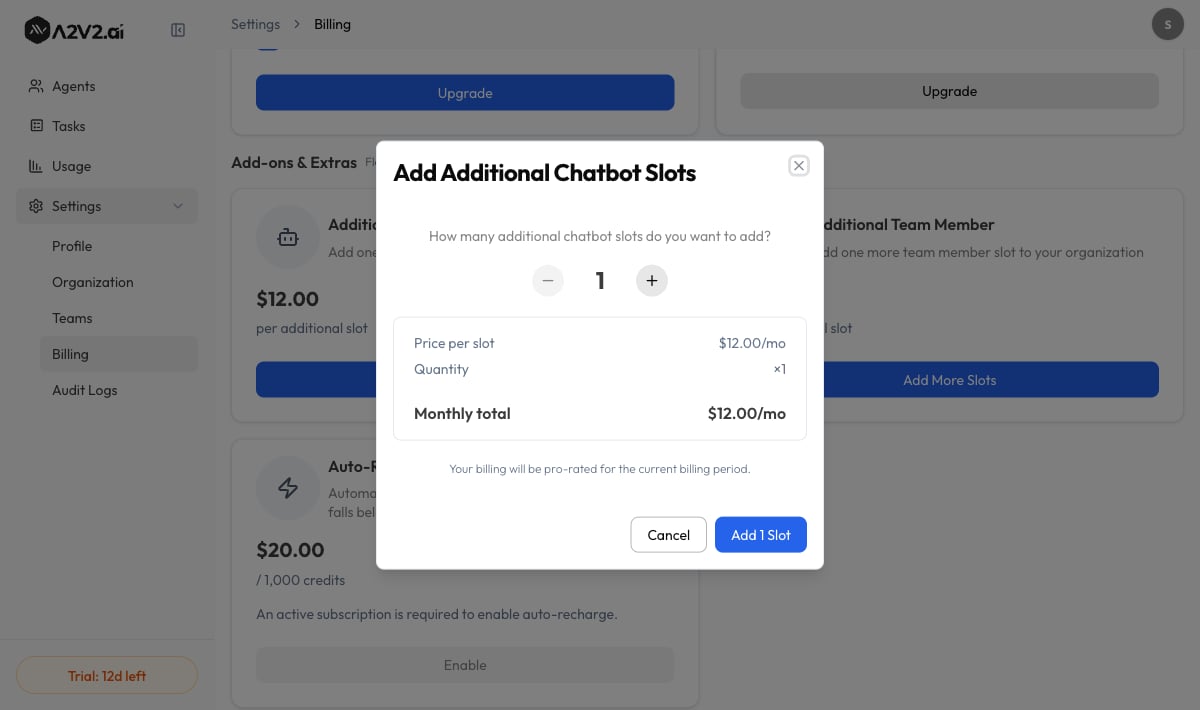 Select **Add Slots**. Your billing is **pro-rated for the current billing
period**, and you'll see *"Slots added successfully."*
**Buy more seats** appears in the Teams area when you've hit your team-member
limit, and links to the same team-member add-on. **Upgrade to use team** appears
when your current plan has no team option at all — in that case, move to a plan
that includes teams first (see [Plans](/billing/plans)).
## Remove slots
You can scale back down when you no longer need the extra capacity:
Choose **Remove Additional Chatbot Slots** or **Remove Additional Team Member
Slots** (or **Remove Add-on** to remove it entirely).
The dialog shows what you currently have, what you're removing, and your **new
total capacity** and **new monthly cost**.
You'll see *"Slots removed successfully."*
A few things to know before removing slots:
* **No refund** is issued for the current billing period — the change takes
effect on your **next billing date**.
* You can't remove slots below what you're using. If you have more agents or
members than the reduced limit would allow, **archive or delete** the extras
first, then remove the slots.
## Troubleshooting
Add-ons are **Owner Only**. Ask your organization owner to make the change.
You're likely still using that capacity. The dialog tells you how many agents
or members to archive or delete first before the removal can go through.
Added slots are **pro-rated** for the days left in your current billing period,
so the first charge is often less than a full month.
If you need a lot more of everything (agents, credits, and seats), moving up a
[plan tier](/billing/plans) may be simpler than stacking add-ons.
## Related
Compare what each tier includes.
Manage your payment method.
Add-ons add capacity; credits power answers.
Charge your own visitors for agent access.
Select **Add Slots**. Your billing is **pro-rated for the current billing
period**, and you'll see *"Slots added successfully."*
**Buy more seats** appears in the Teams area when you've hit your team-member
limit, and links to the same team-member add-on. **Upgrade to use team** appears
when your current plan has no team option at all — in that case, move to a plan
that includes teams first (see [Plans](/billing/plans)).
## Remove slots
You can scale back down when you no longer need the extra capacity:
Choose **Remove Additional Chatbot Slots** or **Remove Additional Team Member
Slots** (or **Remove Add-on** to remove it entirely).
The dialog shows what you currently have, what you're removing, and your **new
total capacity** and **new monthly cost**.
You'll see *"Slots removed successfully."*
A few things to know before removing slots:
* **No refund** is issued for the current billing period — the change takes
effect on your **next billing date**.
* You can't remove slots below what you're using. If you have more agents or
members than the reduced limit would allow, **archive or delete** the extras
first, then remove the slots.
## Troubleshooting
Add-ons are **Owner Only**. Ask your organization owner to make the change.
You're likely still using that capacity. The dialog tells you how many agents
or members to archive or delete first before the removal can go through.
Added slots are **pro-rated** for the days left in your current billing period,
so the first charge is often less than a full month.
If you need a lot more of everything (agents, credits, and seats), moving up a
[plan tier](/billing/plans) may be simpler than stacking add-ons.
## Related
Compare what each tier includes.
Manage your payment method.
Add-ons add capacity; credits power answers.
Charge your own visitors for agent access.