> ## Documentation Index
> Fetch the complete documentation index at: https://docs.a2v2.ai/llms.txt
> Use this file to discover all available pages before exploring further.
# Auto-Recharge
> Automatically top up your credits when the balance gets low, so your agents keep answering through busy periods.
It's the middle of your biggest sales day, your agent is fielding hundreds of
questions, and your plan credits run dry. Without warning, visitors start getting
turned away. **Auto-Recharge** exists to stop exactly that: when your balance dips
below a threshold, A2V2.ai buys more credits for you automatically — no one has to
be watching.
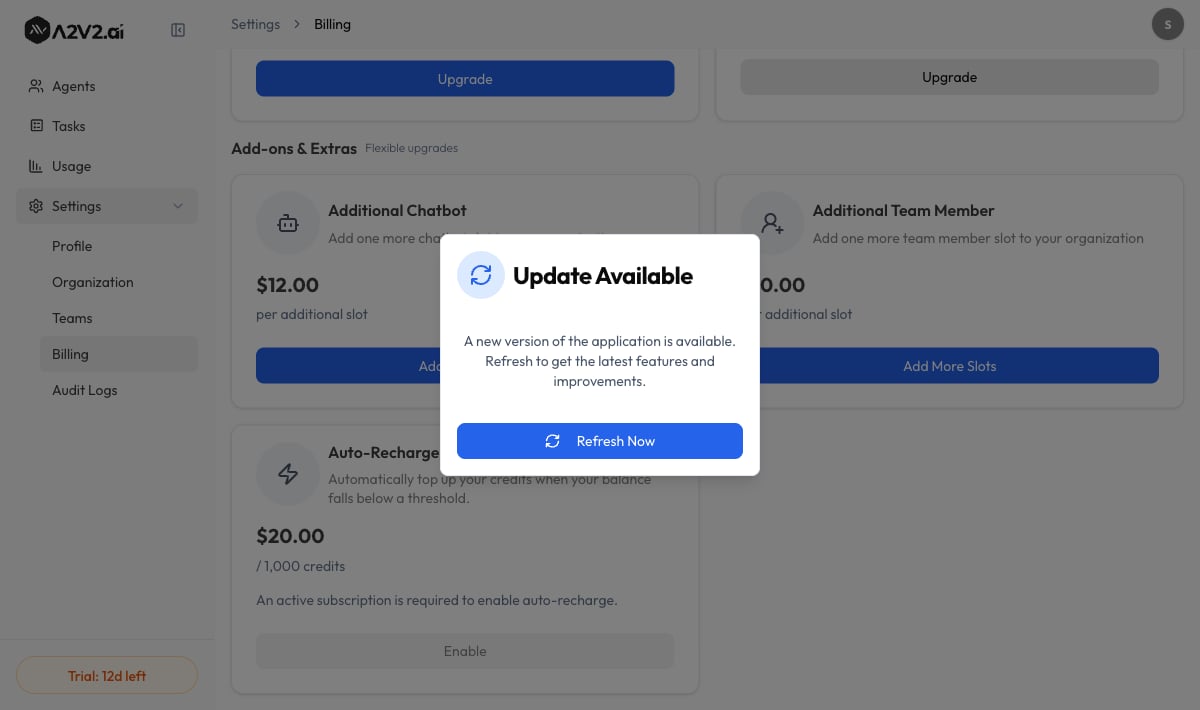
Find it under **Billing** in your organization settings.
> **Auto-Recharge** — "Automatically top up your credits when your balance falls
> below a threshold."
## Prerequisites
* You must be the organization **Owner** — *"Only the organization owner can
manage auto-recharge."*
* An **active subscription** — *"An active subscription is required to enable
auto-recharge."*
* A **payment method on file** — *"A payment method is required to enable
auto-recharge."* Add one via [Checkout & billing portal](/billing/checkout-and-portal).
## How it works
When an agent's activity drains your balance below the threshold, A2V2.ai charges
your saved payment method for a fixed top-up and adds the credits to your
**Top-up Credits** pool (which carries over and doesn't reset). These credits are
spent only after your monthly plan credits are used up.
| Setting | Value |
| --------------------------- | --------------------------------------------------------- |
| **Rate** | **\$20.00 per 1,000 credits** (fixed per top-up) |
| **Max recharges per month** | A cap you set, shown as *"X/Y recharges used this month"* |
| **Last recharged** | The date of your most recent automatic top-up |
The monthly cap is your safety limit — once you hit it, auto-recharge stops for
the rest of the period even if the balance keeps dropping, so a runaway cost can't
happen.
 ## Turn on auto-recharge
Make sure you have an active subscription and a payment method first.
Set **Max recharges per month** to bound your maximum spend. You'll see a
confirmation: *"Auto-recharge settings updated."*
From now on, when your balance falls below the threshold, A2V2.ai tops up
automatically and shows *"Credits topped up successfully."*
## Top up manually
Don't want to wait for the threshold? Use **Top Up Now** to add credits
immediately at the same rate — useful right before a campaign or event you know
will be busy.
Pair auto-recharge with a manual **Top Up Now** before a known traffic spike
(a launch, webinar, or email blast). The manual top-up gives you a head start;
auto-recharge covers anything you didn't predict.
## When auto-recharge turns itself off
If several top-up payments fail in a row, A2V2.ai disables auto-recharge to avoid
repeatedly hitting a bad card:
> *"Auto-recharge was disabled after multiple failed payment attempts. Please
> update your payment method and re-enable."*
To recover, open [Checkout & billing portal](/billing/checkout-and-portal),
update your payment method, then re-enable auto-recharge.
Some card payments require an extra verification step from your bank. When that
happens, the credits are added as soon as the verification completes rather than
instantly.
## Troubleshooting
Check all three requirements: you're the **Owner**, you have an **active
subscription**, and a **payment method** is on file. The app tells you which
one is missing.
You may have reached your **Max recharges per month** cap, or a payment failed.
Check the "recharges used this month" count and your payment method.
Update your card in the [customer portal](/billing/checkout-and-portal), then
switch auto-recharge back on.
## Related
How the two credit pools work.
Add or update your payment method.
Pick the right monthly credit allowance.
Add capacity beyond credits.
## Turn on auto-recharge
Make sure you have an active subscription and a payment method first.
Set **Max recharges per month** to bound your maximum spend. You'll see a
confirmation: *"Auto-recharge settings updated."*
From now on, when your balance falls below the threshold, A2V2.ai tops up
automatically and shows *"Credits topped up successfully."*
## Top up manually
Don't want to wait for the threshold? Use **Top Up Now** to add credits
immediately at the same rate — useful right before a campaign or event you know
will be busy.
Pair auto-recharge with a manual **Top Up Now** before a known traffic spike
(a launch, webinar, or email blast). The manual top-up gives you a head start;
auto-recharge covers anything you didn't predict.
## When auto-recharge turns itself off
If several top-up payments fail in a row, A2V2.ai disables auto-recharge to avoid
repeatedly hitting a bad card:
> *"Auto-recharge was disabled after multiple failed payment attempts. Please
> update your payment method and re-enable."*
To recover, open [Checkout & billing portal](/billing/checkout-and-portal),
update your payment method, then re-enable auto-recharge.
Some card payments require an extra verification step from your bank. When that
happens, the credits are added as soon as the verification completes rather than
instantly.
## Troubleshooting
Check all three requirements: you're the **Owner**, you have an **active
subscription**, and a **payment method** is on file. The app tells you which
one is missing.
You may have reached your **Max recharges per month** cap, or a payment failed.
Check the "recharges used this month" count and your payment method.
Update your card in the [customer portal](/billing/checkout-and-portal), then
switch auto-recharge back on.
## Related
How the two credit pools work.
Add or update your payment method.
Pick the right monthly credit allowance.
Add capacity beyond credits.