> ## Documentation Index
> Fetch the complete documentation index at: https://docs.a2v2.ai/llms.txt
> Use this file to discover all available pages before exploring further.
# Checkout & Billing Portal
> Subscribe securely through Stripe checkout, then manage your payment method, invoices, and billing details in the customer portal.
When you pick a plan, you don't type your card number into A2V2.ai. Payments run
through **Stripe** — the same checkout trusted by millions of businesses — so your
card details are handled by Stripe, never stored by us. This page covers
subscribing through checkout and managing everything afterward in the billing
portal.
You'll find both under **Billing** in your organization settings.
## Prerequisites
* You must be the organization **Owner** to subscribe or change billing.
* Choose a plan first — see [Plans](/billing/plans).
## Subscribe through Stripe checkout
On **Billing → Plans**, select the plan you want (or an
[add-on](/billing/add-ons)).
A2V2.ai shows **"Redirecting to checkout…"** and hands you off to Stripe's
secure, hosted checkout page.
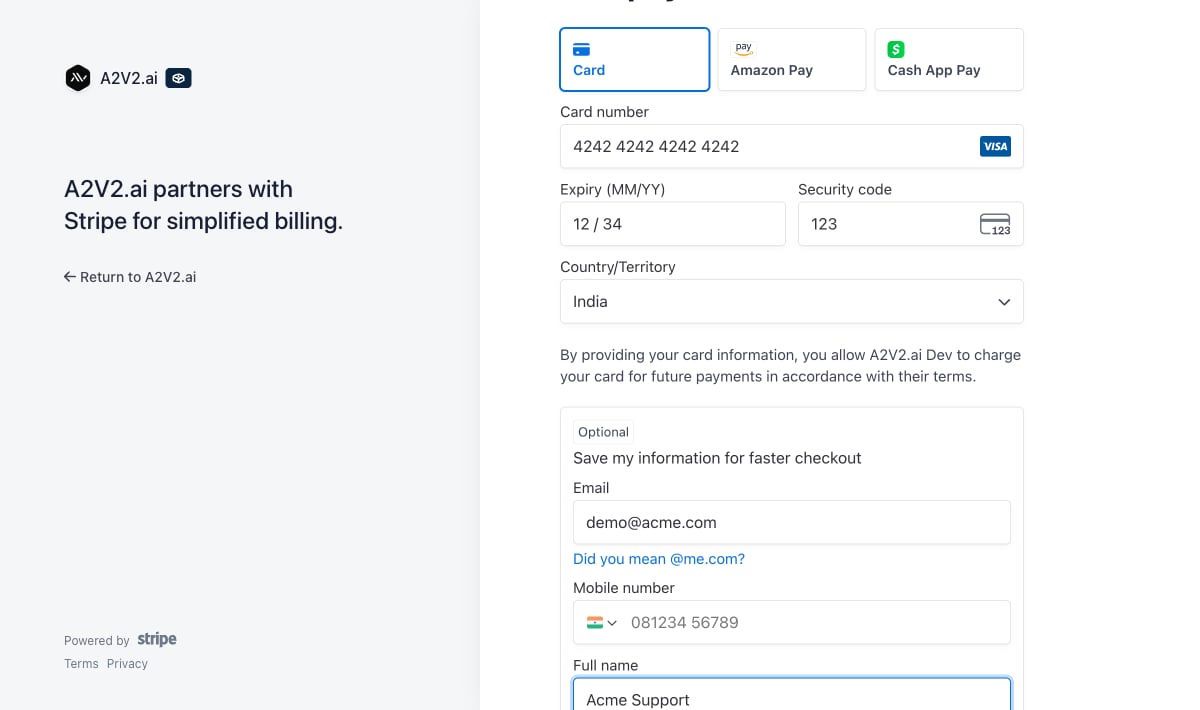 Fill in your card and billing information on Stripe. If you have a promotion
code, you can enter it here.
After payment, Stripe returns you to your billing settings, and your new plan
and credit allowance activate. If you cancel checkout, you come back to billing
with no charge and no change.
It can take a moment after payment for your plan and credits to update. Use
**Refresh Usage** on the Billing page if the new figures aren't showing yet.
## Manage billing in the customer portal
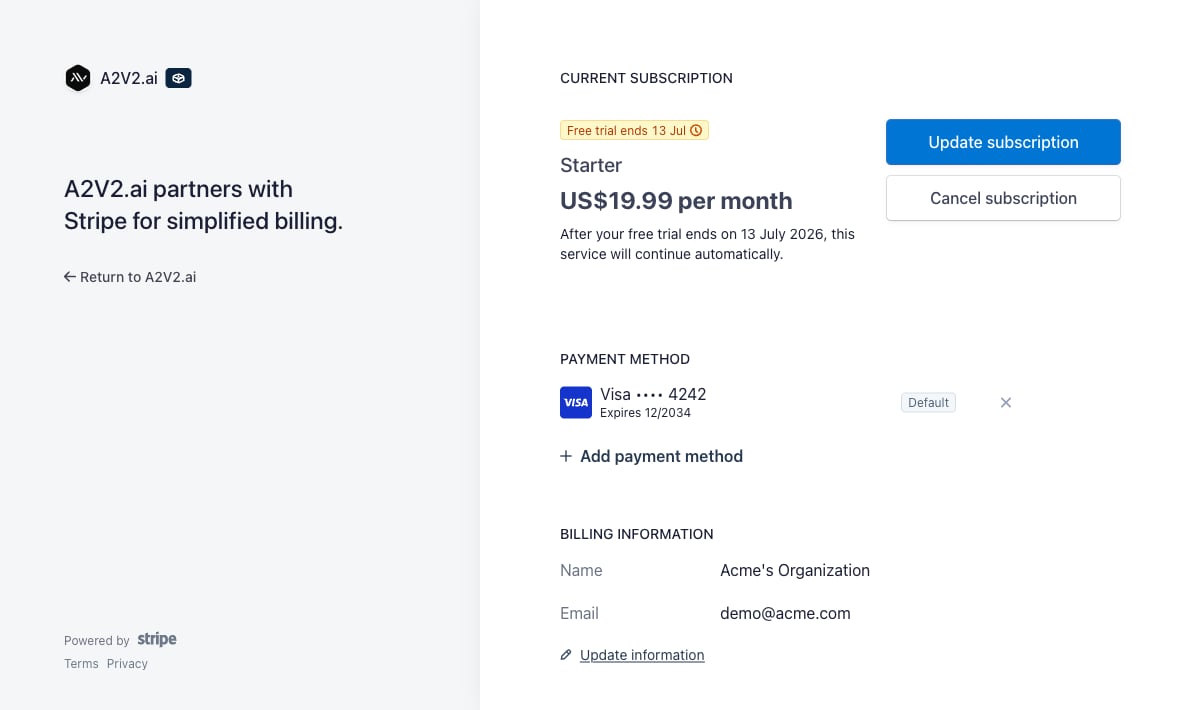
Once you have an active subscription, use the Stripe **customer portal** to manage
the financial side of your account. Open it with **Update Billing** (or **Update
Billing Details**) from your billing settings.
In the portal you can:
| Task | What it's for |
| ---------------------------- | ---------------------------------------------------- |
| **Update payment method** | Replace an expired or changed card. |
| **View invoices & receipts** | Download records for your accounting. |
| **Update billing details** | Change your billing email, address, or company name. |
| **Review your subscription** | See your current plan and renewal date. |
Fill in your card and billing information on Stripe. If you have a promotion
code, you can enter it here.
After payment, Stripe returns you to your billing settings, and your new plan
and credit allowance activate. If you cancel checkout, you come back to billing
with no charge and no change.
It can take a moment after payment for your plan and credits to update. Use
**Refresh Usage** on the Billing page if the new figures aren't showing yet.
## Manage billing in the customer portal
Once you have an active subscription, use the Stripe **customer portal** to manage
the financial side of your account. Open it with **Update Billing** (or **Update
Billing Details**) from your billing settings.
In the portal you can:
| Task | What it's for |
| ---------------------------- | ---------------------------------------------------- |
| **Update payment method** | Replace an expired or changed card. |
| **View invoices & receipts** | Download records for your accounting. |
| **Update billing details** | Change your billing email, address, or company name. |
| **Review your subscription** | See your current plan and renewal date. |
 Keep your payment method current. An expired card can cause a failed renewal —
which pauses paid features — and it will also disable
[auto-recharge](/billing/auto-recharge) after repeated failed attempts.
## Your renewal date
Your next renewal is shown on the Billing page as the **Next Billing Date**, with
a **days remaining** countdown. Your plan credits refill on that date, and your
subscription renews automatically until you change or cancel it.
## Troubleshooting
Return to the Billing page and select **Refresh Usage**. If your plan still
hasn't updated after a few minutes, contact
[support@a2v2.ai](mailto:support@a2v2.ai) with the email used at checkout.
Open the customer portal via **Update Billing** and add a working payment
method. Paid features resume once a successful payment goes through.
Only the organization **Owner** can manage subscriptions and payment details.
Enter it on the Stripe checkout page during a new subscription or upgrade.
## Related
Compare tiers before you subscribe.
Set up automatic credit top-ups.
Buy extra agents and seats.
Understand what your subscription powers.
Keep your payment method current. An expired card can cause a failed renewal —
which pauses paid features — and it will also disable
[auto-recharge](/billing/auto-recharge) after repeated failed attempts.
## Your renewal date
Your next renewal is shown on the Billing page as the **Next Billing Date**, with
a **days remaining** countdown. Your plan credits refill on that date, and your
subscription renews automatically until you change or cancel it.
## Troubleshooting
Return to the Billing page and select **Refresh Usage**. If your plan still
hasn't updated after a few minutes, contact
[support@a2v2.ai](mailto:support@a2v2.ai) with the email used at checkout.
Open the customer portal via **Update Billing** and add a working payment
method. Paid features resume once a successful payment goes through.
Only the organization **Owner** can manage subscriptions and payment details.
Enter it on the Stripe checkout page during a new subscription or upgrade.
## Related
Compare tiers before you subscribe.
Set up automatic credit top-ups.
Buy extra agents and seats.
Understand what your subscription powers.