> ## Documentation Index
> Fetch the complete documentation index at: https://docs.a2v2.ai/llms.txt
> Use this file to discover all available pages before exploring further.
# Tools
> Give your agent built-in actions — look up a contact, escalate to a human, read an attached file — so it can do more than answer questions.
A visitor asks your agent, "Did my order ship?" Answering from your knowledge base
only gets you so far — to really help, the agent needs to *do* something: look the
person up, check what's on file, or hand the conversation to a teammate. That's what
**Tools** are for.
Where your [knowledge base](/knowledge-base/overview) supplies facts to retrieve and
[Skills](/building/skills) give the agent structured reasoning, **Tools** give it
*actions* — built-in functions it can call mid-conversation to fetch live data or
make something happen.
Open **Expertise → Tools** from the agent sidebar.
## Prerequisites
* An agent (see [Create an agent](/building/create-agent)).
* For CRM tools to be useful, your [CRM](/crm/overview) should be set up so there are
contacts and fields to act on.
## How tools work
During a conversation, the agent decides — based on the question and your
[instructions](/building/instructions) — whether a tool would help. If it does, the
agent calls the tool, reads the result, and folds it into its answer. The visitor
just sees a natural reply; behind the scenes the agent may have looked up their
record or fetched the current date.
When a tool runs, the chat shows a brief **Tools used** indicator so it's clear the
agent took an action rather than guessing. You can also see which tools ran for any
message in [Conversation history](/conversations/history).
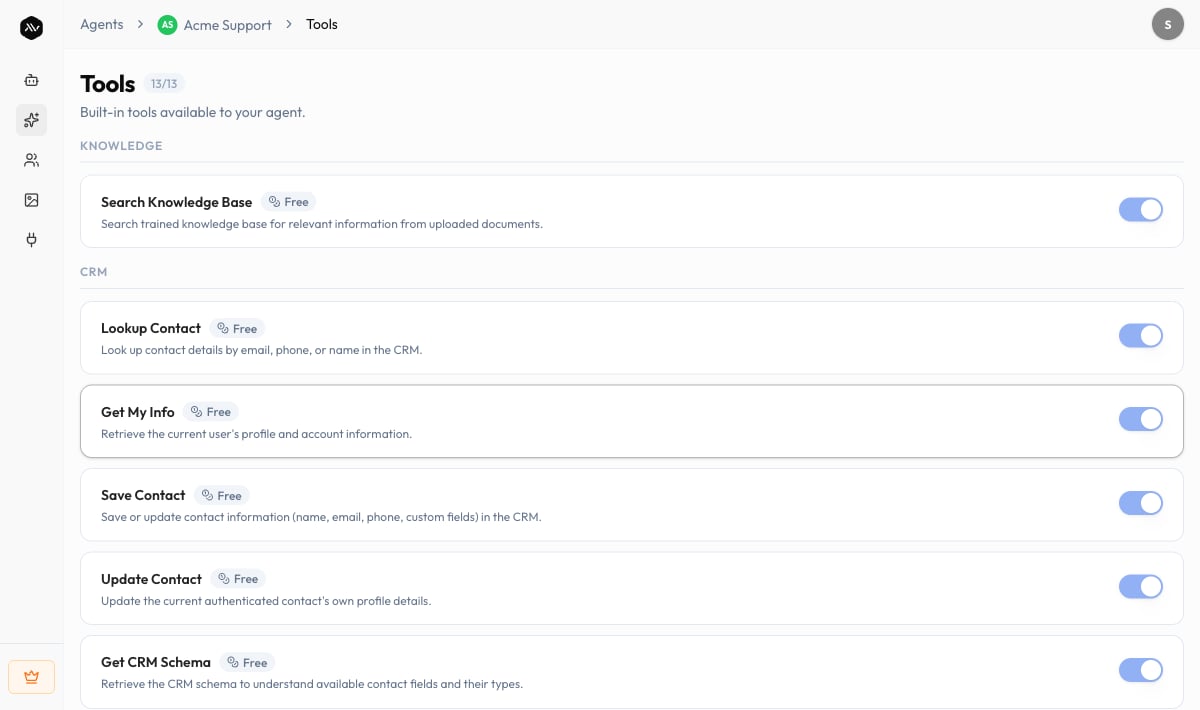
The **Tools** screen lists the tools available to your agent, grouped by category,
with a count of how many are enabled (for example, **6/9**). Each tool shows its
name, a short description of what it does, and its credit cost per use.
 The exact set of tools available to an agent depends on the agent and may expand
over time. Use the live **Tools** screen as the source of truth for what your agent
can do today.
## Tool categories
Tools are organized into categories so you can see at a glance what kind of action
each one performs.
| Category | What these tools do |
| ------------- | -------------------------------------------------------------------------------------------------------------------------- |
| **Knowledge** | Search your trained [knowledge base](/knowledge-base/overview) for relevant information. |
| **CRM** | Read and write [contact](/crm/contacts) records — look someone up, save or update their details, check whether they exist. |
| **Utility** | General helpers — get the current date and time, read a file the visitor attached, or hand off to a person. |
| **External** | Reach systems outside A2V2.ai. |
| **Memory** | Help the agent recall context across a conversation. |
## Common built-in tools
These are representative built-in tools and their per-use credit cost. Most are
**Free**; a few that trigger an outside action (such as sending a verification email)
cost credits. Your live list may differ.
| Tool | Category | What it does | Credits per use |
| --------------------------------- | --------- | ---------------------------------------------------------------------- | --------------- |
| **Search Knowledge Base** | Knowledge | Searches your trained sources for relevant information. | Free |
| **Lookup Contact** | CRM | Finds a contact by email, phone, or name. | Free |
| **Check Contact Exists** | CRM | Checks whether a contact is already in your CRM. | Free |
| **Save Contact** | CRM | Saves or updates a contact's details, including custom fields. | Free |
| **Update Contact** | CRM | Updates the signed-in contact's own profile details. | Free |
| **Request Identity Verification** | CRM | Emails a verification code to confirm the visitor's identity mid-chat. | 1 |
| **Get Current Date & Time** | Utility | Provides the current date and time for time-sensitive questions. | Free |
| **View Attached File** | Utility | Reads a file the visitor attached so the agent can answer about it. | Free |
| **Escalate to Human** | Utility | Hands the conversation to a person when the agent can't help further. | Free |
Tool runs are billed in **credits**, the same currency as messages. Most tools are
free to run; the ones that cost credits charge per execution. See
[Credits explained](/billing/credits-explained) for how credits work.
## Tools vs. Skills — which do I use?
They solve different problems and work well together.
| | **Tools** | **Skills** |
| ----------------- | ------------------------------------------------------------------ | ------------------------------------------------------------------------ |
| **Purpose** | *Do* something — call a function, fetch live data, take an action. | *Reason* through a complex, multi-step task in a consistent way. |
| **Example** | Look up a contact; escalate to a human; read an attached file. | Walk through refund eligibility; analyze a report step by step. |
| **You configure** | Which built-in tools the agent can use. | The procedure: when to use it, the knowledge, the steps, the guardrails. |
| **Set up in** | **Expertise → Tools** | **Expertise → Skills** ([guide](/building/skills)) |
A good mental model: a **Skill** is the *plan* for handling a task, and **Tools** are
the *actions* the agent can take while carrying it out.
## Tips
* Reach for the **CRM** tools when you want the agent to recognize returning visitors
or capture leads during a chat — pair them with your
[contact fields](/crm/custom-fields).
* Keep **Escalate to Human** in mind for support agents: it's a graceful fallback when
a question is outside what the agent can answer.
* After enabling tools, try a realistic question in the [Sandbox](/testing/sandbox)
and watch the **Tools used** indicator to confirm the agent calls the right one.
## Troubleshooting
Make sure the tool is enabled on the **Tools** screen, and that your
[instructions](/building/instructions) don't tell the agent to avoid that action.
The agent only calls a tool when the question clearly calls for it — test with a
direct, relevant question in the [Sandbox](/testing/sandbox).
CRM tools act on your [contacts](/crm/contacts). If your CRM is empty or the
contact's details don't match what the visitor provided, there's nothing to find.
Confirm the contact exists and that the relevant
[fields](/crm/custom-fields) are filled in.
The **External** category covers actions that reach systems outside A2V2.ai. If
you need an integration that isn't listed on your **Tools** screen, contact us at
[support@a2v2.ai](mailto:support@a2v2.ai) so we can advise on what's available.
## Related
Author structured reasoning for complex, multi-step tasks.
Give the agent facts to retrieve and cite.
Watch tools fire on real questions before you publish.
See how tool runs and messages consume credits.
The exact set of tools available to an agent depends on the agent and may expand
over time. Use the live **Tools** screen as the source of truth for what your agent
can do today.
## Tool categories
Tools are organized into categories so you can see at a glance what kind of action
each one performs.
| Category | What these tools do |
| ------------- | -------------------------------------------------------------------------------------------------------------------------- |
| **Knowledge** | Search your trained [knowledge base](/knowledge-base/overview) for relevant information. |
| **CRM** | Read and write [contact](/crm/contacts) records — look someone up, save or update their details, check whether they exist. |
| **Utility** | General helpers — get the current date and time, read a file the visitor attached, or hand off to a person. |
| **External** | Reach systems outside A2V2.ai. |
| **Memory** | Help the agent recall context across a conversation. |
## Common built-in tools
These are representative built-in tools and their per-use credit cost. Most are
**Free**; a few that trigger an outside action (such as sending a verification email)
cost credits. Your live list may differ.
| Tool | Category | What it does | Credits per use |
| --------------------------------- | --------- | ---------------------------------------------------------------------- | --------------- |
| **Search Knowledge Base** | Knowledge | Searches your trained sources for relevant information. | Free |
| **Lookup Contact** | CRM | Finds a contact by email, phone, or name. | Free |
| **Check Contact Exists** | CRM | Checks whether a contact is already in your CRM. | Free |
| **Save Contact** | CRM | Saves or updates a contact's details, including custom fields. | Free |
| **Update Contact** | CRM | Updates the signed-in contact's own profile details. | Free |
| **Request Identity Verification** | CRM | Emails a verification code to confirm the visitor's identity mid-chat. | 1 |
| **Get Current Date & Time** | Utility | Provides the current date and time for time-sensitive questions. | Free |
| **View Attached File** | Utility | Reads a file the visitor attached so the agent can answer about it. | Free |
| **Escalate to Human** | Utility | Hands the conversation to a person when the agent can't help further. | Free |
Tool runs are billed in **credits**, the same currency as messages. Most tools are
free to run; the ones that cost credits charge per execution. See
[Credits explained](/billing/credits-explained) for how credits work.
## Tools vs. Skills — which do I use?
They solve different problems and work well together.
| | **Tools** | **Skills** |
| ----------------- | ------------------------------------------------------------------ | ------------------------------------------------------------------------ |
| **Purpose** | *Do* something — call a function, fetch live data, take an action. | *Reason* through a complex, multi-step task in a consistent way. |
| **Example** | Look up a contact; escalate to a human; read an attached file. | Walk through refund eligibility; analyze a report step by step. |
| **You configure** | Which built-in tools the agent can use. | The procedure: when to use it, the knowledge, the steps, the guardrails. |
| **Set up in** | **Expertise → Tools** | **Expertise → Skills** ([guide](/building/skills)) |
A good mental model: a **Skill** is the *plan* for handling a task, and **Tools** are
the *actions* the agent can take while carrying it out.
## Tips
* Reach for the **CRM** tools when you want the agent to recognize returning visitors
or capture leads during a chat — pair them with your
[contact fields](/crm/custom-fields).
* Keep **Escalate to Human** in mind for support agents: it's a graceful fallback when
a question is outside what the agent can answer.
* After enabling tools, try a realistic question in the [Sandbox](/testing/sandbox)
and watch the **Tools used** indicator to confirm the agent calls the right one.
## Troubleshooting
Make sure the tool is enabled on the **Tools** screen, and that your
[instructions](/building/instructions) don't tell the agent to avoid that action.
The agent only calls a tool when the question clearly calls for it — test with a
direct, relevant question in the [Sandbox](/testing/sandbox).
CRM tools act on your [contacts](/crm/contacts). If your CRM is empty or the
contact's details don't match what the visitor provided, there's nothing to find.
Confirm the contact exists and that the relevant
[fields](/crm/custom-fields) are filled in.
The **External** category covers actions that reach systems outside A2V2.ai. If
you need an integration that isn't listed on your **Tools** screen, contact us at
[support@a2v2.ai](mailto:support@a2v2.ai) so we can advise on what's available.
## Related
Author structured reasoning for complex, multi-step tasks.
Give the agent facts to retrieve and cite.
Watch tools fire on real questions before you publish.
See how tool runs and messages consume credits.