> ## Documentation Index
> Fetch the complete documentation index at: https://docs.a2v2.ai/llms.txt
> Use this file to discover all available pages before exploring further.
# Data Encryption
> Encrypt sensitive CRM fields and forms so their values are stored encrypted at rest — available on Medical Agents.
A clinic runs a Medical Agent that collects insurance IDs, policy holders, and
sensitive intake answers from patients. The information has to live in the CRM so the
team can act on it — but it shouldn't sit in the database as plain text. **Data
encryption** lets you mark specific CRM fields and forms so their values are stored
**encrypted at rest**.
This page explains what encryption does, what it deliberately doesn't do, and what
changes once you turn it on. To enable it, see [custom fields](/crm/custom-fields) and
[forms](/crm/forms).
## Available on Medical Agents
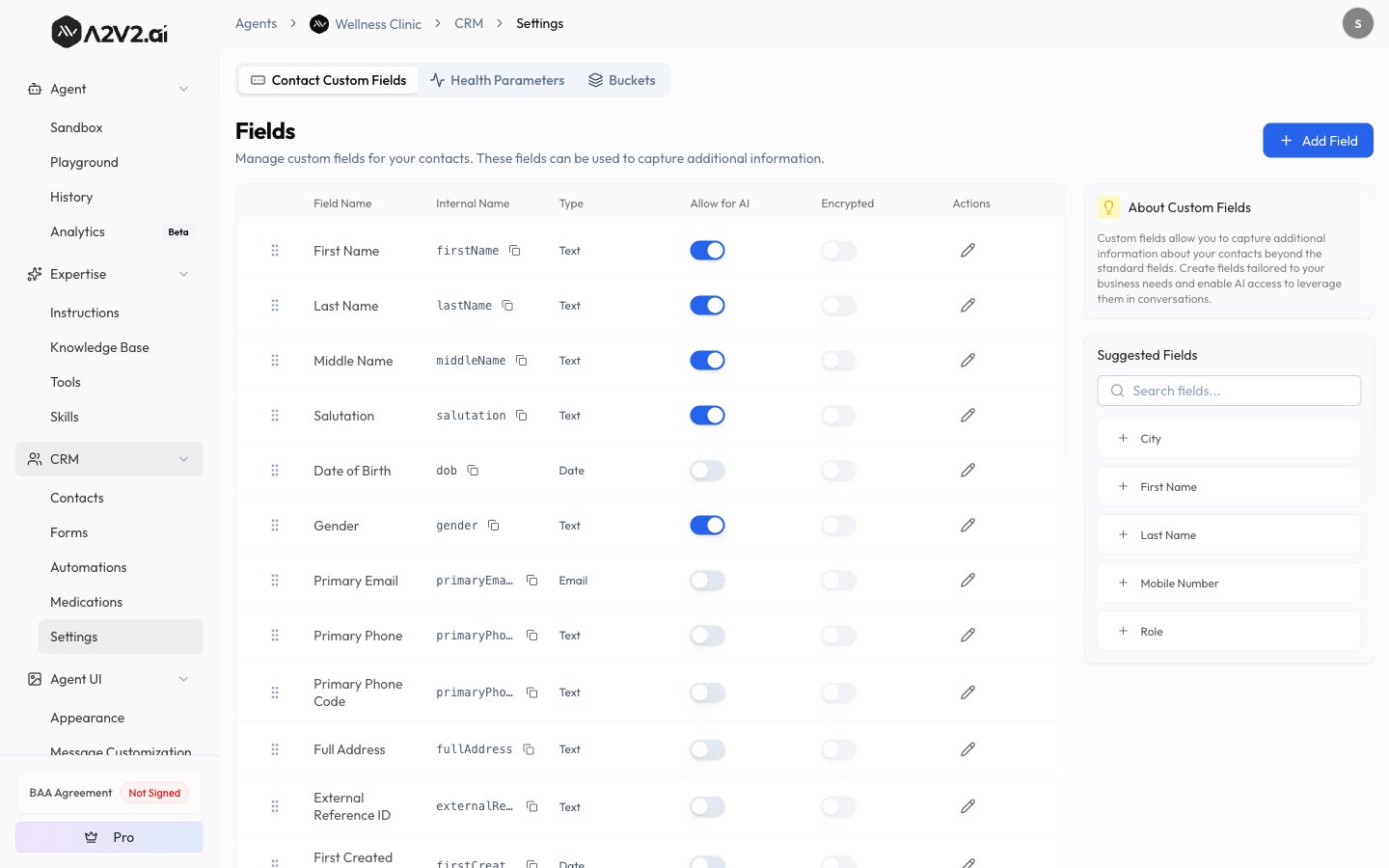
Encryption is a **Medical Agent** capability. The encryption controls — the
**Encrypted** column and **Encrypt this field** switch on the Fields screen, and the
**Encrypt form data** setting in the Form Builder — appear only on Medical Agents. On
other agent types you won't see these options.
An agent's type is set when you create it. If you need encryption on an agent that isn't
a Medical Agent, create a Medical Agent for that work rather than expecting the option
to appear on an existing general agent.
## What encryption does — and doesn't do
Encryption protects the **stored** copy of your data. It is not a way to hide values
from your own team or the agent.
* **It encrypts values at rest.** Encrypted values are stored as ciphertext in the
database instead of readable text, so the stored data isn't legible on its own.
* **Each agent has its own encryption key.** One agent's encrypted data can't be read
with another agent's key.
* **It is not access control.** When an authorized team member opens a contact or a
submission, the values are decrypted automatically and shown normally. Encryption
guards the data where it's stored — it doesn't change *who* can view it.
* **It is separate from "Allow for AI."** Turning on encryption for a field does not
hide that field from the agent. Whether the agent can read and capture a field is
still governed by its **Allow for AI** setting, independently of encryption. See
[custom fields](/crm/custom-fields#allow-for-ai).
If your goal is to keep a value away from people or the agent — rather than to protect
it at rest — use [roles](/settings/members-and-roles) to limit who can view a contact,
and leave **Allow for AI** off for fields the agent shouldn't use. Encryption and access
control solve different problems.
## Two things you can encrypt
Turn on **Encrypt this field** for an individual custom field. Its values are stored
encrypted on every contact.
Turn on **Encrypt form data** for a form. Every submission's data for that form is
stored encrypted.
Field encryption applies to **custom fields only** — the standard **Name**, **Email**,
and **Phone** fields can't be encrypted, and their toggle is disabled with the note
"Only custom fields can be encrypted."
 ## It's one-way
Encryption is deliberate and permanent — plan for it before you turn it on.
Encryption **can't be turned off** once enabled, for either a field or a form. When you
enable it, A2V2.ai asks you to confirm ("Enable Field Encryption" for a field, "Enable
Encryption" for a form). After you confirm, the toggle is locked on and shows
"Encryption is enabled and cannot be turned off." If you no longer need an encrypted
field, delete it and create a new one instead.
## What changes once it's on
| Concern | Behavior |
| ---------------------------- | ---------------------------------------------------------------------------------------------------------------------------------------- |
| **Storage** | Values are stored encrypted at rest instead of as plain text. |
| **Viewing in the dashboard** | No change for your team — values are decrypted automatically and shown normally when you open the contact or submission. |
| **Agent access** | Unchanged and independent of encryption — governed by **Allow for AI** on the field. Encryption does not hide a field from the agent. |
| **New vs. existing values** | Applies **going forward**. Values saved after you enable encryption are encrypted; values already stored aren't retroactively encrypted. |
## Working with regulated health data
Encryption is one piece of handling sensitive data, not a compliance certification on
its own. If you're building a healthcare workflow, it usually pairs with a
[HIPAA-eligible model](/concepts/data-privacy-and-isolation#hipaa-eligible-models) and
the right agreements in place for your organization.
Enabling encryption does not by itself make your use case HIPAA-compliant. Handling
regulated health data also depends on model choice, the right agreements, and correct
configuration for your organization. If you're building for a healthcare use case, talk
to us at [support@a2v2.ai](mailto:support@a2v2.ai) before going live so we can confirm
the right setup.
## Troubleshooting
Encryption controls appear on **Medical Agents** only. On other agent types the
**Encrypted** column, the **Encrypt this field** switch, and **Encrypt form data**
won't show. Create a Medical Agent for work that needs encryption.
Only **custom fields** can be encrypted. The standard Name, Email, and Phone fields
show the switch disabled with "Only custom fields can be encrypted." Add a custom
field for the value you want to protect.
That's expected — encryption is one-way. Once enabled for a field or form it can't be
disabled. If you no longer need an encrypted field, delete it and create a new,
unencrypted one.
That's expected. Encryption protects data at rest; it isn't access control.
Authorized team members see decrypted values when they open a contact. To limit who
can view a contact, use [roles](/settings/members-and-roles).
## Related
Add and encrypt the custom fields your agent collects.
Build forms and encrypt their submission data.
How A2V2.ai keeps each organization's and agent's data separate and private.
Control who on your team can view and manage contacts.
## It's one-way
Encryption is deliberate and permanent — plan for it before you turn it on.
Encryption **can't be turned off** once enabled, for either a field or a form. When you
enable it, A2V2.ai asks you to confirm ("Enable Field Encryption" for a field, "Enable
Encryption" for a form). After you confirm, the toggle is locked on and shows
"Encryption is enabled and cannot be turned off." If you no longer need an encrypted
field, delete it and create a new one instead.
## What changes once it's on
| Concern | Behavior |
| ---------------------------- | ---------------------------------------------------------------------------------------------------------------------------------------- |
| **Storage** | Values are stored encrypted at rest instead of as plain text. |
| **Viewing in the dashboard** | No change for your team — values are decrypted automatically and shown normally when you open the contact or submission. |
| **Agent access** | Unchanged and independent of encryption — governed by **Allow for AI** on the field. Encryption does not hide a field from the agent. |
| **New vs. existing values** | Applies **going forward**. Values saved after you enable encryption are encrypted; values already stored aren't retroactively encrypted. |
## Working with regulated health data
Encryption is one piece of handling sensitive data, not a compliance certification on
its own. If you're building a healthcare workflow, it usually pairs with a
[HIPAA-eligible model](/concepts/data-privacy-and-isolation#hipaa-eligible-models) and
the right agreements in place for your organization.
Enabling encryption does not by itself make your use case HIPAA-compliant. Handling
regulated health data also depends on model choice, the right agreements, and correct
configuration for your organization. If you're building for a healthcare use case, talk
to us at [support@a2v2.ai](mailto:support@a2v2.ai) before going live so we can confirm
the right setup.
## Troubleshooting
Encryption controls appear on **Medical Agents** only. On other agent types the
**Encrypted** column, the **Encrypt this field** switch, and **Encrypt form data**
won't show. Create a Medical Agent for work that needs encryption.
Only **custom fields** can be encrypted. The standard Name, Email, and Phone fields
show the switch disabled with "Only custom fields can be encrypted." Add a custom
field for the value you want to protect.
That's expected — encryption is one-way. Once enabled for a field or form it can't be
disabled. If you no longer need an encrypted field, delete it and create a new,
unencrypted one.
That's expected. Encryption protects data at rest; it isn't access control.
Authorized team members see decrypted values when they open a contact. To limit who
can view a contact, use [roles](/settings/members-and-roles).
## Related
Add and encrypt the custom fields your agent collects.
Build forms and encrypt their submission data.
How A2V2.ai keeps each organization's and agent's data separate and private.
Control who on your team can view and manage contacts.