> ## Documentation Index
> Fetch the complete documentation index at: https://docs.a2v2.ai/llms.txt
> Use this file to discover all available pages before exploring further.
# Custom Fields
> Capture the information that matters to your business — and let your agent fill it in during conversations.
Every contact comes with a name, email, and phone number. But your business probably
cares about more: which plan they're on, the city they're in, their company size, a
booking reference. **Custom fields** let you add exactly those, and — just as
important — let your agent collect them automatically while it chats.
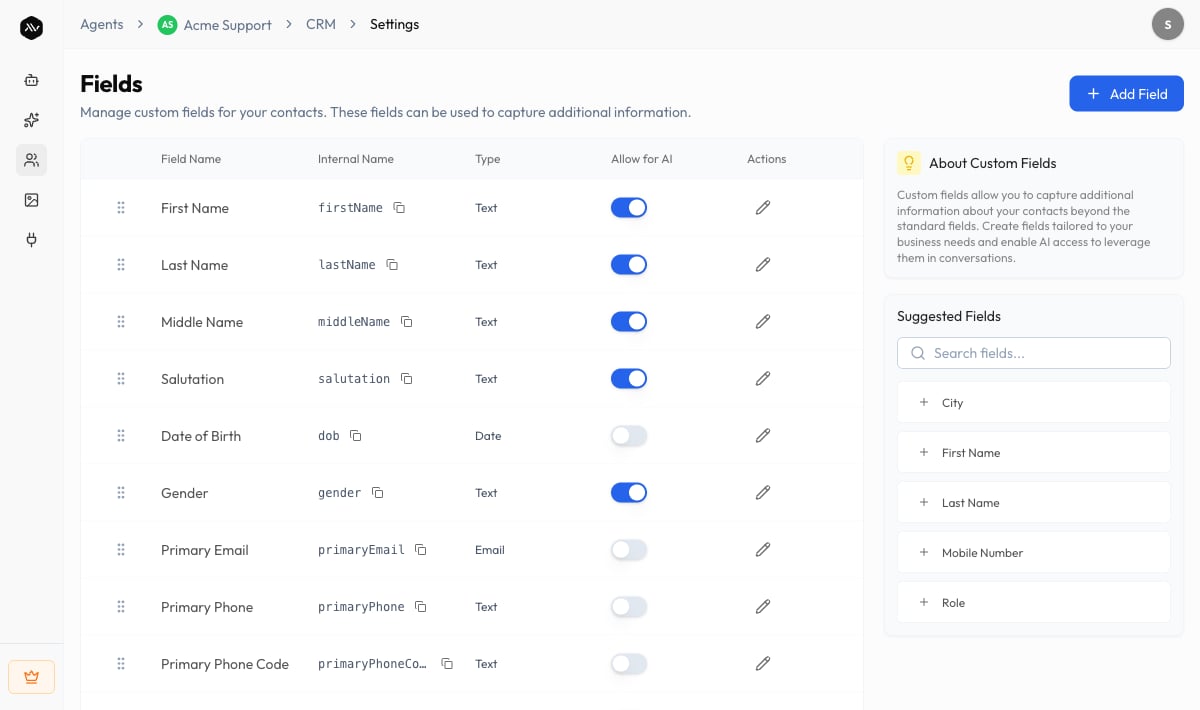
Open your agent and choose **CRM → Settings** in the sidebar to manage fields. The page
is titled **Fields**, with the subtitle "Manage custom fields for your contacts. These
fields can be used to capture additional information."
The Fields screen is **desktop only**. On a small screen you'll see a "Desktop Only"
message asking you to switch to a larger display.
## Prerequisites
* An agent (see [Create an agent](/building/create-agent)).
* A team member with access to the agent's CRM.
## Add a field
Go to **CRM → Settings** and select **Add Field**. With none yet, the page reads "No
custom fields yet."
 In the **Add Field** dialog, enter a **Field Name** (up to 50 characters) and an
optional **Description**.
Choose a **Field Type** (see the table below). Depending on the type, you'll set
extra options — a **Max Length** for text, **Min Value** / **Max Value** for numbers,
or **Options (one per line)** for dropdowns and radio buttons. You can also set a
**Default Value**.
In the **Add Field** dialog, enter a **Field Name** (up to 50 characters) and an
optional **Description**.
Choose a **Field Type** (see the table below). Depending on the type, you'll set
extra options — a **Max Length** for text, **Min Value** / **Max Value** for numbers,
or **Options (one per line)** for dropdowns and radio buttons. You can also set a
**Default Value**.
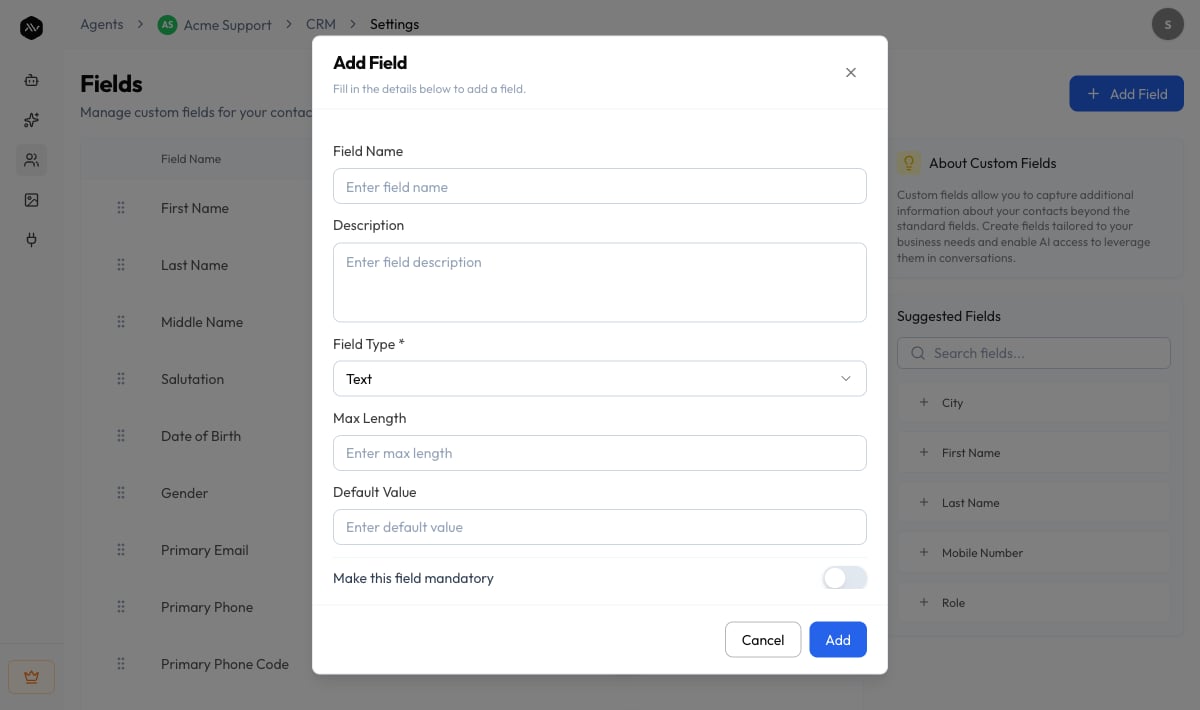 Optionally turn on **Make this field mandatory** and **Allow this field for AI**
(see below). Save the field.
Prefer a head start? The Fields panel offers **Suggested Fields** like **City**,
**First Name**, **Last Name**, **Mobile Number**, and **Role** — add one with a click.
## Field types
| Type | Use it for |
| ---------------- | --------------------------------------------------- |
| **Text** | Short free text (a reference, a label) |
| **Text Area** | Longer free text (a description, an address) |
| **Email** | An email address, validated as you type |
| **Number** | Numeric values, with optional min and max |
| **Date** | A calendar date |
| **Checkbox** | A yes/no or true/false value |
| **Radio Button** | One choice from a fixed list |
| **Dropdown** | One choice from a fixed list, in a compact selector |
## What the columns mean
On the Fields table you'll see:
| Column | What it shows |
| ----------------- | ----------------------------------------------------- |
| **Field Name** | The label you gave the field |
| **Internal Name** | The system name used in the API and integrations |
| **Type** | The field type from the table above |
| **Allow for AI** | Whether the agent can use this field in conversations |
| **Encrypted** | Whether values are encrypted at rest |
You can also **copy a field's ID**, **edit** it, **delete** it, or **reorder** fields by
dragging — the order here is the order they appear on the contact form.
## Allow for AI
This is what makes custom fields powerful. When **Allow for AI** is on, your agent can
read and **capture** that field during a conversation — so if a visitor mentions their
city or company, the agent records it on their contact automatically. Fields with AI
access turned off are still useful for your team to fill in manually, but the agent
won't touch them.
Turn on **Allow for AI** for the few fields you most want from every lead (company,
city, the product they're interested in). Keep it off for sensitive or internal-only
fields you'd rather fill in yourself.
## Encrypted fields
For sensitive information, you can encrypt a custom field so its values are stored
encrypted at rest.
Encryption is **one-way to turn on**. Once you enable it for a field, "all values saved
going forward will be encrypted at rest and this toggle cannot be turned off." Only
custom fields can be encrypted — the standard Name, Email, and Phone fields can't.
Enable it deliberately.
## Use cases
* **Lead qualification** — add **Company**, **Team size**, and **Budget** fields with
**Allow for AI** on, and let the agent qualify leads as it talks to them.
* **Booking context** — capture a **Preferred date** or **Service** so follow-up is
faster.
* **Segmentation** — a **City** or **Plan** dropdown lets you sort and filter your
contacts later.
## Troubleshooting
Confirm the field has **Allow for AI** enabled. The agent only fills in fields that
are AI-enabled, and it needs the visitor to actually mention the information in chat.
That's expected. Once enabled, field encryption can't be disabled. If you no longer
need the field, delete it and create a new, unencrypted one.
Field management is available on desktop only. Open the agent on a larger screen to
add or edit fields.
## Related
See your custom fields in action on a contact record.
Build forms that collect structured information from contacts.
Auto-assign owners and stages to new contacts.
How the pieces of the CRM fit together.
Optionally turn on **Make this field mandatory** and **Allow this field for AI**
(see below). Save the field.
Prefer a head start? The Fields panel offers **Suggested Fields** like **City**,
**First Name**, **Last Name**, **Mobile Number**, and **Role** — add one with a click.
## Field types
| Type | Use it for |
| ---------------- | --------------------------------------------------- |
| **Text** | Short free text (a reference, a label) |
| **Text Area** | Longer free text (a description, an address) |
| **Email** | An email address, validated as you type |
| **Number** | Numeric values, with optional min and max |
| **Date** | A calendar date |
| **Checkbox** | A yes/no or true/false value |
| **Radio Button** | One choice from a fixed list |
| **Dropdown** | One choice from a fixed list, in a compact selector |
## What the columns mean
On the Fields table you'll see:
| Column | What it shows |
| ----------------- | ----------------------------------------------------- |
| **Field Name** | The label you gave the field |
| **Internal Name** | The system name used in the API and integrations |
| **Type** | The field type from the table above |
| **Allow for AI** | Whether the agent can use this field in conversations |
| **Encrypted** | Whether values are encrypted at rest |
You can also **copy a field's ID**, **edit** it, **delete** it, or **reorder** fields by
dragging — the order here is the order they appear on the contact form.
## Allow for AI
This is what makes custom fields powerful. When **Allow for AI** is on, your agent can
read and **capture** that field during a conversation — so if a visitor mentions their
city or company, the agent records it on their contact automatically. Fields with AI
access turned off are still useful for your team to fill in manually, but the agent
won't touch them.
Turn on **Allow for AI** for the few fields you most want from every lead (company,
city, the product they're interested in). Keep it off for sensitive or internal-only
fields you'd rather fill in yourself.
## Encrypted fields
For sensitive information, you can encrypt a custom field so its values are stored
encrypted at rest.
Encryption is **one-way to turn on**. Once you enable it for a field, "all values saved
going forward will be encrypted at rest and this toggle cannot be turned off." Only
custom fields can be encrypted — the standard Name, Email, and Phone fields can't.
Enable it deliberately.
## Use cases
* **Lead qualification** — add **Company**, **Team size**, and **Budget** fields with
**Allow for AI** on, and let the agent qualify leads as it talks to them.
* **Booking context** — capture a **Preferred date** or **Service** so follow-up is
faster.
* **Segmentation** — a **City** or **Plan** dropdown lets you sort and filter your
contacts later.
## Troubleshooting
Confirm the field has **Allow for AI** enabled. The agent only fills in fields that
are AI-enabled, and it needs the visitor to actually mention the information in chat.
That's expected. Once enabled, field encryption can't be disabled. If you no longer
need the field, delete it and create a new, unencrypted one.
Field management is available on desktop only. Open the agent on a larger screen to
add or edit fields.
## Related
See your custom fields in action on a contact record.
Build forms that collect structured information from contacts.
Auto-assign owners and stages to new contacts.
How the pieces of the CRM fit together.