> ## Documentation Index
> Fetch the complete documentation index at: https://docs.a2v2.ai/llms.txt
> Use this file to discover all available pages before exploring further.
# Appearance
> Style your agent's chat widget to match your brand — colors, avatar, and the chat bubble.
**Appearance** controls how your agent looks to visitors: its colors, avatar, and
the floating chat bubble. Set it so the widget feels like a native part of your
site.
Open **Agent UI → Appearance** from the agent sidebar.
## Prerequisites
* An agent (see [Create an agent](/building/create-agent)).
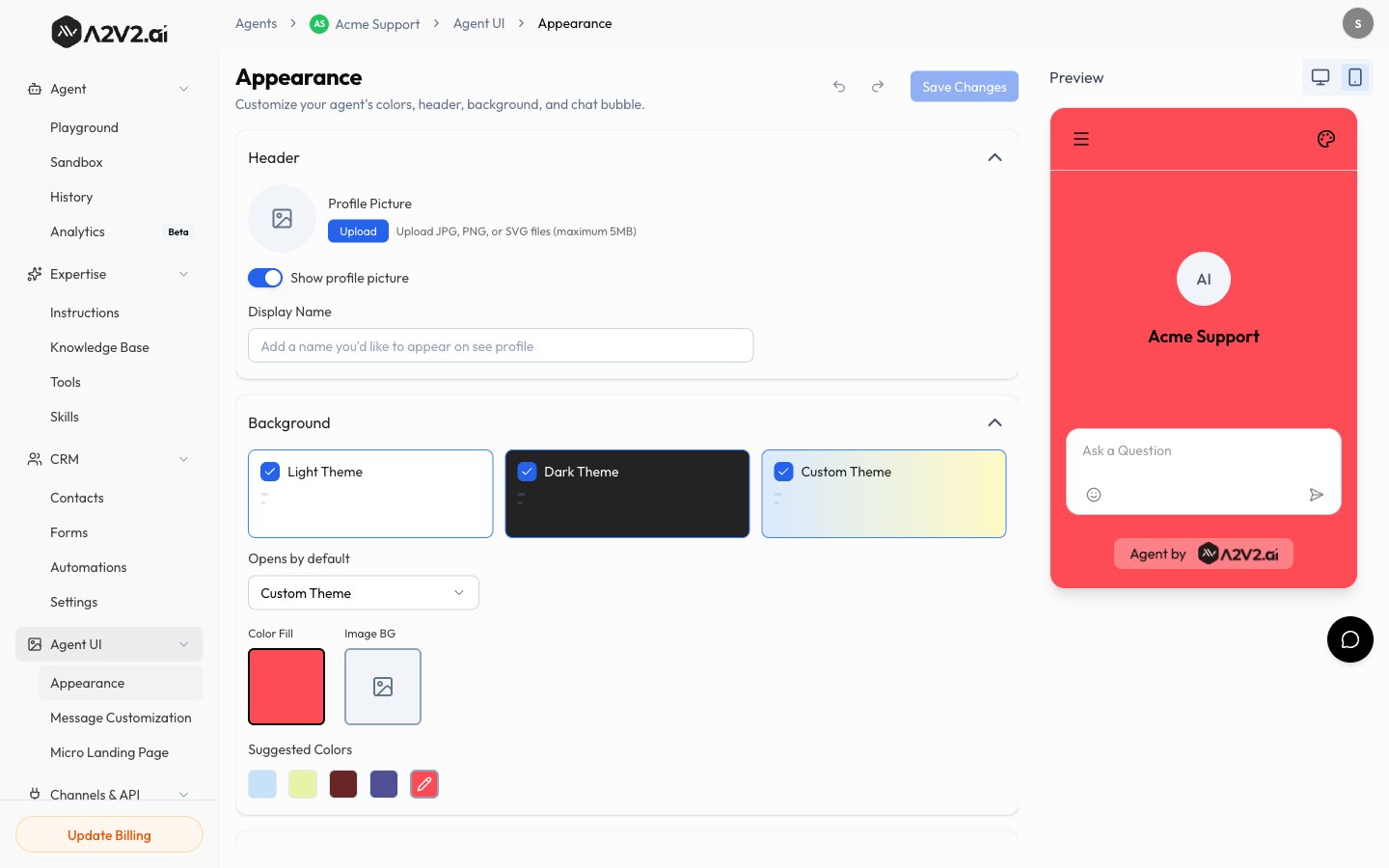
## Customize the look
In the agent sidebar, go to **Agent UI → Appearance**.
Choose colors for the widget so it matches your site's palette.
Upload an avatar or image to represent the agent in the chat.
Choose where the floating chat bubble sits (for example, the bottom-right
corner).
Save your changes and check the preview to see how the widget looks.
 ## Options reference
| Option | What it controls |
| ------------------------ | --------------------------------------------- |
| **Colors** | The widget's accent/brand colors. |
| **Avatar / image** | The picture shown for the agent in chat. |
| **Chat bubble position** | Where the floating launcher sits on the page. |
Appearance settings apply to the embedded widget and the hosted chat. After you
publish, your live widget reflects the saved appearance.
## Tips
* Match your **primary brand color** for a seamless look.
* Use a recognizable avatar (your logo or a friendly mascot) — it increases
engagement.
* Preview on both desktop and mobile widths before embedding.
## Related
## Options reference
| Option | What it controls |
| ------------------------ | --------------------------------------------- |
| **Colors** | The widget's accent/brand colors. |
| **Avatar / image** | The picture shown for the agent in chat. |
| **Chat bubble position** | Where the floating launcher sits on the page. |
Appearance settings apply to the embedded widget and the hosted chat. After you
publish, your live widget reflects the saved appearance.
## Tips
* Match your **primary brand color** for a seamless look.
* Use a recognizable avatar (your logo or a friendly mascot) — it increases
engagement.
* Preview on both desktop and mobile widths before embedding.
## Related