> ## Documentation Index
> Fetch the complete documentation index at: https://docs.a2v2.ai/llms.txt
> Use this file to discover all available pages before exploring further.
# Embed & Install
> Add your agent to any website as a floating chat bubble or an inline iframe.
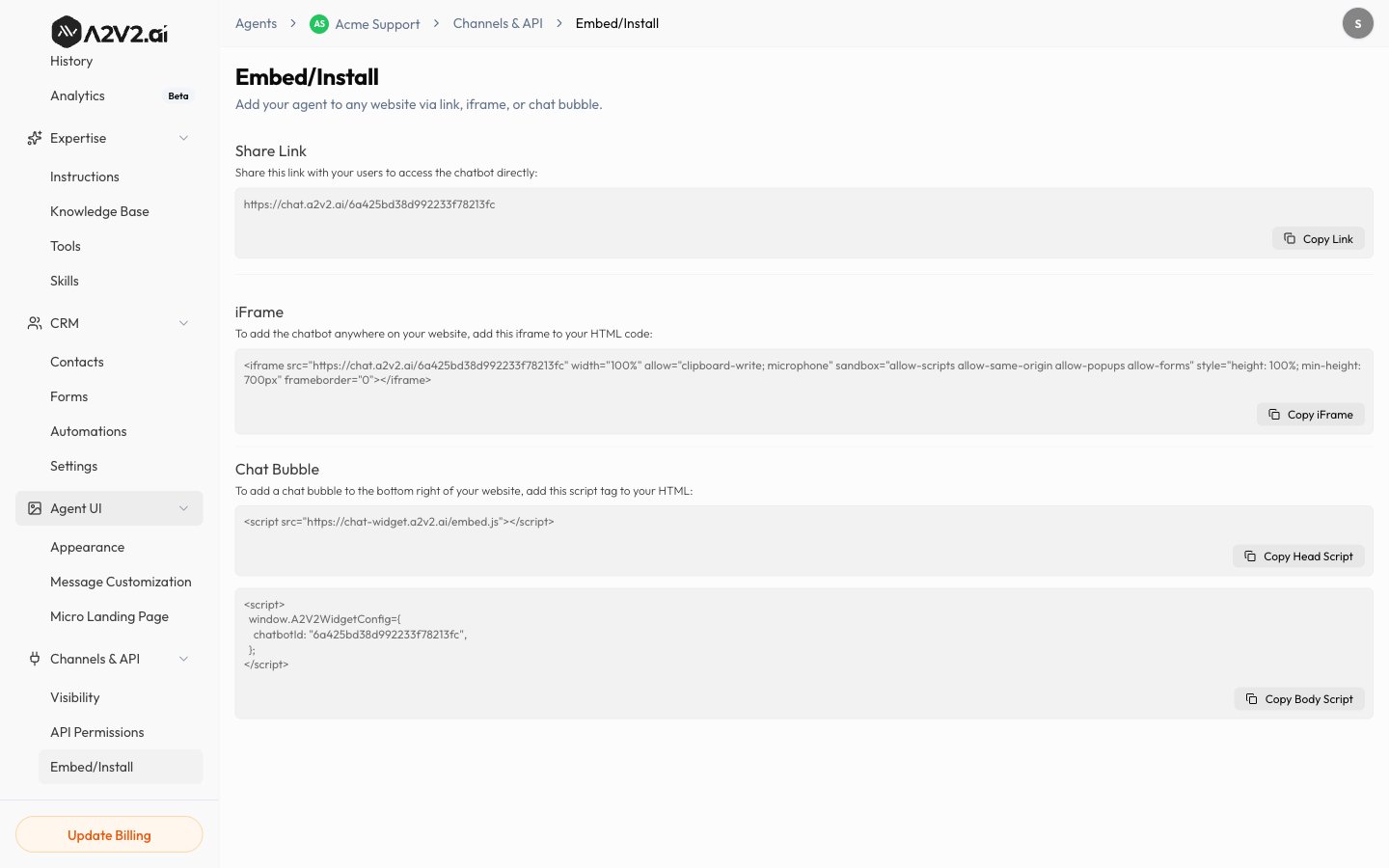
When your agent is ready, add it to any website via link, iframe, or chat bubble.
The **Embed/Install** screen gives you three ready-to-use options, each with the
snippet filled in for your agent.
Open **Channels & API → Embed/Install** from the agent sidebar.
 ## Prerequisites
* An agent that's tested and ready (see [Sandbox](/testing/sandbox)).
* Access to edit your website's HTML (for the iframe and chat bubble options).
In the snippets below, `` is filled in automatically for your agent —
copy the snippet directly from the **Embed/Install** screen rather than retyping
it.
## Option 1 — Share Link
The fastest way to share your agent: a hosted page you can send in an email, link
from a button, or post anywhere — no code required.
```text theme={null}
https://chat.a2v2.ai/
```
Anyone who opens the link chats with your agent on its own hosted page.
## Option 2 — Chat bubble (recommended)
A floating button in the corner of your site that opens the chat when clicked.
This option comes in two parts.
Paste this into your page's ``:
```html theme={null}
```
Paste this into your page's ``:
```html theme={null}
```
Publish your site and reload — the chat bubble appears. Add both snippets to
every page where you want the bubble.
The widget loads inside an isolated container (a Shadow DOM), so it won't clash
with your site's styles, and it won't be affected by them.
## Option 3 — Inline iframe
Embed the chat directly inside a page (for example, a dedicated "Help" page). Copy
the `
```
## Which should I use?
| Use the… | When you want… |
| ----------------- | ------------------------------------------------------ |
| **Share Link** | To send your agent as a link, with nothing to install. |
| **Chat bubble** | A site-wide assistant available on every page. |
| **Inline iframe** | The chat embedded into a specific page or layout. |
## Tips
* Add the **chat bubble** snippet to your global template/footer so it appears
everywhere at once.
* For platforms like WordPress, Webflow, or Shopify, paste the snippet into the
theme's "custom code" / "footer code" area.
* Re-test in the [Sandbox](/testing/sandbox) before embedding so visitors get the
final experience.
## Troubleshooting
Confirm the snippet is before ``, that `chatbotId` is present, and that
your site doesn't strip `
## Prerequisites
* An agent that's tested and ready (see [Sandbox](/testing/sandbox)).
* Access to edit your website's HTML (for the iframe and chat bubble options).
In the snippets below, `` is filled in automatically for your agent —
copy the snippet directly from the **Embed/Install** screen rather than retyping
it.
## Option 1 — Share Link
The fastest way to share your agent: a hosted page you can send in an email, link
from a button, or post anywhere — no code required.
```text theme={null}
https://chat.a2v2.ai/
```
Anyone who opens the link chats with your agent on its own hosted page.
## Option 2 — Chat bubble (recommended)
A floating button in the corner of your site that opens the chat when clicked.
This option comes in two parts.
Paste this into your page's ``:
```html theme={null}
```
Paste this into your page's ``:
```html theme={null}
```
Publish your site and reload — the chat bubble appears. Add both snippets to
every page where you want the bubble.
The widget loads inside an isolated container (a Shadow DOM), so it won't clash
with your site's styles, and it won't be affected by them.
## Option 3 — Inline iframe
Embed the chat directly inside a page (for example, a dedicated "Help" page). Copy
the `
```
## Which should I use?
| Use the… | When you want… |
| ----------------- | ------------------------------------------------------ |
| **Share Link** | To send your agent as a link, with nothing to install. |
| **Chat bubble** | A site-wide assistant available on every page. |
| **Inline iframe** | The chat embedded into a specific page or layout. |
## Tips
* Add the **chat bubble** snippet to your global template/footer so it appears
everywhere at once.
* For platforms like WordPress, Webflow, or Shopify, paste the snippet into the
theme's "custom code" / "footer code" area.
* Re-test in the [Sandbox](/testing/sandbox) before embedding so visitors get the
final experience.
## Troubleshooting
Confirm the snippet is before ``, that `chatbotId` is present, and that
your site doesn't strip `