> ## Documentation Index
> Fetch the complete documentation index at: https://docs.a2v2.ai/llms.txt
> Use this file to discover all available pages before exploring further.
# Upload Files
> Train your agent on PDF, DOCX, and TXT documents.
Uploading files is the most common way to train an agent. Use it for manuals,
policies, product guides, reports, and any document your team already has.
## Prerequisites
* An agent (see [Create an agent](/building/create-agent)).
* A supported file: **PDF**, **DOCX**, or **TXT**.
* Enough credits to process the document (large files cost more — see
[Credits](/concepts#credits)).
## Upload a file
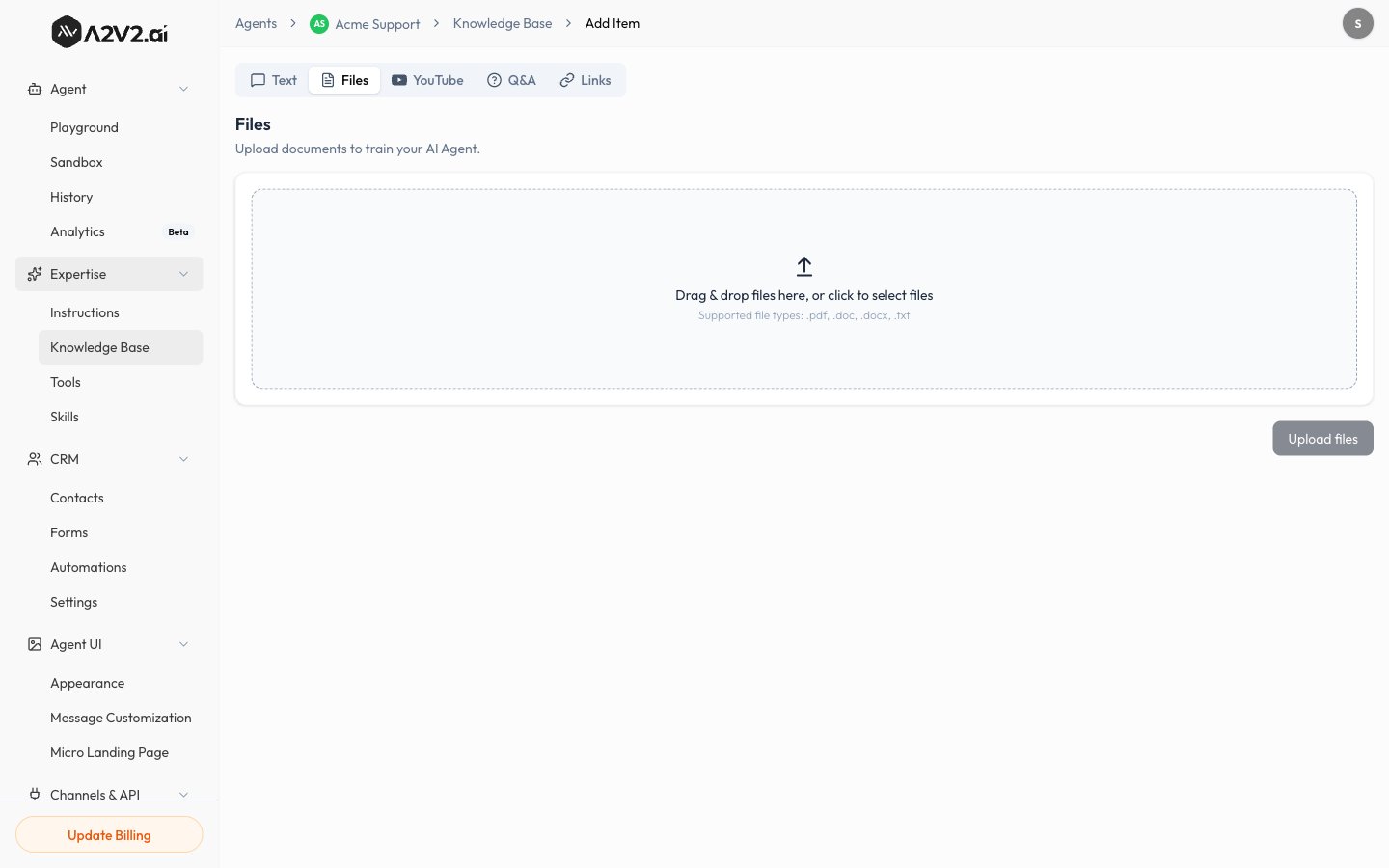
In the agent sidebar, go to **Expertise → Knowledge Base**.
Select **New Knowledge Item**, then open the **Files** tab.
Pick a PDF, DOCX, or TXT file from your computer. You can add more than one.
Confirm the upload. The source appears in your list with a **Processing**
status while it's indexed.
Once the status turns **Completed**, the document is live and your agent can
answer from it.
 ## Supported files & limits
| Item | Detail |
| ---------------- | --------------------------------------------------------------------- |
| **File types** | PDF, DOCX, TXT |
| **Best results** | Text-based files (selectable text), not scanned images |
| **Large files** | Process in the background; very large or image-heavy PDFs take longer |
| **Status** | Track from the source list — only **Completed** sources are used |
Scanned PDFs (images of text) extract less reliably than digital PDFs. If a
scanned document indexes poorly, convert it to text first or add the key points
as [Q\&A pairs](/knowledge-base/qa).
## Tips
* Give files descriptive names — they help you manage sources later.
* Split very large manuals into logical documents (e.g. one per chapter) so
retrieval stays precise.
* Re-upload or [reprocess](/knowledge-base/manage-sources#reprocess-a-source)
when the underlying document changes.
## Troubleshooting
Large or image-heavy files take longer. Give it a few minutes. If it stays
stuck or turns **Failed**, [reprocess the source](/knowledge-base/manage-sources#reprocess-a-source).
Confirm the source shows **Completed**. If it does, the content may not match
how the question is phrased — try adding a [Q\&A pair](/knowledge-base/qa) for
that question, or upload supporting material.
Check the file type (PDF, DOCX, TXT only) and that the file isn't corrupted.
Re-export it and try again.
## Related
## Supported files & limits
| Item | Detail |
| ---------------- | --------------------------------------------------------------------- |
| **File types** | PDF, DOCX, TXT |
| **Best results** | Text-based files (selectable text), not scanned images |
| **Large files** | Process in the background; very large or image-heavy PDFs take longer |
| **Status** | Track from the source list — only **Completed** sources are used |
Scanned PDFs (images of text) extract less reliably than digital PDFs. If a
scanned document indexes poorly, convert it to text first or add the key points
as [Q\&A pairs](/knowledge-base/qa).
## Tips
* Give files descriptive names — they help you manage sources later.
* Split very large manuals into logical documents (e.g. one per chapter) so
retrieval stays precise.
* Re-upload or [reprocess](/knowledge-base/manage-sources#reprocess-a-source)
when the underlying document changes.
## Troubleshooting
Large or image-heavy files take longer. Give it a few minutes. If it stays
stuck or turns **Failed**, [reprocess the source](/knowledge-base/manage-sources#reprocess-a-source).
Confirm the source shows **Completed**. If it does, the content may not match
how the question is phrased — try adding a [Q\&A pair](/knowledge-base/qa) for
that question, or upload supporting material.
Check the file type (PDF, DOCX, TXT only) and that the file isn't corrupted.
Re-export it and try again.
## Related