> ## Documentation Index
> Fetch the complete documentation index at: https://docs.a2v2.ai/llms.txt
> Use this file to discover all available pages before exploring further.
# Health Buckets
> Group health parameters into named medical domains — like Cardiology or Blood Work — so a provider sees a rolled-up Health Score and Risk Score per area on a patient's Health tab.
A cardiologist doesn't want to scroll 40 lab values to judge a patient's heart health —
they want one glance that says "Cardiology: strong, low risk." **Buckets** make that
possible. A bucket is a named group of health parameters that rolls up into a **Health
Score** and **Risk Score** card on the patient's Health tab, so related measurements read
as a single, scannable status.
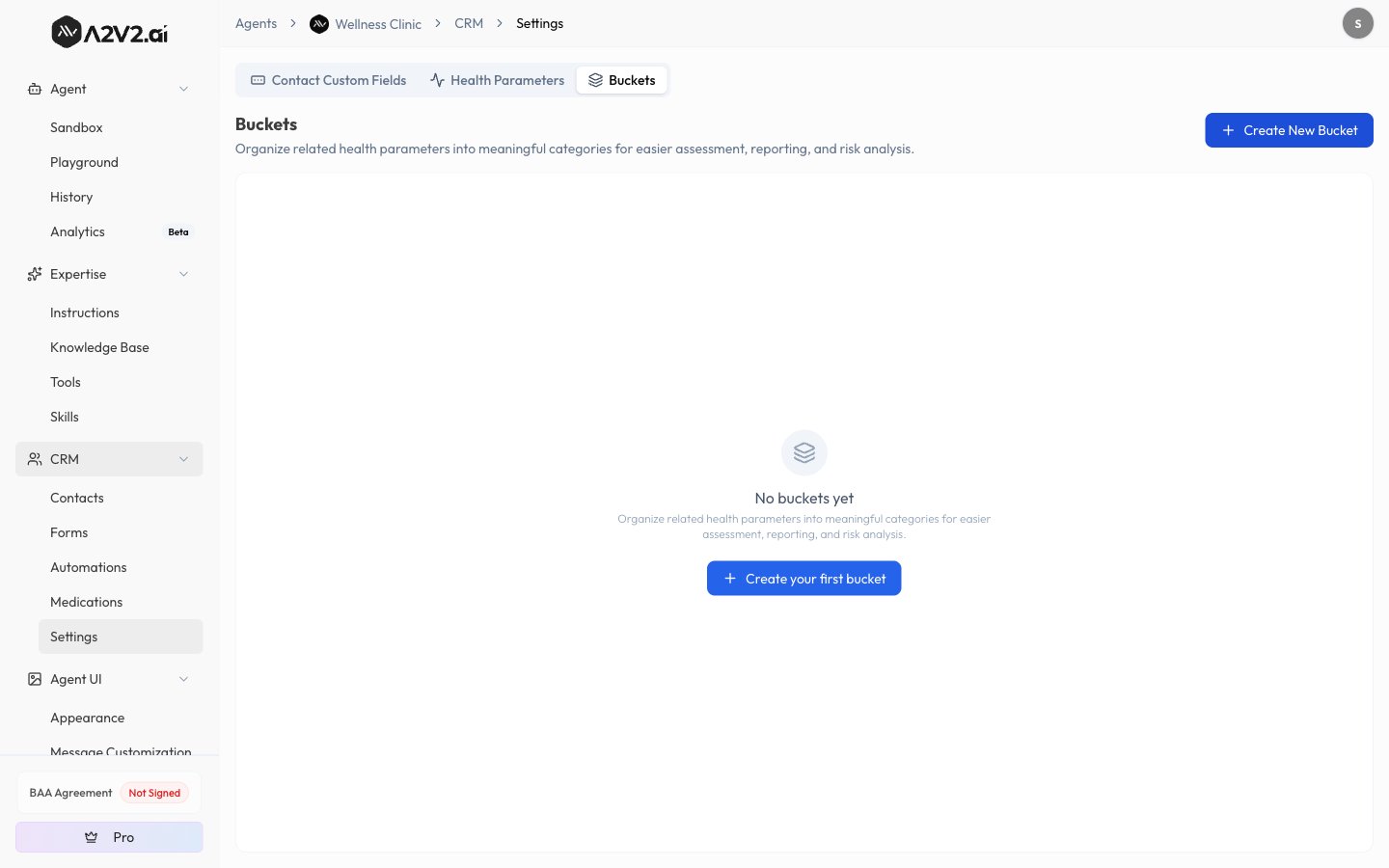
Manage buckets in **CRM → Settings → Buckets** on a Medical Agent.
Buckets are available on **Medical Agents** only, and are managed in **CRM → Settings**,
which is **desktop only**. Creating and editing buckets requires an **Admin**; anyone on the
team can view them. New to Medical Agents? Start with the
[Medical Agents overview](/medical/overview).
## What a bucket is — and isn't
A bucket groups **parameters**, not contacts. It's a lens for reading one patient's health
across a clinical domain, not a segment or a saved list of patients.
* A bucket is a **name** plus a set of assigned **parameters**. On a contact's Health tab it
becomes a score card.
* A parameter can belong to **more than one bucket** — assigning it to a bucket never
removes it from another.
* Buckets are **empty by default.** Unlike [health parameters](/medical/health-tracking),
which come pre-loaded, you create the buckets that fit how your practice thinks.
## Before you start
You need [health parameters](/medical/health-tracking) to group — and, for the score cards
to show numbers, those parameters need scored range bands. A Medical Agent ships with a full
parameter library, so you can usually start grouping right away.
## Create a bucket
In your Medical Agent, go to **CRM → Settings → Buckets** and select **New Bucket**.
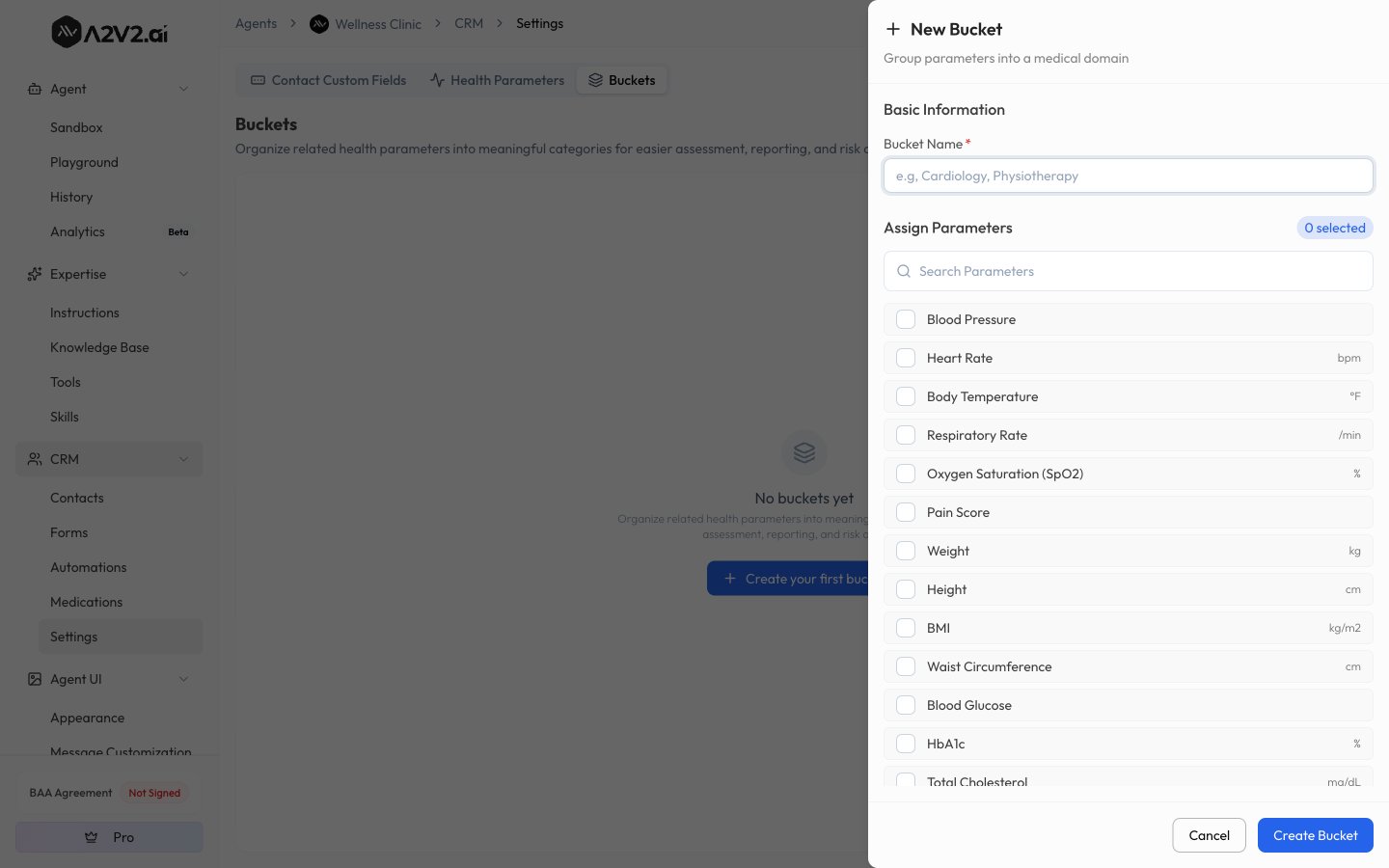
 Enter a **Bucket Name** (required, up to 50 characters, and unique among your buckets) —
the medical domain it represents, such as *Cardiology* or *Blood Work*.
Under **Assign Parameters**, search the parameter library and check the ones this bucket
should roll up. The count updates as you select.
Enter a **Bucket Name** (required, up to 50 characters, and unique among your buckets) —
the medical domain it represents, such as *Cardiology* or *Blood Work*.
Under **Assign Parameters**, search the parameter library and check the ones this bucket
should roll up. The count updates as you select.
 Save the bucket. It now appears in the Buckets list and as a score card on every
contact's Health tab.
## Options reference
| Option | What it controls | Notes |
| --------------------- | -------------------------------------------------- | ---------------------------------------------------------------------------------------------- |
| **Bucket Name** | The card's label and the domain it represents | Required · up to 50 characters · must be unique among buckets |
| **Assign Parameters** | Which parameters roll up into this bucket's scores | Searchable multi-select · a parameter can be in multiple buckets · a bucket can be saved empty |
## How bucket scores work
Each bucket produces two scores on a patient's Health tab:
* **Health** — higher is better.
* **Risk** — higher means greater risk.
A bucket's score is the sum of points across its **measured** parameters — the band each
latest reading falls into (achieved) against the best-possible score (max). The card also
shows a **measured-of-total** count so you know how much of the bucket has data.
Only measured parameters count. A card can read **N/A** or a low score because no readings
have been recorded yet — not because the patient is at risk. Always read the score alongside
its measured-of-total count. A card can also read N/A if its parameters have no scored range
bands. See [Health Score and Risk Score](/medical/health-tracking#health-score-and-risk-score).
## Using buckets on the Health tab
When a Medical Agent has buckets defined, a patient's **Health** tab shows a **Bucket scores**
row of cards above the readings table.
* Each card shows the bucket name, a measured-of-total count, and a **Health** and **Risk**
score with a progress bar.
* **Click a card to filter** the readings table to just that bucket's parameters. Select
more than one card to see the combined set, and use **Clear filter** to return to all
parameters.
## Delete a bucket
Deleting a bucket removes the **grouping only** — the parameters themselves are not deleted.
They stay in your parameter library and in any other buckets they belong to. Deleting a
bucket requires an **Admin**.
## Tips
Build buckets around how your providers think about a patient — a **Cardiology** bucket, a
**Blood Work** bucket, a **Diabetes** bucket. Keep each one focused so its score stays
meaningful.
Reuse parameters freely. Blood Pressure can sit in both a **Cardiology** and a **Vitals**
bucket at once — assigning it to one never pulls it from the other.
## Troubleshooting
Buckets are available on **Medical Agents** only, in **CRM → Settings**, on **desktop**.
On a general agent, or on a small screen, the tab won't appear.
Scores only count measured parameters, so a card reads N/A until at least one of its
parameters has a reading. A card can also stay N/A if its parameters have no scored range
bands. Record readings, or add scored bands to the parameters.
That's expected. Deleting a bucket removes the grouping only — the parameters remain in
your library and in any other buckets.
Creating, editing, and deleting buckets requires an **Admin**. Team members can view
buckets and their score cards.
## Related
Define parameters, record readings, and read Health and Risk scores.
What a Medical Agent unlocks and how the clinical suite fits together.
How contacts work, and the tabs a Medical Agent adds.
How the pieces of the CRM fit together.
Save the bucket. It now appears in the Buckets list and as a score card on every
contact's Health tab.
## Options reference
| Option | What it controls | Notes |
| --------------------- | -------------------------------------------------- | ---------------------------------------------------------------------------------------------- |
| **Bucket Name** | The card's label and the domain it represents | Required · up to 50 characters · must be unique among buckets |
| **Assign Parameters** | Which parameters roll up into this bucket's scores | Searchable multi-select · a parameter can be in multiple buckets · a bucket can be saved empty |
## How bucket scores work
Each bucket produces two scores on a patient's Health tab:
* **Health** — higher is better.
* **Risk** — higher means greater risk.
A bucket's score is the sum of points across its **measured** parameters — the band each
latest reading falls into (achieved) against the best-possible score (max). The card also
shows a **measured-of-total** count so you know how much of the bucket has data.
Only measured parameters count. A card can read **N/A** or a low score because no readings
have been recorded yet — not because the patient is at risk. Always read the score alongside
its measured-of-total count. A card can also read N/A if its parameters have no scored range
bands. See [Health Score and Risk Score](/medical/health-tracking#health-score-and-risk-score).
## Using buckets on the Health tab
When a Medical Agent has buckets defined, a patient's **Health** tab shows a **Bucket scores**
row of cards above the readings table.
* Each card shows the bucket name, a measured-of-total count, and a **Health** and **Risk**
score with a progress bar.
* **Click a card to filter** the readings table to just that bucket's parameters. Select
more than one card to see the combined set, and use **Clear filter** to return to all
parameters.
## Delete a bucket
Deleting a bucket removes the **grouping only** — the parameters themselves are not deleted.
They stay in your parameter library and in any other buckets they belong to. Deleting a
bucket requires an **Admin**.
## Tips
Build buckets around how your providers think about a patient — a **Cardiology** bucket, a
**Blood Work** bucket, a **Diabetes** bucket. Keep each one focused so its score stays
meaningful.
Reuse parameters freely. Blood Pressure can sit in both a **Cardiology** and a **Vitals**
bucket at once — assigning it to one never pulls it from the other.
## Troubleshooting
Buckets are available on **Medical Agents** only, in **CRM → Settings**, on **desktop**.
On a general agent, or on a small screen, the tab won't appear.
Scores only count measured parameters, so a card reads N/A until at least one of its
parameters has a reading. A card can also stay N/A if its parameters have no scored range
bands. Record readings, or add scored bands to the parameters.
That's expected. Deleting a bucket removes the grouping only — the parameters remain in
your library and in any other buckets.
Creating, editing, and deleting buckets requires an **Admin**. Team members can view
buckets and their score cards.
## Related
Define parameters, record readings, and read Health and Risk scores.
What a Medical Agent unlocks and how the clinical suite fits together.
How contacts work, and the tabs a Medical Agent adds.
How the pieces of the CRM fit together.