> ## Documentation Index
> Fetch the complete documentation index at: https://docs.a2v2.ai/llms.txt
> Use this file to discover all available pages before exploring further.
# Health Tracking
> Track a patient's vitals and labs over time on a Medical Agent — from a ready-made library of clinical parameters to per-contact readings, trends, and Health and Risk scores.
A diabetes program wants to watch each patient's HbA1c, fasting glucose, blood pressure,
and weight over months — and see at a glance whether someone is trending the wrong way.
**Health tracking** on a Medical Agent gives you exactly that: a clinical library of
parameters to measure, a **Health** tab on every contact to record readings, and rolled-up
**Health Score** and **Risk Score** so a provider can read a patient's status in seconds.
There are two parts:
* **Health Parameters** — the schema of what your practice measures (vitals, labs, custom
values). You manage these in **CRM → Settings → Health Parameters**.
* **The contact Health tab** — where readings are recorded, trended, and scored, on each
contact's detail page.
Health tracking is available on **Medical Agents** only. Configuring parameters happens in
**CRM → Settings**, which is **desktop only**. Anyone on the team can record a reading;
adding, editing, or deleting parameters requires an **Admin**. New to Medical Agents? Start
with the [Medical Agents overview](/medical/overview).
## It comes ready with a clinical library
You don't start from a blank page. A new Medical Agent is **pre-loaded with 90+ standard
clinical parameters** — Blood Pressure, Heart Rate, Body Temperature, SpO2, Blood Glucose,
HbA1c, a full lipid panel, CBC, liver and renal function, electrolytes, a thyroid panel,
vitamins, coagulation, cardiac markers, urine analysis, and more — organized by category.
Most practices can start recording readings immediately and only add parameters for
anything specific to their program.
To review the library, open your Medical Agent and go to **CRM → Settings →
Health Parameters**. Use the search box to filter, or jump alphabetically to find a
parameter fast.
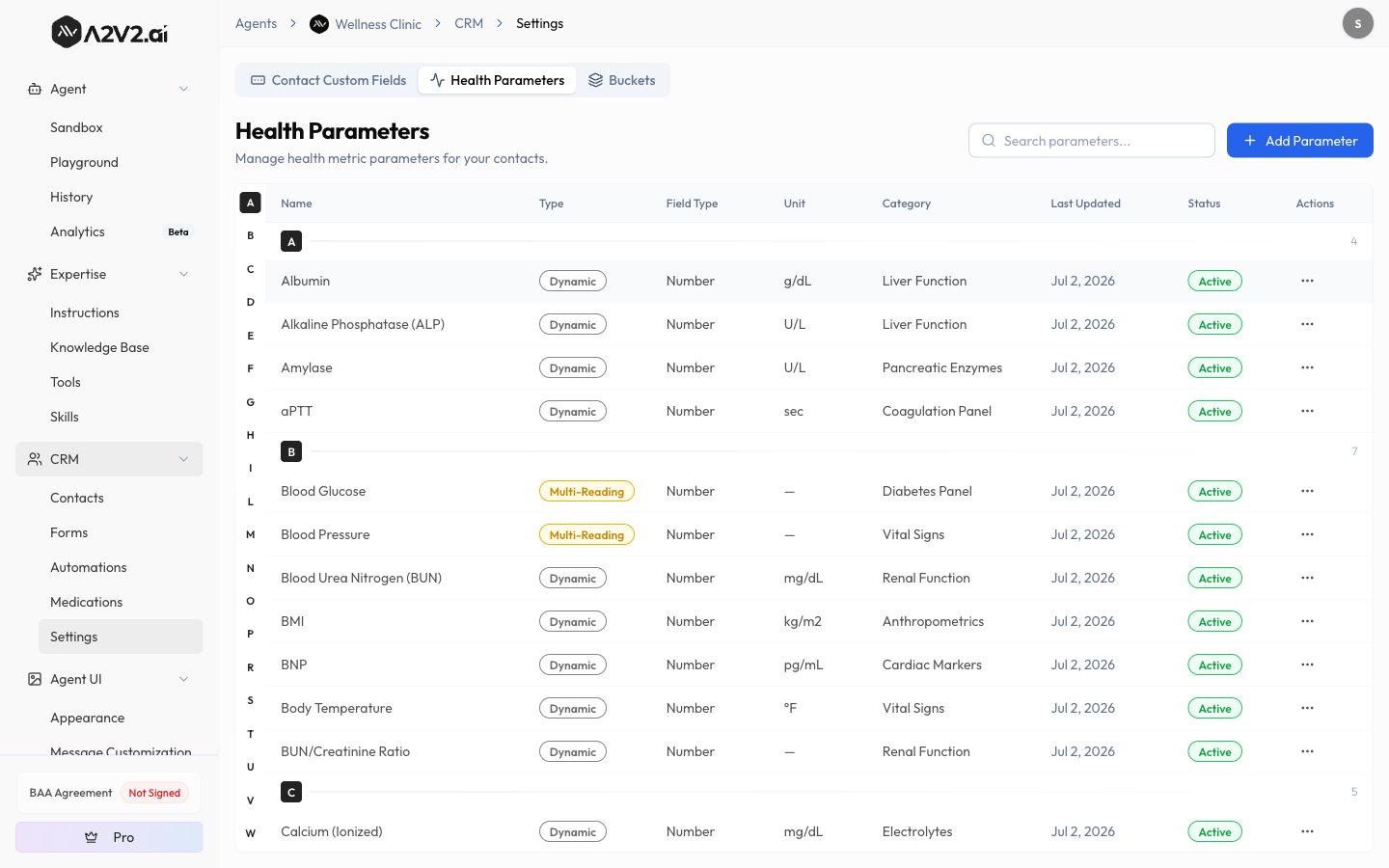 Each row in the parameter table shows:
| Column | What it shows |
| ---------------- | ---------------------------------------------------------------------------------- |
| **Name** | The parameter's label (for example, *HbA1c*) |
| **Type** | **Fixed**, **Dynamic**, or **Multi-Reading** (see below) |
| **Unit** | The unit readings are recorded in (for example, *mg/dL*, *mmHg*, *bpm*), if any |
| **Field Type** | How a value is entered — **Number**, **Text**, **Select**, **Yes/No**, or **Date** |
| **Category** | The clinical grouping it's filed under (for example, *Diabetics*) |
| **Last Updated** | When the parameter was last changed |
| **Status** | **Active** or **Inactive** |
### Parameter types
| Type | What it means | Example |
| ----------------- | ------------------------------------------------------------------------ | -------------------------------------------------- |
| **Fixed** | A single value with a fixed normal range that applies to every patient | Body Temperature |
| **Dynamic** | A single value whose expected range can vary (for example, by age group) | Heart Rate |
| **Multi-Reading** | Several sub-readings captured together, plus an overall result | Blood Glucose → *Fasting* / *Post-Meal* / *Random* |
## Add or edit a parameter
Most teams never need this — the built-in library covers common vitals and labs. Add a
parameter when you track something the library doesn't include.
In your Medical Agent, go to **CRM → Settings → Health Parameters** and select
**Add Parameter**.
Enter a **Parameter Name** (up to 50 characters), pick a **Parameter Type** (Fixed,
Dynamic, or Multi-Reading) and a **Field Type**, and set an optional **Unit**,
**Category**, and description.
Each row in the parameter table shows:
| Column | What it shows |
| ---------------- | ---------------------------------------------------------------------------------- |
| **Name** | The parameter's label (for example, *HbA1c*) |
| **Type** | **Fixed**, **Dynamic**, or **Multi-Reading** (see below) |
| **Unit** | The unit readings are recorded in (for example, *mg/dL*, *mmHg*, *bpm*), if any |
| **Field Type** | How a value is entered — **Number**, **Text**, **Select**, **Yes/No**, or **Date** |
| **Category** | The clinical grouping it's filed under (for example, *Diabetics*) |
| **Last Updated** | When the parameter was last changed |
| **Status** | **Active** or **Inactive** |
### Parameter types
| Type | What it means | Example |
| ----------------- | ------------------------------------------------------------------------ | -------------------------------------------------- |
| **Fixed** | A single value with a fixed normal range that applies to every patient | Body Temperature |
| **Dynamic** | A single value whose expected range can vary (for example, by age group) | Heart Rate |
| **Multi-Reading** | Several sub-readings captured together, plus an overall result | Blood Glucose → *Fasting* / *Post-Meal* / *Random* |
## Add or edit a parameter
Most teams never need this — the built-in library covers common vitals and labs. Add a
parameter when you track something the library doesn't include.
In your Medical Agent, go to **CRM → Settings → Health Parameters** and select
**Add Parameter**.
Enter a **Parameter Name** (up to 50 characters), pick a **Parameter Type** (Fixed,
Dynamic, or Multi-Reading) and a **Field Type**, and set an optional **Unit**,
**Category**, and description.
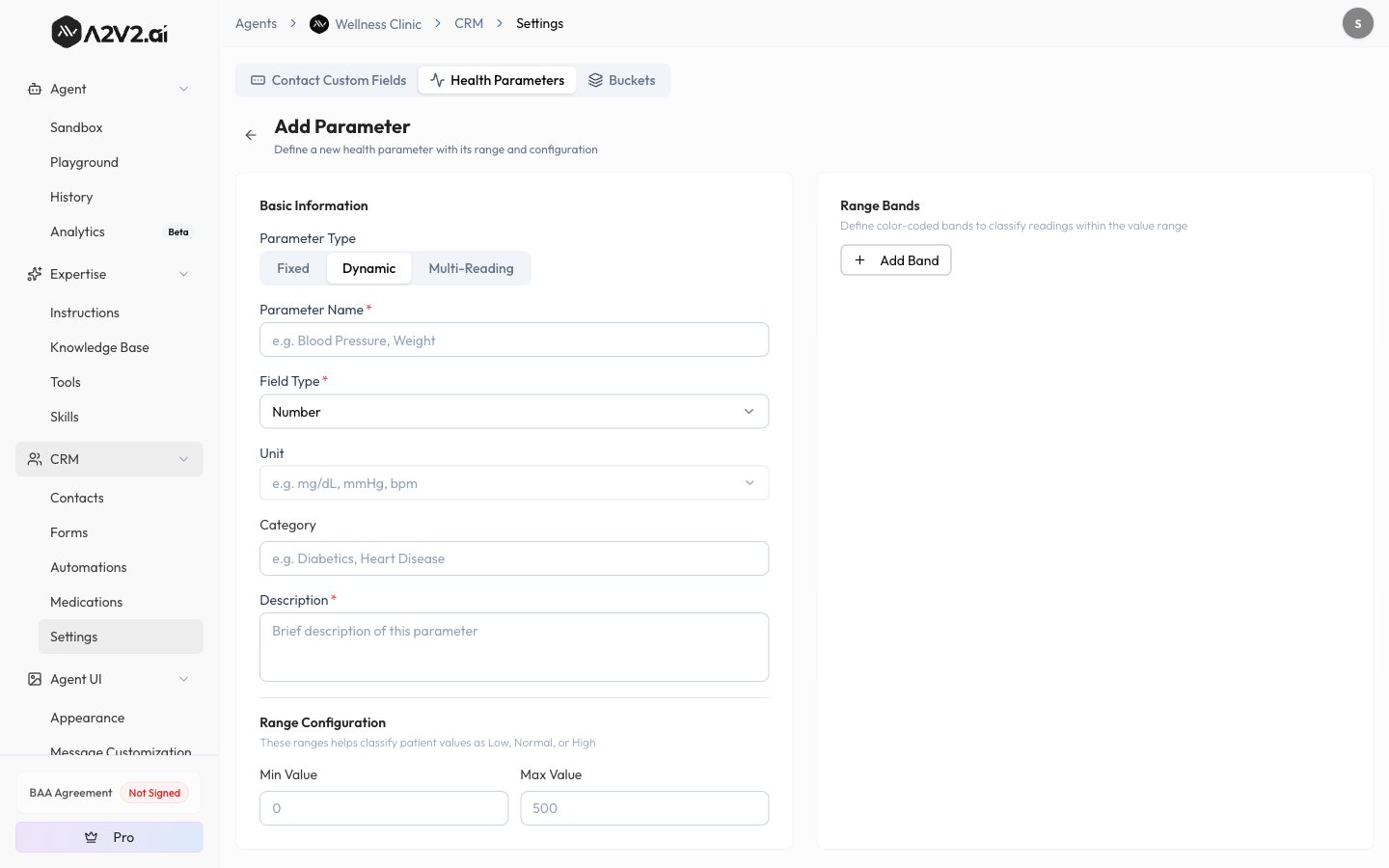 For numeric parameters, set the **Min Value**, **Max Value**, and the **Normal Min** /
**Normal Max** that classify a reading as **Normal** or **Abnormal**.
Optionally define **Range Bands** — labeled segments of the value range (for example,
*Low* / *Normal* / *High*) that each carry a **Health Score** and/or **Risk Score**.
Bands are what let readings roll up into scores. They must cover the full range with no
gaps and no overlaps.
Range bands are the engine behind Health and Risk scores: a reading falls into a band, and
that band's points are what get summed. A parameter with no scored bands still records
readings — it just won't contribute to a score.
## Record a reading on the contact's Health tab
Open a contact and select the **Health** tab to see and record that patient's readings.
On the contact's detail page, select **Health**. The tab lists the parameters that have
at least one recorded value for this patient — so it stays readable even though the
library holds 90+ parameters.
For numeric parameters, set the **Min Value**, **Max Value**, and the **Normal Min** /
**Normal Max** that classify a reading as **Normal** or **Abnormal**.
Optionally define **Range Bands** — labeled segments of the value range (for example,
*Low* / *Normal* / *High*) that each carry a **Health Score** and/or **Risk Score**.
Bands are what let readings roll up into scores. They must cover the full range with no
gaps and no overlaps.
Range bands are the engine behind Health and Risk scores: a reading falls into a band, and
that band's points are what get summed. A parameter with no scored bands still records
readings — it just won't contribute to a score.
## Record a reading on the contact's Health tab
Open a contact and select the **Health** tab to see and record that patient's readings.
On the contact's detail page, select **Health**. The tab lists the parameters that have
at least one recorded value for this patient — so it stays readable even though the
library holds 90+ parameters.
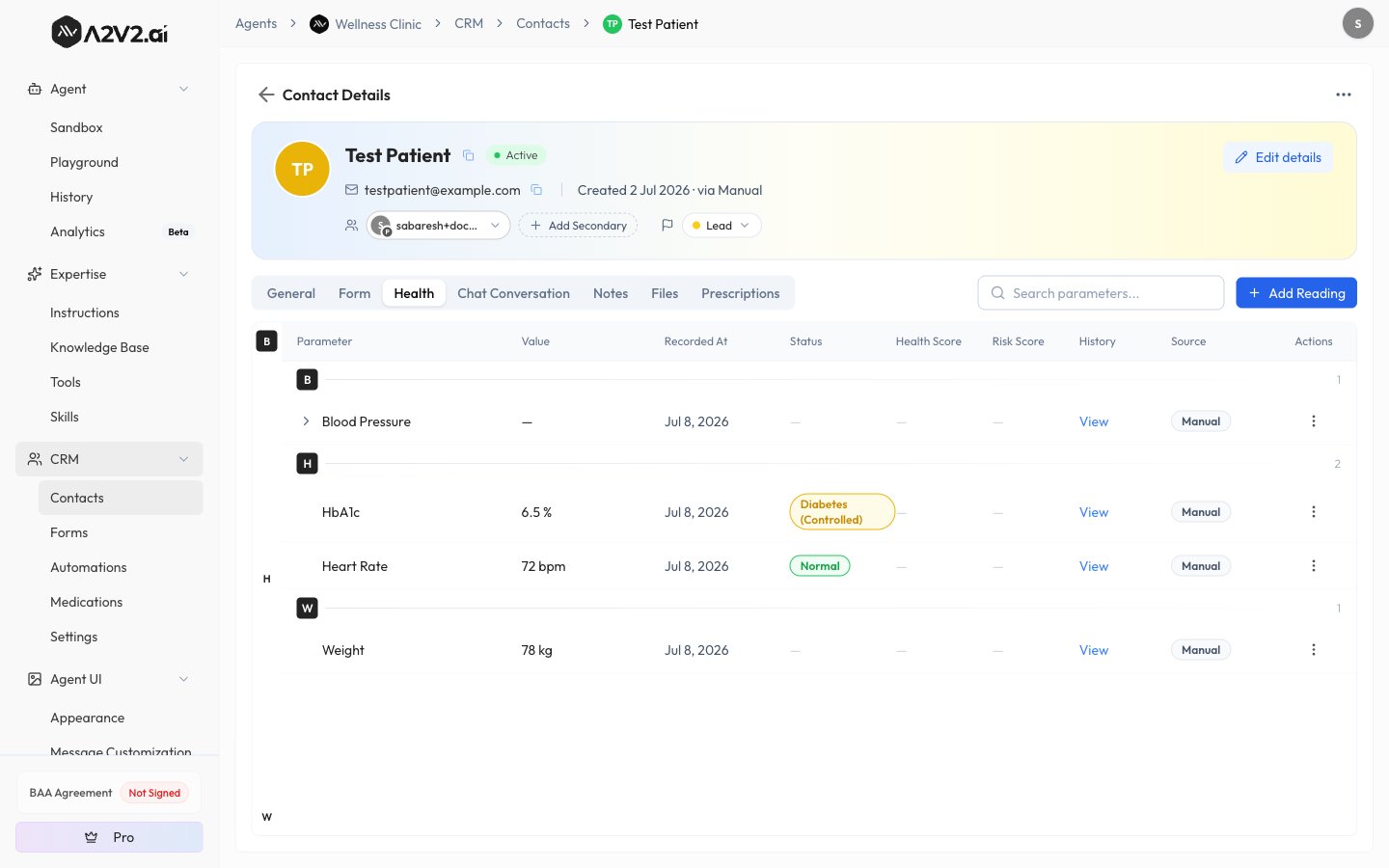 Select **Add Reading**. Search for the parameter, enter its value, and set the **Date**
and **Time** (defaults to now). Add optional **Notes**.
For a Multi-Reading parameter, enter each individual reading plus the overall
**Result** — for example, *Fasting*, *Post-Meal*, and the overall glucose result.
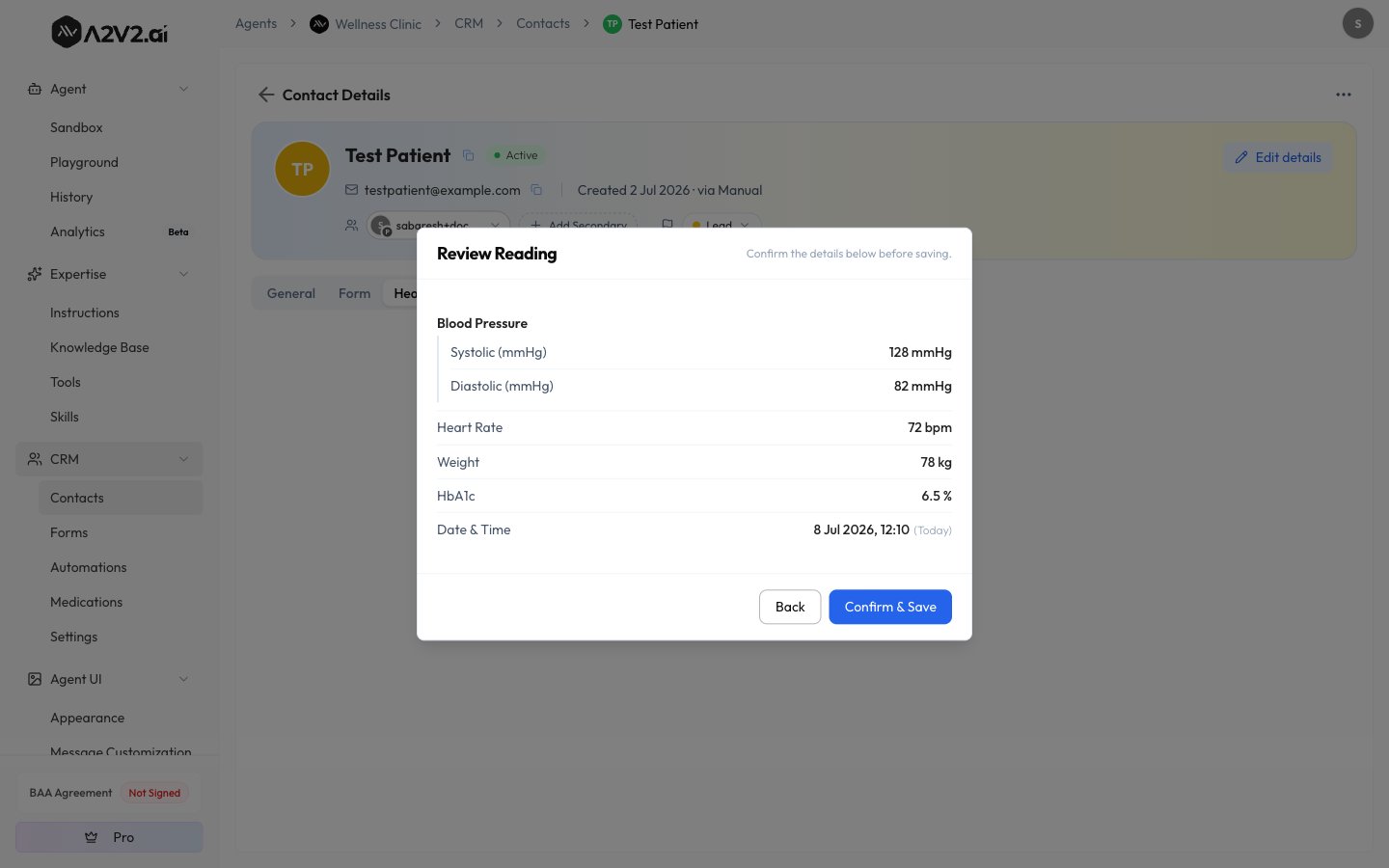
A **Review Reading** step shows the date, time, notes, and values you entered. Select
**Confirm & Save** to record it.
Select **Add Reading**. Search for the parameter, enter its value, and set the **Date**
and **Time** (defaults to now). Add optional **Notes**.
For a Multi-Reading parameter, enter each individual reading plus the overall
**Result** — for example, *Fasting*, *Post-Meal*, and the overall glucose result.
A **Review Reading** step shows the date, time, notes, and values you entered. Select
**Confirm & Save** to record it.
 ### How readings get recorded
A reading's **Source** is shown on the Health tab so you always know where a value came
from:
| Source | Where it comes from |
| ----------------------- | ------------------------------------------------------------------------------------- |
| **Manual Entry** | A team member typed the reading into the **Add Reading** form |
| **Chatbot** | Captured from the patient during a conversation with the agent |
| **Document Extraction** | Pulled from an uploaded document (a lab report, for example), then reviewed and saved |
| **System** | Recorded automatically by A2V2.ai |
Document extraction returns candidate values **for your review** — it never saves a reading
on its own, and it doesn't consume credits. Values that came from a document keep a link
back to the source file (an **Open source document** action on the row).
## Read a patient's history and trends
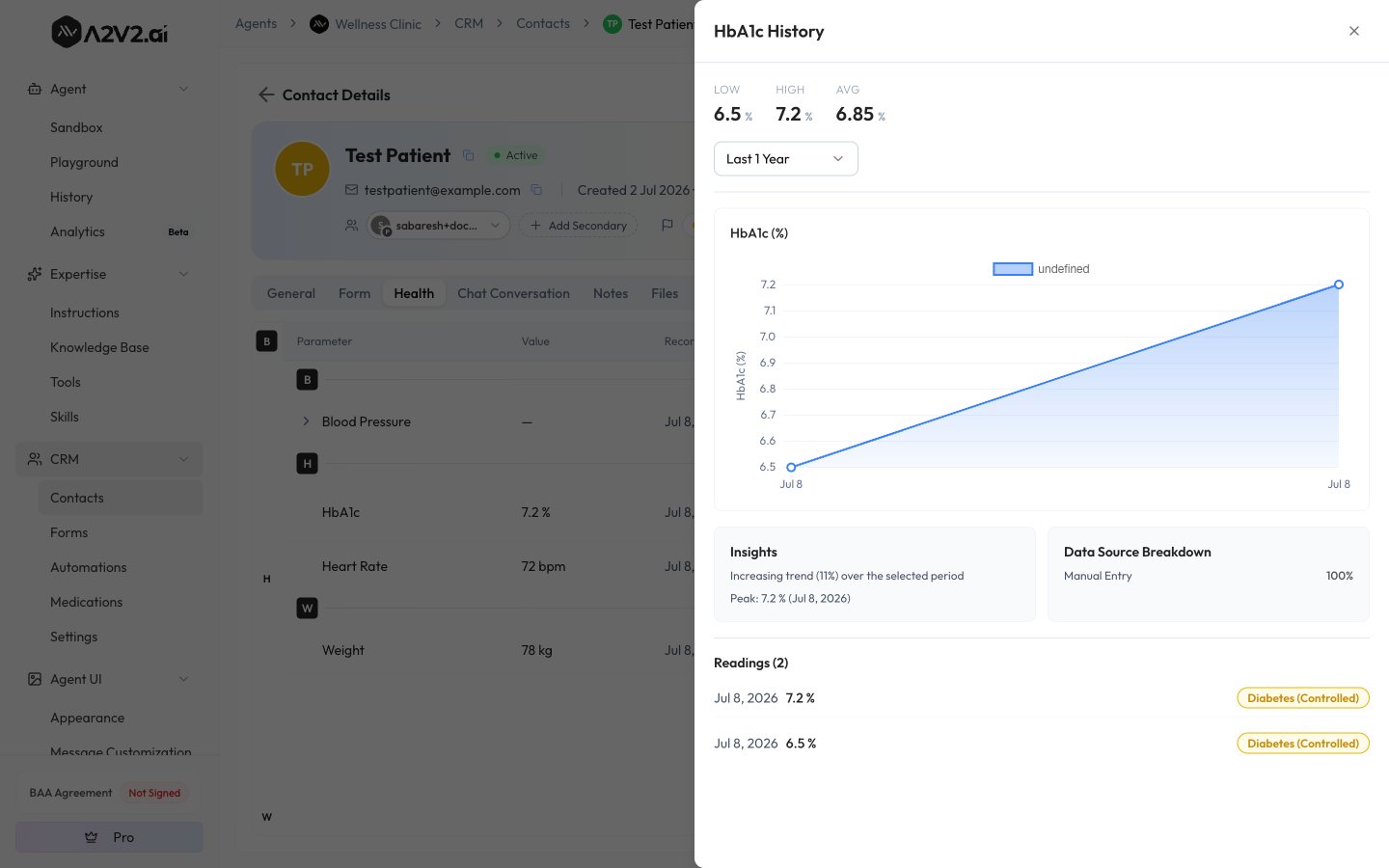
Each parameter row has a **History** action that opens a drawer with the full record for
that patient:
* **Low / High / Avg** statistics across the period.
* An **Insights** summary — a stable, increasing, or decreasing trend, plus the peak value.
* A **Data Source Breakdown** showing how readings were captured.
* A **trend chart** — which needs **at least 2 readings** to draw.
### How readings get recorded
A reading's **Source** is shown on the Health tab so you always know where a value came
from:
| Source | Where it comes from |
| ----------------------- | ------------------------------------------------------------------------------------- |
| **Manual Entry** | A team member typed the reading into the **Add Reading** form |
| **Chatbot** | Captured from the patient during a conversation with the agent |
| **Document Extraction** | Pulled from an uploaded document (a lab report, for example), then reviewed and saved |
| **System** | Recorded automatically by A2V2.ai |
Document extraction returns candidate values **for your review** — it never saves a reading
on its own, and it doesn't consume credits. Values that came from a document keep a link
back to the source file (an **Open source document** action on the row).
## Read a patient's history and trends
Each parameter row has a **History** action that opens a drawer with the full record for
that patient:
* **Low / High / Avg** statistics across the period.
* An **Insights** summary — a stable, increasing, or decreasing trend, plus the peak value.
* A **Data Source Breakdown** showing how readings were captured.
* A **trend chart** — which needs **at least 2 readings** to draw.
 ### Show readings in a different unit
From a parameter's row menu, **Convert unit** lets you display a reading in a different
unit. This is **display only, and applies only to your view on this device** — it never
changes the stored value or what teammates see.
## Health Score and Risk Score
When a parameter's readings fall into scored range bands, they roll up into two totals for
the patient:
* **Total Health Score** — higher is better.
* **Total Risk Score** — higher means greater risk.
Only **measured** parameters count toward a score. Missing data never moves it.
A low Health Score can mean **"not measured yet"** rather than "unhealthy." Because only
recorded parameters contribute, read scores alongside the measured-vs-total count — an empty
patient scores low simply because nothing has been recorded.
To turn a related set of parameters into their own score cards, see
[Health Buckets](/medical/health-buckets).
## Delete a reading
Deleting a reading permanently removes the **latest** recorded value for that parameter on
the contact and **can't be undone**. Only an **Admin** can delete a reading.
## Tips
Start with the built-in library. It already covers the vitals and labs most practices need
— only add a parameter for something specific to your program, and give numeric parameters
a **Normal Min / Normal Max** so readings are flagged Normal or Abnormal automatically.
For a value that's really several measurements (a blood-pressure systolic/diastolic pair, a
glucose fasting/post-meal set), use a **Multi-Reading** parameter so they're recorded and
reviewed together.
## Troubleshooting
Health tracking is available on **Medical Agents** only. On a general agent, the Health
tab and the Health Parameters settings don't appear. See the
[Medical Agents overview](/medical/overview).
Configuring parameters is available on desktop only. Open the agent on a larger screen
to add or edit parameters.
The Health tab only lists parameters that have at least one recorded reading for that
patient. Record a reading and the parameter appears.
A trend chart needs **at least 2 readings** for that parameter. Record a second reading
and the chart appears.
Scores only count measured parameters, so a low score often means readings haven't been
recorded yet — not that the patient is at risk. Check the measured-of-total count.
Creating, editing, and deleting parameters — and deleting a recorded reading — require an
**Admin**. Any team member can record a reading.
## Related
Group parameters into named sets that roll up into Health and Risk score cards.
What a Medical Agent unlocks and how the clinical suite fits together.
How contacts work, and the tabs a Medical Agent adds.
Import patients, health readings, and prescriptions from Tebra.
### Show readings in a different unit
From a parameter's row menu, **Convert unit** lets you display a reading in a different
unit. This is **display only, and applies only to your view on this device** — it never
changes the stored value or what teammates see.
## Health Score and Risk Score
When a parameter's readings fall into scored range bands, they roll up into two totals for
the patient:
* **Total Health Score** — higher is better.
* **Total Risk Score** — higher means greater risk.
Only **measured** parameters count toward a score. Missing data never moves it.
A low Health Score can mean **"not measured yet"** rather than "unhealthy." Because only
recorded parameters contribute, read scores alongside the measured-vs-total count — an empty
patient scores low simply because nothing has been recorded.
To turn a related set of parameters into their own score cards, see
[Health Buckets](/medical/health-buckets).
## Delete a reading
Deleting a reading permanently removes the **latest** recorded value for that parameter on
the contact and **can't be undone**. Only an **Admin** can delete a reading.
## Tips
Start with the built-in library. It already covers the vitals and labs most practices need
— only add a parameter for something specific to your program, and give numeric parameters
a **Normal Min / Normal Max** so readings are flagged Normal or Abnormal automatically.
For a value that's really several measurements (a blood-pressure systolic/diastolic pair, a
glucose fasting/post-meal set), use a **Multi-Reading** parameter so they're recorded and
reviewed together.
## Troubleshooting
Health tracking is available on **Medical Agents** only. On a general agent, the Health
tab and the Health Parameters settings don't appear. See the
[Medical Agents overview](/medical/overview).
Configuring parameters is available on desktop only. Open the agent on a larger screen
to add or edit parameters.
The Health tab only lists parameters that have at least one recorded reading for that
patient. Record a reading and the parameter appears.
A trend chart needs **at least 2 readings** for that parameter. Record a second reading
and the chart appears.
Scores only count measured parameters, so a low score often means readings haven't been
recorded yet — not that the patient is at risk. Check the measured-of-total count.
Creating, editing, and deleting parameters — and deleting a recorded reading — require an
**Admin**. Any team member can record a reading.
## Related
Group parameters into named sets that roll up into Health and Risk score cards.
What a Medical Agent unlocks and how the clinical suite fits together.
How contacts work, and the tabs a Medical Agent adds.
Import patients, health readings, and prescriptions from Tebra.