> ## Documentation Index
> Fetch the complete documentation index at: https://docs.a2v2.ai/llms.txt
> Use this file to discover all available pages before exploring further.
# Medications catalog
> Build one reusable list of the medications your practice prescribes, so every prescription uses consistent names, strengths, and forms.
Your clinic prescribes the same forty-odd medications week in, week out. Instead of
letting each team member free-type "Amoxicillin 500", "amoxicillin 500 mg", and
"Amox 500mg" into three different records, you build the list once. **Medications** is
that list — an organization-wide catalog of the medicines you prescribe, each with its
own strengths and forms, that every [prescription](/medical/prescriptions) is written
against.
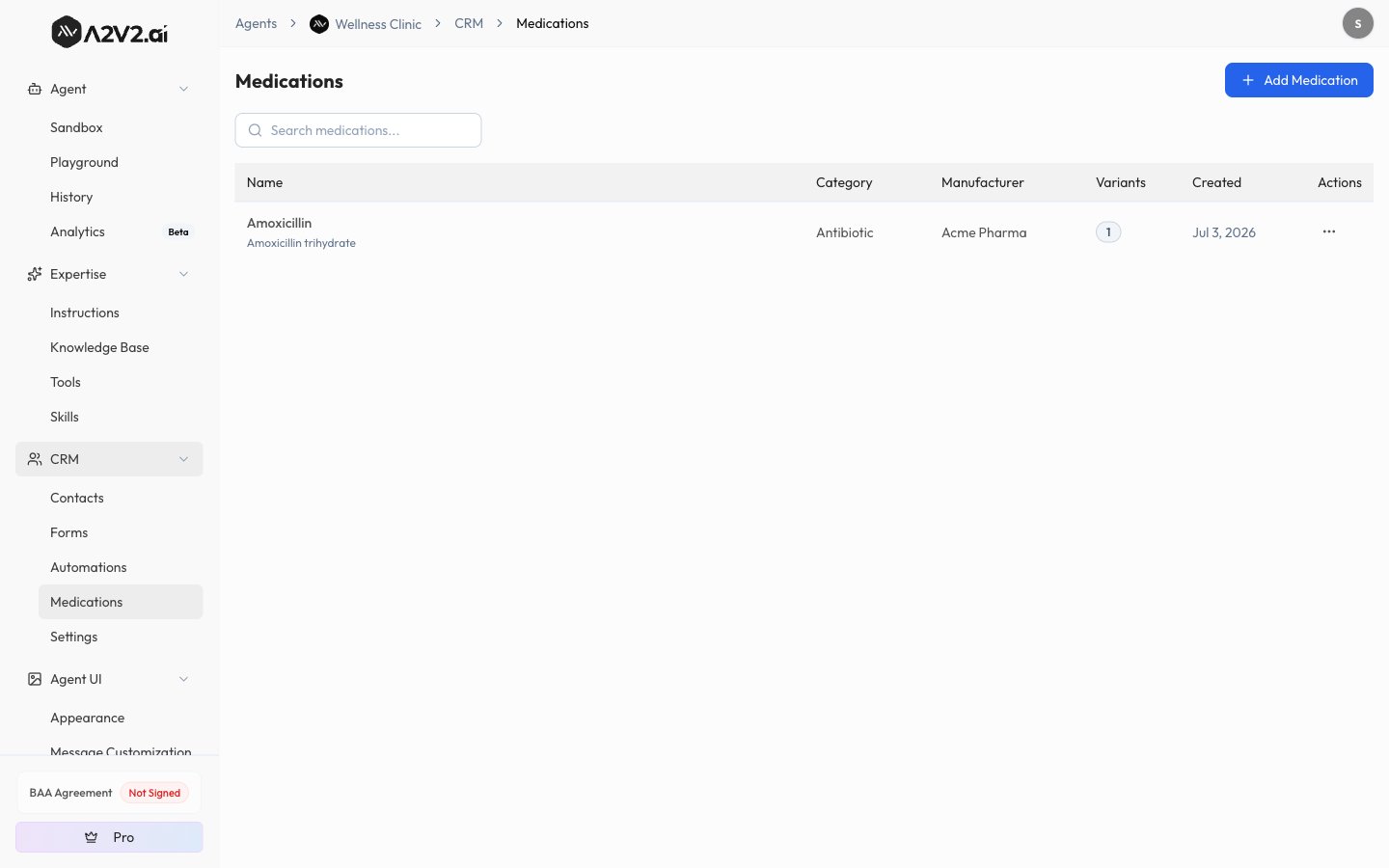
Open a Medical agent and choose **CRM → Medications** in the sidebar. The page is titled
**Medications**.
Medications is part of the **Medical agent** suite. The **Medications** tab only appears
on a Medical agent, and the catalog is shared across your whole organization — build it
once and every Medical agent's prescriptions can draw from it. See
[Medical agents overview](/medical/overview).
## Prerequisites
* A [Medical agent](/medical/setup-and-baa) in your organization.
* To add, edit, or delete medications, an **Owner** or **Admin** role. Everyone else can
view the catalog.
## Why a catalog
A prescription doesn't ask you to retype a drug's details every time — it looks them up
here. That gives you three things:
* **Consistency.** One canonical spelling and strength for each medicine, so records and
reports line up.
* **Speed.** Writing a prescription becomes "search, pick, set the dose" instead of
typing everything by hand.
* **Structure through variants.** A single medicine can carry several
strength-and-form combinations, so "Amoxicillin" holds its 250 mg capsule and its
500 mg capsule as separate, pickable options.
## Add a medication
Go to **CRM → Medications** and select **Add Medication**.
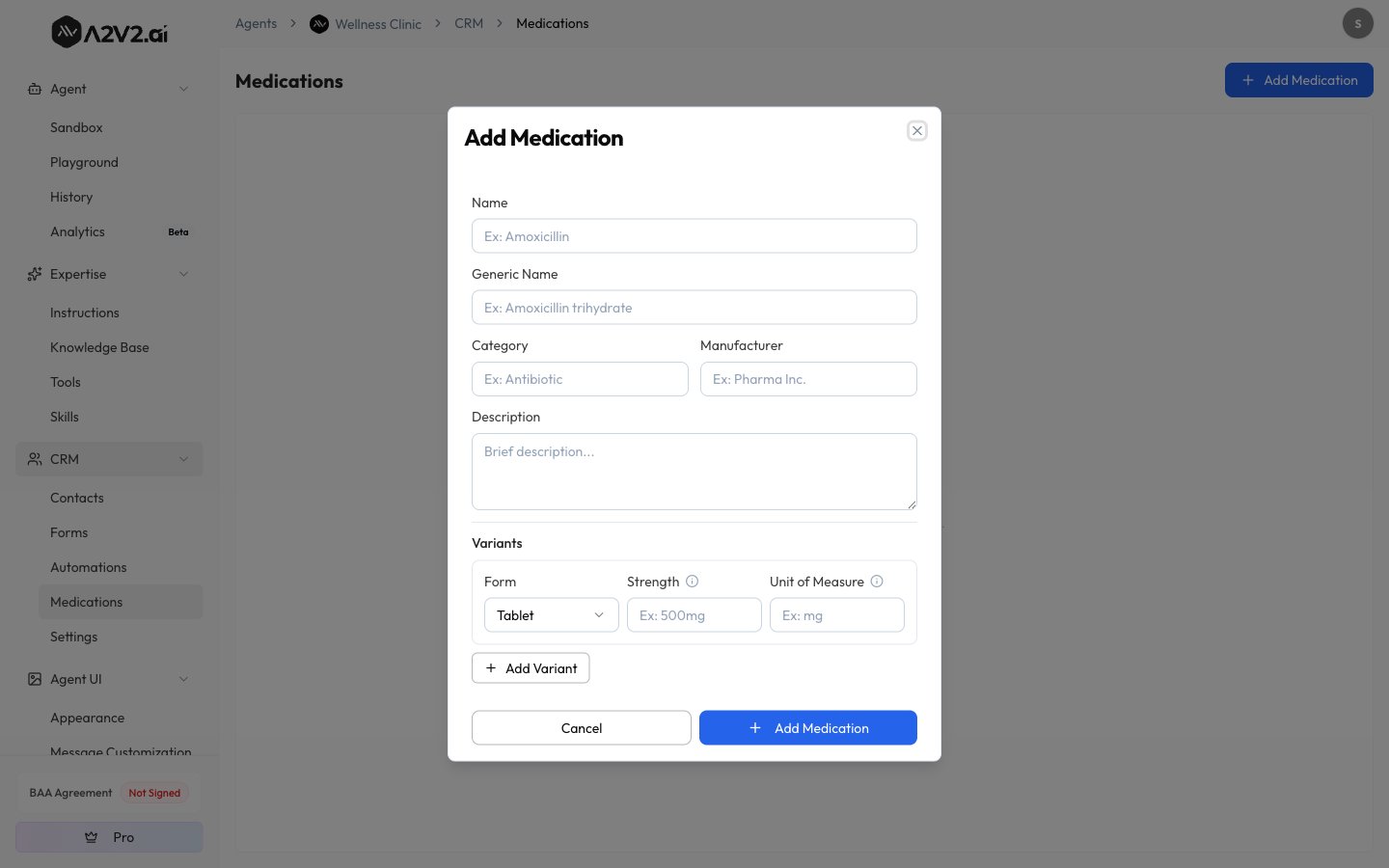
 Enter a **Name** (required) — for example, "Amoxicillin". Optionally add a **Generic
Name** ("Amoxicillin trihydrate"), a **Category** ("Antibiotic"), a **Manufacturer**,
and a short **Description**.
Every medication needs at least one **variant**. A variant is a specific
**Strength** + **Form** (+ **Unit of Measure**) — for example, `500mg` `Tablet` `mg`.
Choose the **Form** from the dropdown, type the **Strength**, and set the **Unit of
Measure**. Select **Add Variant** to add more (a 250 mg capsule and a 500 mg capsule,
say). Save when you're done.
Enter a **Name** (required) — for example, "Amoxicillin". Optionally add a **Generic
Name** ("Amoxicillin trihydrate"), a **Category** ("Antibiotic"), a **Manufacturer**,
and a short **Description**.
Every medication needs at least one **variant**. A variant is a specific
**Strength** + **Form** (+ **Unit of Measure**) — for example, `500mg` `Tablet` `mg`.
Choose the **Form** from the dropdown, type the **Strength**, and set the **Unit of
Measure**. Select **Add Variant** to add more (a 250 mg capsule and a 500 mg capsule,
say). Save when you're done.
 ## Understanding variants
A **variant** is how one medicine holds several forms and strengths. When you write a
prescription, you pick the medicine and then the specific variant — its **Form** carries
straight into the prescription. If a medicine has only one variant, it's chosen for you
automatically.
That's why it's worth adding every strength you stock as its own variant rather than
creating a separate medicine for each. One "Amoxicillin" entry with two capsule variants
keeps the catalog tidy and searchable.
### Form options
The **Form** dropdown offers eight values:
| Form | Form | Form | Form |
| ------ | ------- | ------- | --------- |
| Tablet | Capsule | Syrup | Injection |
| Cream | Drops | Inhaler | Other |
## Field reference
| Field | Required | What it's for | Example |
| ------------------- | ----------------- | --------------------------------------------------------------- | ------------------------ |
| **Name** | Yes | The medicine's primary name, shown everywhere it's used | `Amoxicillin` |
| **Generic Name** | No | The generic/scientific name, shown beneath the name in the list | `Amoxicillin trihydrate` |
| **Category** | No | A grouping label you define | `Antibiotic` |
| **Manufacturer** | No | Who makes it | `Pharma Inc.` |
| **Description** | No | A short note about the medicine | — |
| **Strength** | Yes (per variant) | The amount of active ingredient — "e.g., 500mg, 250mg" | `500mg` |
| **Form** | Yes (per variant) | The physical form, from the eight options above | `Tablet` |
| **Unit of Measure** | Per variant | "Measurement unit for the strength, e.g., mg, ml, mcg" | `mg` |
At least one variant is required — a medication can't be saved without a Strength and
Form.
## Find, edit, and retire a medication
* **Search** — once you have medicines, use **Search medications...** and start typing to
filter the list by name.
* **Edit** — open a medication to change its details or variants.
* **Retire a strength** — in edit mode, each variant has an **Active/Inactive** toggle.
Set a variant to **Inactive** to stop offering that strength without deleting the whole
medicine. This is the right move when you discontinue one strength but still prescribe
others.
* **Delete** — removes the medication from your catalog.
Deleting a medication removes it from the catalog. There's no self-serve way to restore
it, so treat deletion as final. To simply stop offering a particular strength, set that
**variant** to **Inactive** instead of deleting the medicine.
## Who can do what
| Action | Owner / Admin | Other members |
| ------------------------------ | ------------- | ------------- |
| View the catalog | Yes | Yes |
| Add, edit, delete a medication | Yes | No |
Everyone on a Medical agent's organization can browse the catalog; only Owners and Admins
can change it.
## How it feeds prescriptions
When you write a [prescription](/medical/prescriptions) for a contact, you search this
catalog, pick a medicine, and choose a variant. The prescription snapshots the medicine's
name and form at that moment, then tracks the dose, frequency, and supply. A well-kept
catalog makes every prescription faster to write and more consistent to read.
Use the **Category** field to keep a large catalog navigable, and name medicines the way
your team searches for them — search matches on the name. If a medication was imported
from [Tebra](/integrations/tebra), it lands in this same catalog automatically.
## Troubleshooting
Medications is a Medical agent feature. Open a **Medical** agent and look under
**CRM** — the tab won't appear on a standard agent.
Adding, editing, and deleting require the **Owner** or **Admin** role. If the controls
are missing, you have view-only access — ask an Owner or Admin to make the change.
Each medicine name must be unique within your organization. The name you're trying to
save (or rename to) is already in the catalog — open the existing entry and add a new
variant to it instead of creating a duplicate.
A medication needs a **Name** and at least one variant with a **Strength** and
**Form**. Add a complete variant, then save.
## Related
Write and track prescriptions for a contact, drawn from this catalog.
What a Medical agent unlocks and who it's for.
The patient records that prescriptions attach to.
Import patient medications straight into this catalog.
## Understanding variants
A **variant** is how one medicine holds several forms and strengths. When you write a
prescription, you pick the medicine and then the specific variant — its **Form** carries
straight into the prescription. If a medicine has only one variant, it's chosen for you
automatically.
That's why it's worth adding every strength you stock as its own variant rather than
creating a separate medicine for each. One "Amoxicillin" entry with two capsule variants
keeps the catalog tidy and searchable.
### Form options
The **Form** dropdown offers eight values:
| Form | Form | Form | Form |
| ------ | ------- | ------- | --------- |
| Tablet | Capsule | Syrup | Injection |
| Cream | Drops | Inhaler | Other |
## Field reference
| Field | Required | What it's for | Example |
| ------------------- | ----------------- | --------------------------------------------------------------- | ------------------------ |
| **Name** | Yes | The medicine's primary name, shown everywhere it's used | `Amoxicillin` |
| **Generic Name** | No | The generic/scientific name, shown beneath the name in the list | `Amoxicillin trihydrate` |
| **Category** | No | A grouping label you define | `Antibiotic` |
| **Manufacturer** | No | Who makes it | `Pharma Inc.` |
| **Description** | No | A short note about the medicine | — |
| **Strength** | Yes (per variant) | The amount of active ingredient — "e.g., 500mg, 250mg" | `500mg` |
| **Form** | Yes (per variant) | The physical form, from the eight options above | `Tablet` |
| **Unit of Measure** | Per variant | "Measurement unit for the strength, e.g., mg, ml, mcg" | `mg` |
At least one variant is required — a medication can't be saved without a Strength and
Form.
## Find, edit, and retire a medication
* **Search** — once you have medicines, use **Search medications...** and start typing to
filter the list by name.
* **Edit** — open a medication to change its details or variants.
* **Retire a strength** — in edit mode, each variant has an **Active/Inactive** toggle.
Set a variant to **Inactive** to stop offering that strength without deleting the whole
medicine. This is the right move when you discontinue one strength but still prescribe
others.
* **Delete** — removes the medication from your catalog.
Deleting a medication removes it from the catalog. There's no self-serve way to restore
it, so treat deletion as final. To simply stop offering a particular strength, set that
**variant** to **Inactive** instead of deleting the medicine.
## Who can do what
| Action | Owner / Admin | Other members |
| ------------------------------ | ------------- | ------------- |
| View the catalog | Yes | Yes |
| Add, edit, delete a medication | Yes | No |
Everyone on a Medical agent's organization can browse the catalog; only Owners and Admins
can change it.
## How it feeds prescriptions
When you write a [prescription](/medical/prescriptions) for a contact, you search this
catalog, pick a medicine, and choose a variant. The prescription snapshots the medicine's
name and form at that moment, then tracks the dose, frequency, and supply. A well-kept
catalog makes every prescription faster to write and more consistent to read.
Use the **Category** field to keep a large catalog navigable, and name medicines the way
your team searches for them — search matches on the name. If a medication was imported
from [Tebra](/integrations/tebra), it lands in this same catalog automatically.
## Troubleshooting
Medications is a Medical agent feature. Open a **Medical** agent and look under
**CRM** — the tab won't appear on a standard agent.
Adding, editing, and deleting require the **Owner** or **Admin** role. If the controls
are missing, you have view-only access — ask an Owner or Admin to make the change.
Each medicine name must be unique within your organization. The name you're trying to
save (or rename to) is already in the catalog — open the existing entry and add a new
variant to it instead of creating a duplicate.
A medication needs a **Name** and at least one variant with a **Strength** and
**Form**. Add a complete variant, then save.
## Related
Write and track prescriptions for a contact, drawn from this catalog.
What a Medical agent unlocks and who it's for.
The patient records that prescriptions attach to.
Import patient medications straight into this catalog.