> ## Documentation Index
> Fetch the complete documentation index at: https://docs.a2v2.ai/llms.txt
> Use this file to discover all available pages before exploring further.
# Prescriptions
> Keep an accurate, dated medication record for each patient — dose, frequency, duration, and when their supply runs out.
A patient starts a 10-day course of antibiotics on Monday. You want a clean record of
what they're taking, how much, how often, and — the part that's easy to lose track of —
the day the supply runs out so the front desk knows when a refill is due.
**Prescriptions** gives you that: one medication record per patient, with dose,
frequency, duration, a running dispense history, and a computed **Runs Out** date.
Open a patient's [contact record](/crm/contacts) on a Medical agent and select the
**Prescriptions** tab. You'll see a status filter (defaulting to **All**) and an **Add
Prescription** button. Before you have any, the tab reads "Add a prescription to track
medications for this contact."
Prescriptions is a **Medical agent** feature. The **Prescriptions** tab only appears on a
contact when the agent is a [Medical agent](/medical/overview). It sits alongside the
**Health** tab but is independent of it — the two don't share data.
Prescriptions is a **record-keeping and supply-tracking** tool, not e-prescribing. There
is no printing, no PDF, no sending to a pharmacy, and no controlled-substance workflow.
Use it to track what a patient is taking, not to transmit an order.
## Prerequisites
* A [Medical agent](/medical/setup-and-baa) and a [contact](/crm/contacts) to prescribe
for.
* At least one medicine in your [Medications catalog](/medical/medications) — a
prescription is written against a catalog entry, so add the medicine there first.
* To create, edit, or delete a prescription, an **Admin** role. Other members can view a
contact's prescriptions.
## Write a prescription
On the patient's contact record, select the **Prescriptions** tab, then **Add
Prescription**.
Search the [Medications catalog](/medical/medications) and select the medicine. If it
has more than one variant, choose the right one; if it has a single variant, it's
selected for you. The **Form** comes from the variant you pick.
Fill in the **Dose** (what to take each time — free text, e.g. "1 tablet" or
"500mg"), **Doses Per Day**, the **Frequency** (or **Every (Days)** for less-frequent
regimens), and the **Duration (Days)**. A live plain-English preview builds as you
go — for example, "Take 2 tablets three times daily for 7 days — 42 tablets total."
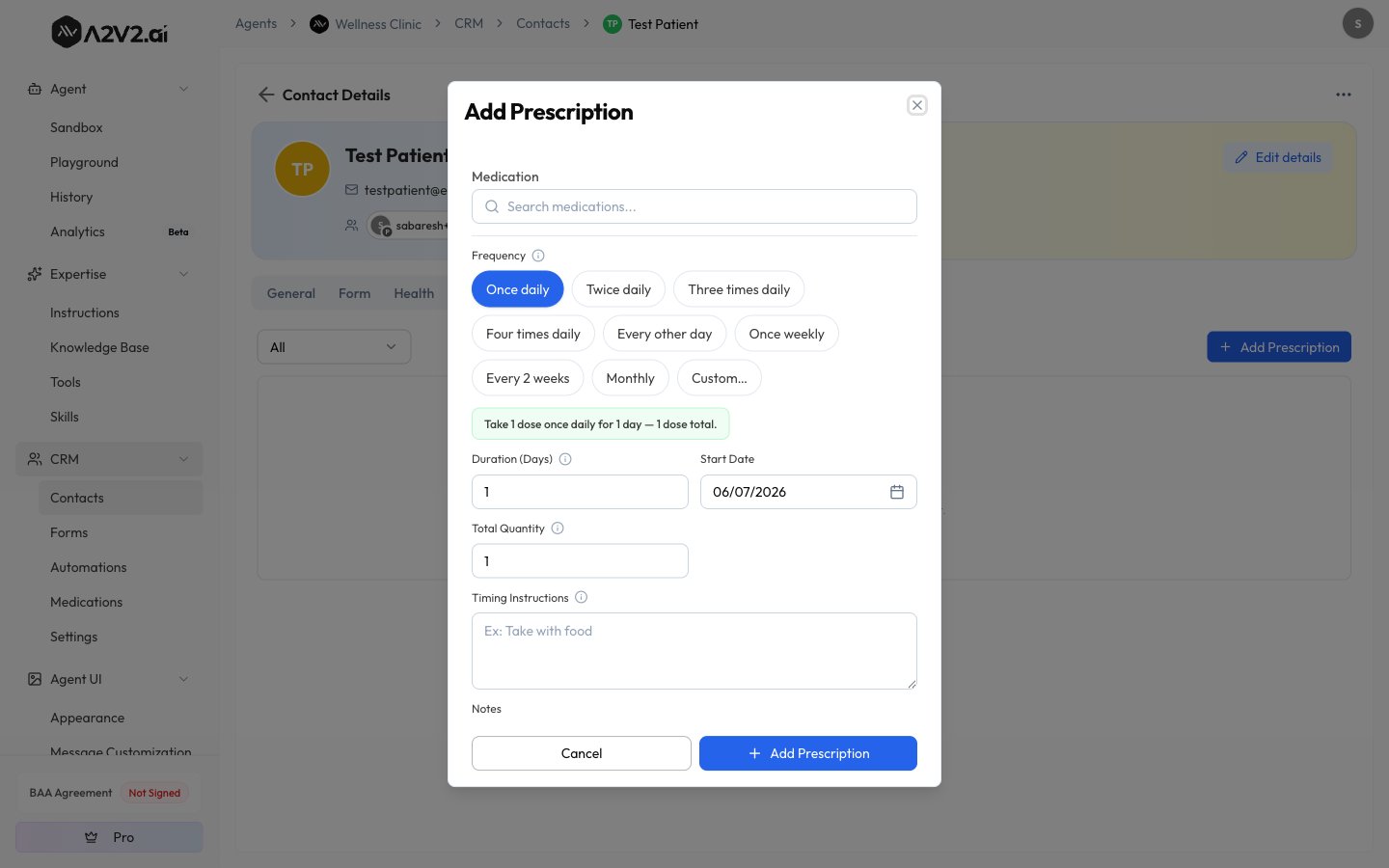 **Total Quantity** is auto-calculated from doses per day × duration, but you can
override it. Set the **Start Date**, add optional **Timing Instructions** ("Take with
food") and **Notes**, then save. The prescription is created as **Active**, records
who prescribed it, and computes its **Runs Out** date.
## Dose and schedule reference
| Field | What it sets | Notes |
| ----------------------- | ----------------------------------------------------- | ----------------------------------------- |
| **Medication** | The medicine, from your catalog | Required; add it to the catalog first |
| **Dose** | Amount to take per dose, e.g. "1 tablet, 500mg, 10ml" | Free text |
| **Unit** | Unit of measurement for one dose | Defaults from the medication's form |
| **Form** | Tablet, capsule, etc. | Comes from the chosen variant |
| **Doses Per Day** | How many times a day it's taken | |
| **Frequency** | How often it's taken — daily, weekly, or every N days | |
| **Every (Days)** | Days between doses — e.g. `7` for once weekly | |
| **Duration (Days)** | How many days the prescription lasts | Drives the Runs Out date |
| **Total Quantity** | Total units to dispense | Auto-calculated from doses/day × duration |
| **Start Date** | When the course begins | |
| **Timing Instructions** | When to take it — "before meals, at bedtime" | Optional |
| **Notes** | Anything else the team should know | Optional |
The **Runs Out** date is calculated from the **Duration (Days)**, not from the total
quantity or dose amount. If you set a 7-day duration with a weekly frequency, only one
administration happens before it ends — the form warns you when a schedule produces very
few administrations, so read the preview before saving.
## Statuses and lifecycle
Every prescription has one of four statuses:
| Status | Meaning |
| ---------------- | ------------------- |
| **Active** | Currently in effect |
| **Paused** | Temporarily on hold |
| **Completed** | Finished as planned |
| **Discontinued** | Stopped early |
From the row actions you can **View**, **Edit**, **Pause**, **Resume**, **Mark
Completed**, **Discontinue**, or **Delete**. An Active prescription can be paused,
completed, or discontinued; a Paused one can be resumed, completed, or discontinued.
**Completed** and **Discontinued** are final states — a prescription in either can't be
moved back to Active.
## Dispenses and refills
A **dispense** records that a supply was handed out. When you create a prescription, a
first dispense is added automatically for the initial supply. As the patient comes back
for refills, you log each one with **Add Dispense**.
On a prescription, select **Add Dispense** and enter the **Quantity** and **Dispense
Date**. You can only add a dispense while the prescription is **Active** or
**Paused**.
Adding a dispense recalculates the **Runs Out** date to the dispense date plus the
duration, and adds to the **Total Dispensed** count. The full list lives in the
**Dispense History** section.
The Runs Out date always reflects the **most recent** dispense (dispense date + duration)
— it's reset by each new dispense, not extended cumulatively.
## Knowing when a supply runs low
Each active prescription carries a **Runs Out** date. A2V2.ai flags prescriptions whose
supply is ending soon:
* **Expiring Soon** — running out within 7 days.
* **Expired** — the Runs Out date has passed while the prescription is still Active.
Use the status filter on the Prescriptions tab to focus on Active prescriptions, and
watch the Runs Out dates to see who's due for a refill.
When a patient stops a medication early, **Discontinue** it rather than deleting it —
that keeps the history of what they took and why it ended. Reserve delete for records
created in error.
Deleting a prescription removes it from the contact's record. There's no self-serve way
to restore it, so treat deletion as final — use **Discontinue** or **Mark Completed** to
close out a real prescription while keeping its history.
## Who can do what
| Action | Admin | Other members |
| ------------------------------------ | ----- | ------------- |
| View a contact's prescriptions | Yes | Yes |
| Create, edit, delete, add a dispense | Yes | No |
## Troubleshooting
The tab only appears on contacts of a **Medical** agent. Open the contact under a
Medical agent.
Prescriptions draw from your [Medications catalog](/medical/medications). Add the
medicine to the catalog first, then it'll be searchable here.
Dispenses can only be added while a prescription is **Active** or **Paused**. If it's
Completed or Discontinued, no further dispenses can be recorded.
Writing prescriptions — creating, editing, deleting, and adding dispenses — requires
the **Admin** role. Other members have view-only access.
Runs Out is based on the **Duration (Days)** you set, independent of how often the
dose is taken. Set the duration to the real length of the course, and check the
preview sentence before saving.
## Related
The reusable list of medicines that prescriptions are written from.
The patient records where the Prescriptions tab lives.
What the Medical agent suite includes and how it's gated.
Imports patient medications as prescriptions automatically.
**Total Quantity** is auto-calculated from doses per day × duration, but you can
override it. Set the **Start Date**, add optional **Timing Instructions** ("Take with
food") and **Notes**, then save. The prescription is created as **Active**, records
who prescribed it, and computes its **Runs Out** date.
## Dose and schedule reference
| Field | What it sets | Notes |
| ----------------------- | ----------------------------------------------------- | ----------------------------------------- |
| **Medication** | The medicine, from your catalog | Required; add it to the catalog first |
| **Dose** | Amount to take per dose, e.g. "1 tablet, 500mg, 10ml" | Free text |
| **Unit** | Unit of measurement for one dose | Defaults from the medication's form |
| **Form** | Tablet, capsule, etc. | Comes from the chosen variant |
| **Doses Per Day** | How many times a day it's taken | |
| **Frequency** | How often it's taken — daily, weekly, or every N days | |
| **Every (Days)** | Days between doses — e.g. `7` for once weekly | |
| **Duration (Days)** | How many days the prescription lasts | Drives the Runs Out date |
| **Total Quantity** | Total units to dispense | Auto-calculated from doses/day × duration |
| **Start Date** | When the course begins | |
| **Timing Instructions** | When to take it — "before meals, at bedtime" | Optional |
| **Notes** | Anything else the team should know | Optional |
The **Runs Out** date is calculated from the **Duration (Days)**, not from the total
quantity or dose amount. If you set a 7-day duration with a weekly frequency, only one
administration happens before it ends — the form warns you when a schedule produces very
few administrations, so read the preview before saving.
## Statuses and lifecycle
Every prescription has one of four statuses:
| Status | Meaning |
| ---------------- | ------------------- |
| **Active** | Currently in effect |
| **Paused** | Temporarily on hold |
| **Completed** | Finished as planned |
| **Discontinued** | Stopped early |
From the row actions you can **View**, **Edit**, **Pause**, **Resume**, **Mark
Completed**, **Discontinue**, or **Delete**. An Active prescription can be paused,
completed, or discontinued; a Paused one can be resumed, completed, or discontinued.
**Completed** and **Discontinued** are final states — a prescription in either can't be
moved back to Active.
## Dispenses and refills
A **dispense** records that a supply was handed out. When you create a prescription, a
first dispense is added automatically for the initial supply. As the patient comes back
for refills, you log each one with **Add Dispense**.
On a prescription, select **Add Dispense** and enter the **Quantity** and **Dispense
Date**. You can only add a dispense while the prescription is **Active** or
**Paused**.
Adding a dispense recalculates the **Runs Out** date to the dispense date plus the
duration, and adds to the **Total Dispensed** count. The full list lives in the
**Dispense History** section.
The Runs Out date always reflects the **most recent** dispense (dispense date + duration)
— it's reset by each new dispense, not extended cumulatively.
## Knowing when a supply runs low
Each active prescription carries a **Runs Out** date. A2V2.ai flags prescriptions whose
supply is ending soon:
* **Expiring Soon** — running out within 7 days.
* **Expired** — the Runs Out date has passed while the prescription is still Active.
Use the status filter on the Prescriptions tab to focus on Active prescriptions, and
watch the Runs Out dates to see who's due for a refill.
When a patient stops a medication early, **Discontinue** it rather than deleting it —
that keeps the history of what they took and why it ended. Reserve delete for records
created in error.
Deleting a prescription removes it from the contact's record. There's no self-serve way
to restore it, so treat deletion as final — use **Discontinue** or **Mark Completed** to
close out a real prescription while keeping its history.
## Who can do what
| Action | Admin | Other members |
| ------------------------------------ | ----- | ------------- |
| View a contact's prescriptions | Yes | Yes |
| Create, edit, delete, add a dispense | Yes | No |
## Troubleshooting
The tab only appears on contacts of a **Medical** agent. Open the contact under a
Medical agent.
Prescriptions draw from your [Medications catalog](/medical/medications). Add the
medicine to the catalog first, then it'll be searchable here.
Dispenses can only be added while a prescription is **Active** or **Paused**. If it's
Completed or Discontinued, no further dispenses can be recorded.
Writing prescriptions — creating, editing, deleting, and adding dispenses — requires
the **Admin** role. Other members have view-only access.
Runs Out is based on the **Duration (Days)** you set, independent of how often the
dose is taken. Set the duration to the real length of the course, and check the
preview sentence before saving.
## Related
The reusable list of medicines that prescriptions are written from.
The patient records where the Prescriptions tab lives.
What the Medical agent suite includes and how it's gated.
Imports patient medications as prescriptions automatically.