> ## Documentation Index
> Fetch the complete documentation index at: https://docs.a2v2.ai/llms.txt
> Use this file to discover all available pages before exploring further.
# Audit Logs
> See who did what and when across your organization — every create, update, delete, and sign-in, filterable and inspectable.
A contact's details changed and you want to know who edited them. A teammate says a key
went missing. **Audit Logs** answers these questions: a timestamped record of activity
across your organization, so you can review what happened and account for changes.
Open **Settings → Audit Logs** from the dashboard sidebar. The page is titled **Audit
Logs**.
## Prerequisites
* A signed-in account. **What you see depends on your role**: Owners and Admins see
"Activity across your organisation," while a User sees only "Your recent activity
across the platform." See [Members & roles](/settings/members-and-roles).
## Reading the log
Each entry is a row in the activity table:
| Column | What it shows |
| --------------- | ------------------------------------------------------------------- |
| **User** | Who performed the action |
| **Description** | A plain-language summary of what happened |
| **Action** | The kind of action — Create, Read, Update, Delete, Login, or Logout |
| **Resource** | What was acted on |
| **Status** | The outcome of the action |
| **Timestamp** | When it happened |
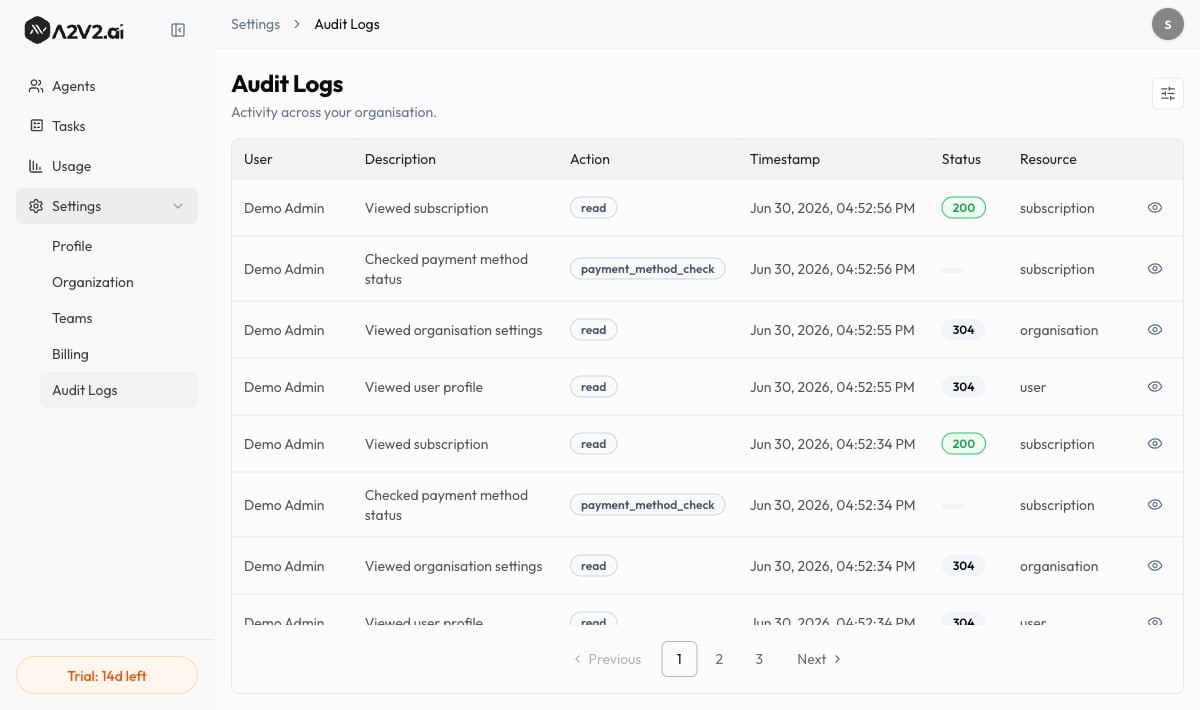 When nothing matches, the table reads "No activity logs found for the selected filters."
## Filter the activity
Use the **Filters** panel to narrow the log:
| Filter | Options |
| -------------- | ------------------------------------------------------------------------ |
| **User** | A specific person, or **All users** |
| **Action** | A single action type, or **All actions** |
| **Time range** | **Last 7 days**, **Last 14 days**, **Last 30 days**, or **Last 90 days** |
Select **Clear all** to reset the filters.
## Inspect a single entry
Open an entry to see its **Log Details** drawer, which expands on the row with the
technical context behind the action — including the **Method & Endpoint**, **Response
Time**, any **Error**, and the **Request Body**, **Query Params**, and **Route Params**
involved. Entries without that context show "No payload data."
Start broad, then narrow. Pick a wide **Time range** to confirm something happened, then
filter by **User** and **Action** to pinpoint the exact entry — for example, every
**Delete** a particular teammate made in the last 14 days.
## Troubleshooting
Organization-wide logs are visible to **Owners** and **Admins**. As a **User** you see
only your own activity. Ask an Admin if you need a broader view. See
[Members & roles](/settings/members-and-roles).
No entries match your current filters. Widen the **Time range**, set **User** to **All
users** and **Action** to **All actions**, or select **Clear all** to reset.
The time-range filter offers up to the last 90 days. Capture anything you need to keep
for longer outside the app within that window.
## Related
Roles decide who can see organization-wide activity.
Scope external access — another lever for accountability.
Manage the workspace these logs belong to.
Your name is what shows in the User column.
When nothing matches, the table reads "No activity logs found for the selected filters."
## Filter the activity
Use the **Filters** panel to narrow the log:
| Filter | Options |
| -------------- | ------------------------------------------------------------------------ |
| **User** | A specific person, or **All users** |
| **Action** | A single action type, or **All actions** |
| **Time range** | **Last 7 days**, **Last 14 days**, **Last 30 days**, or **Last 90 days** |
Select **Clear all** to reset the filters.
## Inspect a single entry
Open an entry to see its **Log Details** drawer, which expands on the row with the
technical context behind the action — including the **Method & Endpoint**, **Response
Time**, any **Error**, and the **Request Body**, **Query Params**, and **Route Params**
involved. Entries without that context show "No payload data."
Start broad, then narrow. Pick a wide **Time range** to confirm something happened, then
filter by **User** and **Action** to pinpoint the exact entry — for example, every
**Delete** a particular teammate made in the last 14 days.
## Troubleshooting
Organization-wide logs are visible to **Owners** and **Admins**. As a **User** you see
only your own activity. Ask an Admin if you need a broader view. See
[Members & roles](/settings/members-and-roles).
No entries match your current filters. Widen the **Time range**, set **User** to **All
users** and **Action** to **All actions**, or select **Clear all** to reset.
The time-range filter offers up to the last 90 days. Capture anything you need to keep
for longer outside the app within that window.
## Related
Roles decide who can see organization-wide activity.
Scope external access — another lever for accountability.
Manage the workspace these logs belong to.
Your name is what shows in the User column.