> ## Documentation Index
> Fetch the complete documentation index at: https://docs.a2v2.ai/llms.txt
> Use this file to discover all available pages before exploring further.
# Members & Roles
> Invite your team into your workspace and control what each person can do with Owner, Admin, and User roles.
You've built an agent and your support lead wants to read conversations, your ops
person needs to manage contacts, but neither should touch billing. **Teams** lets you
invite people into your organization and give each one the right level of access —
**Owner**, **Admin**, or **User**.
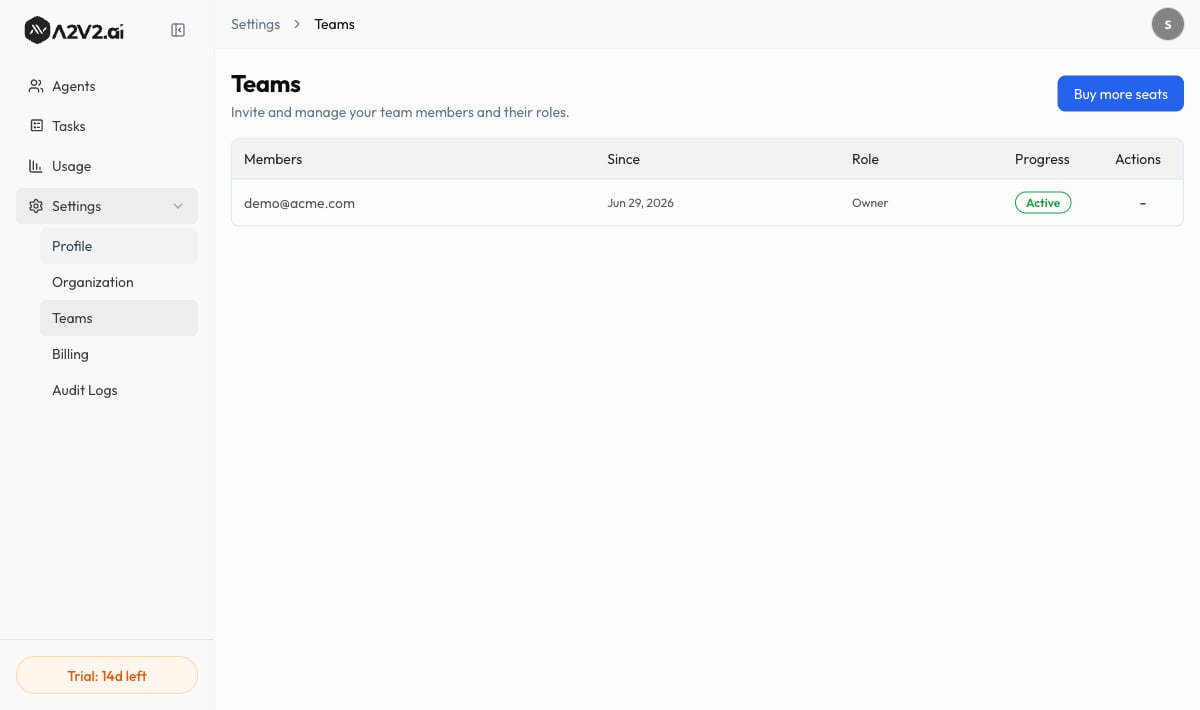
Open **Settings → Teams** from the dashboard sidebar. The page is titled **Teams**, with
the subtitle "Invite and manage your team members and their roles."
## Prerequisites
* You must be an **Owner** or **Admin** to invite or manage members.
* Team seats depend on your plan. The Free tier shows **No Teams Option**; paid plans
include a set number of members (for example "Up to 3 team members"), and you can buy
more with the **Team Member** [add-on](/billing/add-ons).
## The three roles
A2V2.ai uses three organization roles. Pick the lowest one that lets a person do their
job.
| Role | Who it's for | What they can do |
| --------- | --------------------------------- | ------------------------------------------------------------------------------------------------------------------------------------------------------------------------------------------------------------------------------------------------------------ |
| **Owner** | The person who runs the account | Full control of the organization — everything an Admin can do, **plus** billing, plans, add-ons, [auto-recharge](/billing/auto-recharge), renaming the [organization](/settings/organization), and inviting or managing **Admins**. There is one Owner. |
| **Admin** | Day-to-day operators and managers | Manage agents, knowledge bases, and CRM (contacts, forms, automations); invite and manage **Users**; see organization-wide [audit logs](/settings/audit-logs). Admins **cannot** change billing, the organization name, or manage other Admins or the Owner. |
| **User** | Teammates who need limited access | Work within the agents they're given, with read and limited-write access. Agent settings in the Sandbox are read-only for Users, they see only **their own** activity in audit logs, and they can't invite or manage members. |
**Who can assign what.** Only the **Owner** can invite someone as an **Admin** or
promote a member to Admin — Admins can invite **Users** only. An Admin can edit or
remove Users, but not other Admins or the Owner. No one can manage the Owner from this
screen.
## Invite a team member
From the dashboard sidebar, select **Settings → Teams**, then **New Member**.
 In the **Invite Team Member** dialog, type the member's email (for example
`member@example.com`) and choose a **Role**. Owners can pick **Admin** or **User**;
Admins can pick **User**.
Select **Send Invite**. You'll see "Invitation sent successfully." The person gets an
email invitation; once they accept, they join your organization with the role you chose.
## The team list
Each member or pending invite appears as a row with these columns:
| Column | What it shows |
| ------------ | ----------------------------------------------------------------------------- |
| **Members** | The person's name and email |
| **Since** | When they joined or were invited |
| **Role** | Their organization role — Owner, Admin, or User |
| **Progress** | Their invitation state (for example, an invite that hasn't been accepted yet) |
Before you add anyone, the list reads "No team members yet."
## Manage a member
From a member's row, an Owner or Admin can:
* **Edit Role** — open **Edit Member Role**, change the role, and **Update Role**. You'll
see "Role updated successfully."
* **Delete Invite** — cancel a pending invitation that hasn't been accepted ("Invitation
deleted").
* **Remove** a member — take them out of the organization ("Member removed").
What you can do depends on your role: an Admin can manage Users only, while the Owner can
manage any Admin or User. You can't manage your own row.
Removing a member revokes their access to the organization immediately. Deleting an
invitation cancels it before it's accepted. Neither can be undone — you'd re-invite the
person to restore access.
## Running out of seats
If you're at your plan's member limit, the button reads **Buy more seats** or **Upgrade
to use team** instead of **New Member**. Add capacity with the **Team Member**
[add-on](/billing/add-ons), or move to a plan with more included members on the
[Plans](/billing/plans) page. Billing changes are Owner-only.
Give people the narrowest role that still lets them work. Reserve **Admin** for those
who genuinely manage agents, content, or contacts; everyone else is fine as a **User**.
You can always promote someone later from **Edit Role**.
## Troubleshooting
Only the **Owner** can invite or promote someone to **Admin**. As an Admin you can
invite **Users** only. Ask your Owner to grant the Admin role.
You've used all the team seats on your plan. Add the **Team Member**
[add-on](/billing/add-ons) or upgrade your [plan](/billing/plans). Seat changes are
handled by the Owner.
Admins can manage **Users** only. Managing another Admin (or the Owner) is reserved
for the Owner.
Their invite is pending until they accept it from the email. Check the **Progress**
column, and re-send by deleting the invite and inviting again if needed.
## Related
Add more seats when your plan runs out.
Compare how many members each plan includes.
See what every member has been doing.
Name the workspace your team shares.
In the **Invite Team Member** dialog, type the member's email (for example
`member@example.com`) and choose a **Role**. Owners can pick **Admin** or **User**;
Admins can pick **User**.
Select **Send Invite**. You'll see "Invitation sent successfully." The person gets an
email invitation; once they accept, they join your organization with the role you chose.
## The team list
Each member or pending invite appears as a row with these columns:
| Column | What it shows |
| ------------ | ----------------------------------------------------------------------------- |
| **Members** | The person's name and email |
| **Since** | When they joined or were invited |
| **Role** | Their organization role — Owner, Admin, or User |
| **Progress** | Their invitation state (for example, an invite that hasn't been accepted yet) |
Before you add anyone, the list reads "No team members yet."
## Manage a member
From a member's row, an Owner or Admin can:
* **Edit Role** — open **Edit Member Role**, change the role, and **Update Role**. You'll
see "Role updated successfully."
* **Delete Invite** — cancel a pending invitation that hasn't been accepted ("Invitation
deleted").
* **Remove** a member — take them out of the organization ("Member removed").
What you can do depends on your role: an Admin can manage Users only, while the Owner can
manage any Admin or User. You can't manage your own row.
Removing a member revokes their access to the organization immediately. Deleting an
invitation cancels it before it's accepted. Neither can be undone — you'd re-invite the
person to restore access.
## Running out of seats
If you're at your plan's member limit, the button reads **Buy more seats** or **Upgrade
to use team** instead of **New Member**. Add capacity with the **Team Member**
[add-on](/billing/add-ons), or move to a plan with more included members on the
[Plans](/billing/plans) page. Billing changes are Owner-only.
Give people the narrowest role that still lets them work. Reserve **Admin** for those
who genuinely manage agents, content, or contacts; everyone else is fine as a **User**.
You can always promote someone later from **Edit Role**.
## Troubleshooting
Only the **Owner** can invite or promote someone to **Admin**. As an Admin you can
invite **Users** only. Ask your Owner to grant the Admin role.
You've used all the team seats on your plan. Add the **Team Member**
[add-on](/billing/add-ons) or upgrade your [plan](/billing/plans). Seat changes are
handled by the Owner.
Admins can manage **Users** only. Managing another Admin (or the Owner) is reserved
for the Owner.
Their invite is pending until they accept it from the email. Check the **Progress**
column, and re-send by deleting the invite and inviting again if needed.
## Related
Add more seats when your plan runs out.
Compare how many members each plan includes.
See what every member has been doing.
Name the workspace your team shares.