> ## Documentation Index
> Fetch the complete documentation index at: https://docs.a2v2.ai/llms.txt
> Use this file to discover all available pages before exploring further.
# Organization Settings
> Name your workspace — the shared container that holds your agents, contacts, team, and billing.
Your **organization** is the workspace everything in A2V2.ai belongs to: your agents,
their knowledge bases, your contacts, your team, and your plan. Naming it clearly
matters once you have teammates — the organization name is how your workspace is
identified across the product.
Open **Settings → Organization** from the dashboard sidebar. The page is titled
**Organization**, with the subtitle "Manage your organization's name and details."
## Prerequisites
* You must be the organization **Owner** to change the name. Admins and Users can view
this page but the field is read-only for them. See [Members & roles](/settings/members-and-roles).
## Rename your organization
From the dashboard sidebar, select **Settings → Organization**.
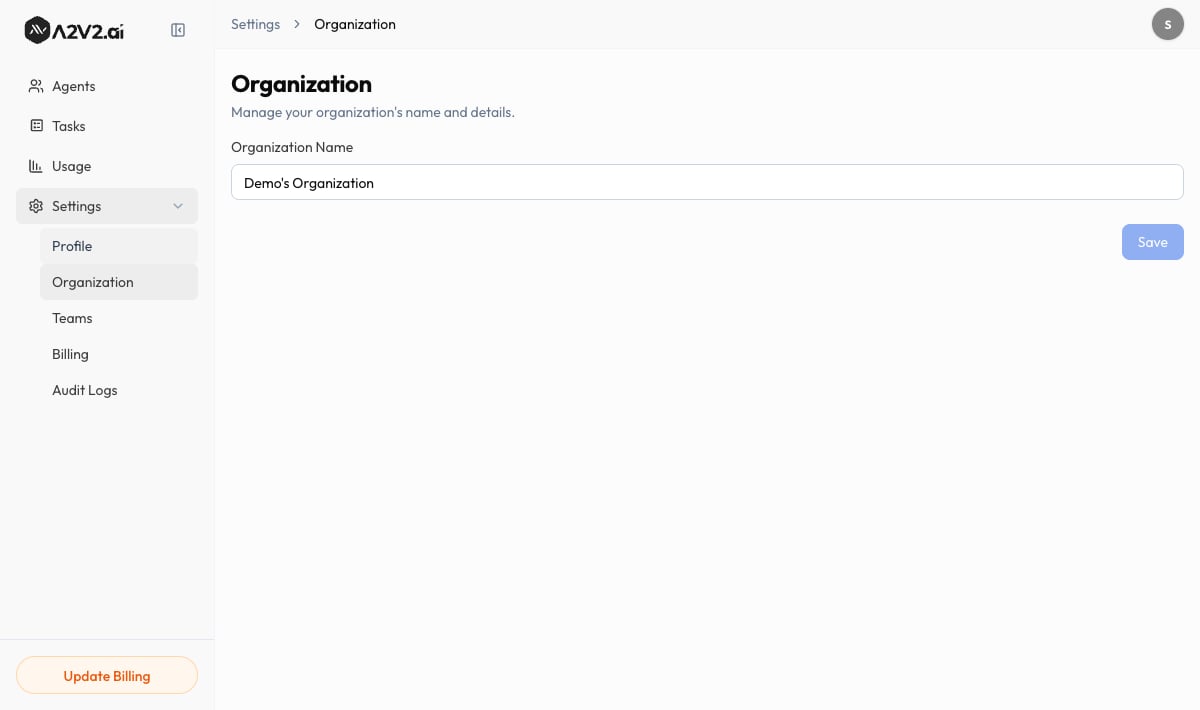 Update **Organization Name**. It must be between 3 and 100 characters.
Save your change. You'll see "Organisation name updated successfully."
## Fields reference
| Field | What it controls | Notes |
| --------------------- | ----------------------------------------- | ---------------------------------------- |
| **Organization Name** | The display name for your whole workspace | Owner-only · 3–100 characters · required |
An **organization** is your workspace; an **account** is your personal login. One
account belongs to one organization. Everyone you invite joins this same organization
and shares its agents, contacts, and credits.
If your company runs A2V2.ai for several brands or clients, put the company or brand
name here so teammates and audit logs make sense at a glance. Individual agents are
named separately when you [create them](/building/create-agent).
## Troubleshooting
Only the organization **Owner** can rename the workspace. If you need a change, ask
your Owner, or have them transfer ownership. See [Members & roles](/settings/members-and-roles).
The name must be 3–100 characters. Names that are too short or too long are rejected.
## Related
Invite teammates into this organization and set their roles.
Manage the subscription, credits, and add-ons for this organization.
Set your personal name and picture.
Review activity across the organization.
Update **Organization Name**. It must be between 3 and 100 characters.
Save your change. You'll see "Organisation name updated successfully."
## Fields reference
| Field | What it controls | Notes |
| --------------------- | ----------------------------------------- | ---------------------------------------- |
| **Organization Name** | The display name for your whole workspace | Owner-only · 3–100 characters · required |
An **organization** is your workspace; an **account** is your personal login. One
account belongs to one organization. Everyone you invite joins this same organization
and shares its agents, contacts, and credits.
If your company runs A2V2.ai for several brands or clients, put the company or brand
name here so teammates and audit logs make sense at a glance. Individual agents are
named separately when you [create them](/building/create-agent).
## Troubleshooting
Only the organization **Owner** can rename the workspace. If you need a change, ask
your Owner, or have them transfer ownership. See [Members & roles](/settings/members-and-roles).
The name must be 3–100 characters. Names that are too short or too long are rejected.
## Related
Invite teammates into this organization and set their roles.
Manage the subscription, credits, and add-ons for this organization.
Set your personal name and picture.
Review activity across the organization.