> ## Documentation Index
> Fetch the complete documentation index at: https://docs.a2v2.ai/llms.txt
> Use this file to discover all available pages before exploring further.
# Your Profile
> Set your name and profile picture so your activity and team records show the real you.
When you invite teammates, assign a contact owner, or leave a note, A2V2.ai shows
your name across the workspace. **Profile** is where you set that name and a picture,
so everyone on your team sees a real person instead of a blank record.
Open **Settings → Profile** from the dashboard sidebar. The page is titled **Profile**,
with the subtitle "Manage your personal information and profile picture."
## Prerequisites
* A signed-in A2V2.ai account. Your profile is personal — every member edits their own.
## What you can set
From the dashboard sidebar, select **Settings → Profile**.
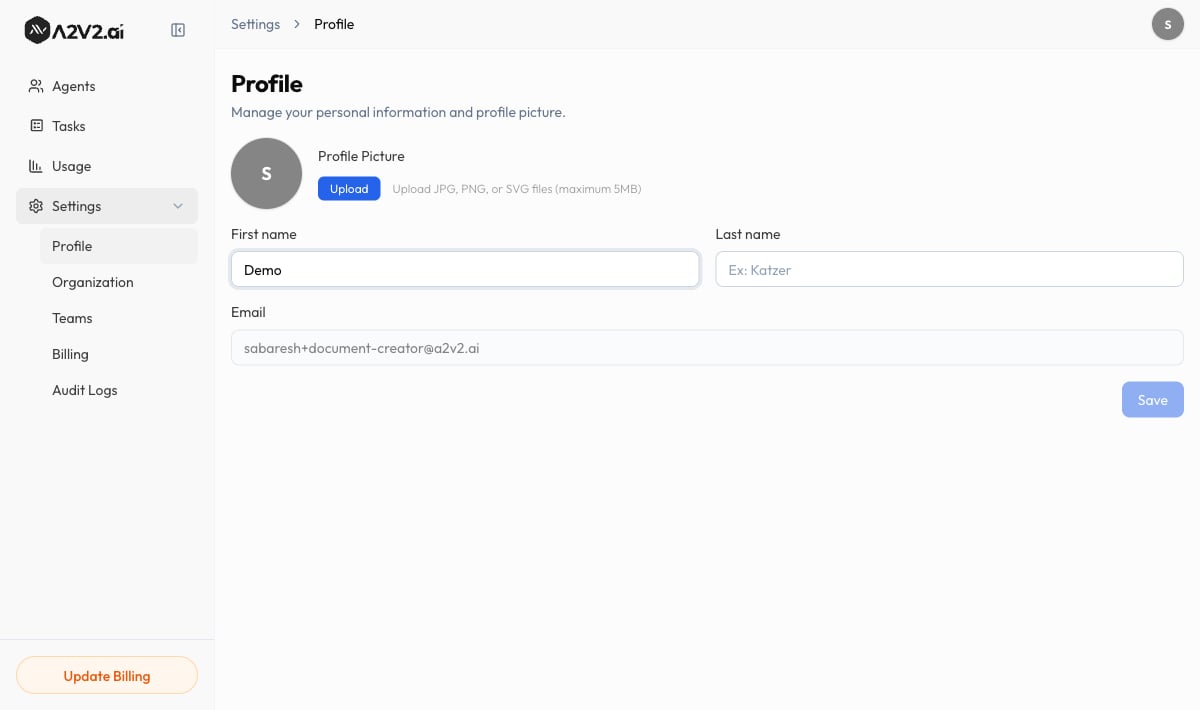 Under **Profile Picture**, select **Upload** and choose an image. A2V2.ai opens a
**Crop Profile Picture** window so you can frame it before saving.
Fill in **First name** and **Last name**. These are the names shown on your audit-log
entries, team list, notes, and contact ownership.
Select **Save**. The button stays disabled until you've made a change. You'll see
"Profile updated successfully" when it's done.
## Fields reference
| Field | What it controls | Notes |
| ------------------- | ------------------------------------------------------ | ---------------------------------------------------------------------------- |
| **Profile Picture** | The avatar shown beside your name across the workspace | Upload JPG, PNG, or SVG files (maximum 5MB). You can crop before saving. |
| **First name** | The given name shown on your records | Required · up to 50 characters |
| **Last name** | The family name shown on your records | Required · up to 50 characters |
| **Email** | The address you sign in with | Read-only here — it's your account identity and can't be edited on this page |
Your **email** is shown for reference but can't be changed from Profile — it's the
identity you sign in with. To use a different email, reach out to
[support@a2v2.ai](mailto:support@a2v2.ai).
Set a real name and photo before you invite your team. Owner, note author, and
audit-log columns all read from your profile, so filled-in profiles make it obvious at
a glance who did what.
## Troubleshooting
Pictures must be JPG, PNG, or SVG and no larger than 5MB. If your file is bigger,
resize it first, then upload again.
**Save** stays disabled until you change something and both name fields are valid.
Edit a field, then save.
Email is read-only on the Profile page because it's your sign-in identity. Contact
[support@a2v2.ai](mailto:support@a2v2.ai) to change it.
## Related
Set your workspace's name and details.
Invite teammates and choose what each can do.
See the activity your profile is attached to.
Under **Profile Picture**, select **Upload** and choose an image. A2V2.ai opens a
**Crop Profile Picture** window so you can frame it before saving.
Fill in **First name** and **Last name**. These are the names shown on your audit-log
entries, team list, notes, and contact ownership.
Select **Save**. The button stays disabled until you've made a change. You'll see
"Profile updated successfully" when it's done.
## Fields reference
| Field | What it controls | Notes |
| ------------------- | ------------------------------------------------------ | ---------------------------------------------------------------------------- |
| **Profile Picture** | The avatar shown beside your name across the workspace | Upload JPG, PNG, or SVG files (maximum 5MB). You can crop before saving. |
| **First name** | The given name shown on your records | Required · up to 50 characters |
| **Last name** | The family name shown on your records | Required · up to 50 characters |
| **Email** | The address you sign in with | Read-only here — it's your account identity and can't be edited on this page |
Your **email** is shown for reference but can't be changed from Profile — it's the
identity you sign in with. To use a different email, reach out to
[support@a2v2.ai](mailto:support@a2v2.ai).
Set a real name and photo before you invite your team. Owner, note author, and
audit-log columns all read from your profile, so filled-in profiles make it obvious at
a glance who did what.
## Troubleshooting
Pictures must be JPG, PNG, or SVG and no larger than 5MB. If your file is bigger,
resize it first, then upload again.
**Save** stays disabled until you change something and both name fields are valid.
Edit a field, then save.
Email is read-only on the Profile page because it's your sign-in identity. Contact
[support@a2v2.ai](mailto:support@a2v2.ai) to change it.
## Related
Set your workspace's name and details.
Invite teammates and choose what each can do.
See the activity your profile is attached to.