> ## Documentation Index
> Fetch the complete documentation index at: https://docs.a2v2.ai/llms.txt
> Use this file to discover all available pages before exploring further.
# Tasks
> Turn the follow-ups buried in your conversations into assigned, trackable work — with statuses, checklists, comments, and watchers your whole team can see.
A lead asks your agent for a custom quote on Friday afternoon. Someone needs to call
them Monday — but who, and will it actually happen? **Tasks** is the shared board where
work like this stops slipping through the cracks. Create a task, assign it to a teammate,
link it to the contact and the agent it came from, and everyone watching can follow it
from **Pending** to **Completed**.
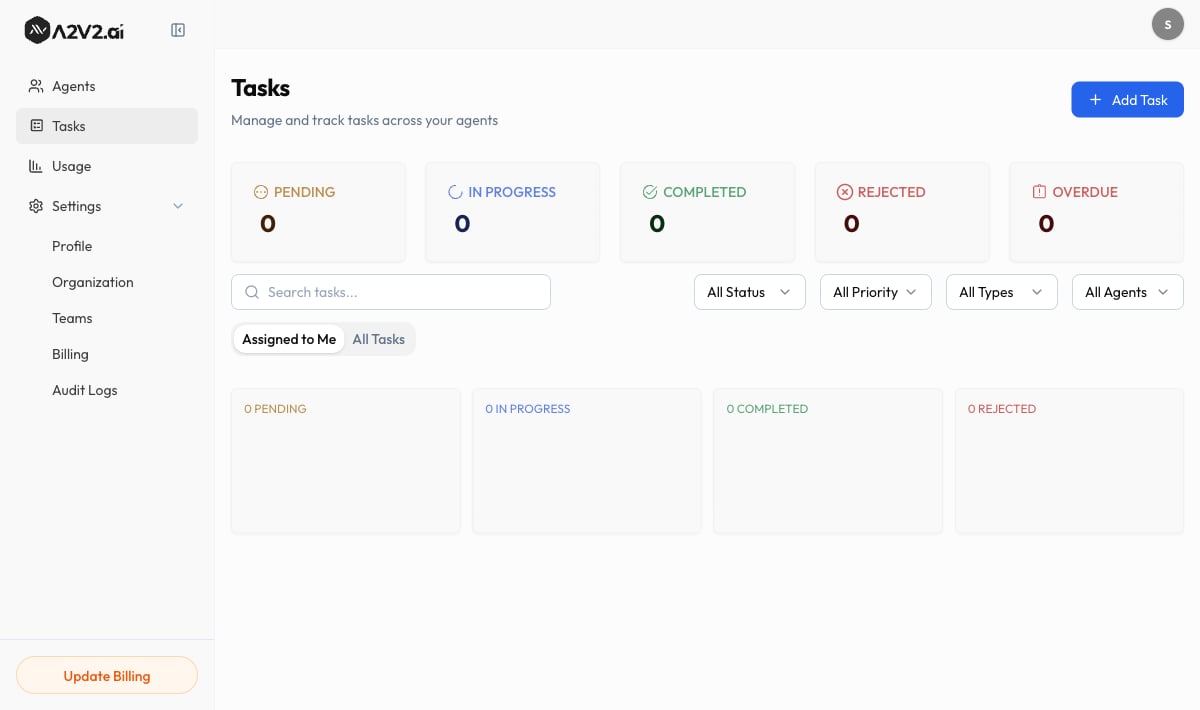
Tasks live at the organization level, alongside your agents and settings. Open **Tasks**
from the dashboard sidebar (route `/tasks`). The page is titled **Tasks**, with the
subtitle "Manage and track tasks across your agents."
 ## Prerequisites
* A task always needs an **Assignee**, so you'll want at least one
[team member](/settings/members-and-roles) — including yourself.
* Linking a task to an **Agent** or **Contact** is optional but recommended when the
task came out of a conversation.
* **Reassigning** a task to a different person is limited to **admins** and **owners**.
## Find your way around the board
The Tasks page gives you two tabs and a row of filters so you can cut a long list down
to exactly what you need.
| Control | What it does |
| ---------------------- | -------------------------------------------------------------------------- |
| **Assigned to Me** tab | Shows only the tasks assigned to you — your personal to-do list. |
| **All Tasks** tab | Shows every task in the organization. |
| **Search tasks…** | Find a task by its title. |
| **All Status** | Filter by status (Pending, In Progress, Completed, Overdue, Rejected). |
| **All Priority** | Filter by priority (Low, Medium, High, Urgent). |
| **All Types** | Filter by type (Call, Email, Follow Up, Issue, Request, Meeting, General). |
| **All Agents** | Filter to tasks linked to a specific agent. |
Each task appears as a card showing its **Assignee** and a **View** action. Higher-priority
tasks appear first in filtered views.
## Create a task
Select **Add Task**. The **Add New Task** drawer opens with the subtitle "Fill in the
details to create a new task."
## Prerequisites
* A task always needs an **Assignee**, so you'll want at least one
[team member](/settings/members-and-roles) — including yourself.
* Linking a task to an **Agent** or **Contact** is optional but recommended when the
task came out of a conversation.
* **Reassigning** a task to a different person is limited to **admins** and **owners**.
## Find your way around the board
The Tasks page gives you two tabs and a row of filters so you can cut a long list down
to exactly what you need.
| Control | What it does |
| ---------------------- | -------------------------------------------------------------------------- |
| **Assigned to Me** tab | Shows only the tasks assigned to you — your personal to-do list. |
| **All Tasks** tab | Shows every task in the organization. |
| **Search tasks…** | Find a task by its title. |
| **All Status** | Filter by status (Pending, In Progress, Completed, Overdue, Rejected). |
| **All Priority** | Filter by priority (Low, Medium, High, Urgent). |
| **All Types** | Filter by type (Call, Email, Follow Up, Issue, Request, Meeting, General). |
| **All Agents** | Filter to tasks linked to a specific agent. |
Each task appears as a card showing its **Assignee** and a **View** action. Higher-priority
tasks appear first in filtered views.
## Create a task
Select **Add Task**. The **Add New Task** drawer opens with the subtitle "Fill in the
details to create a new task."
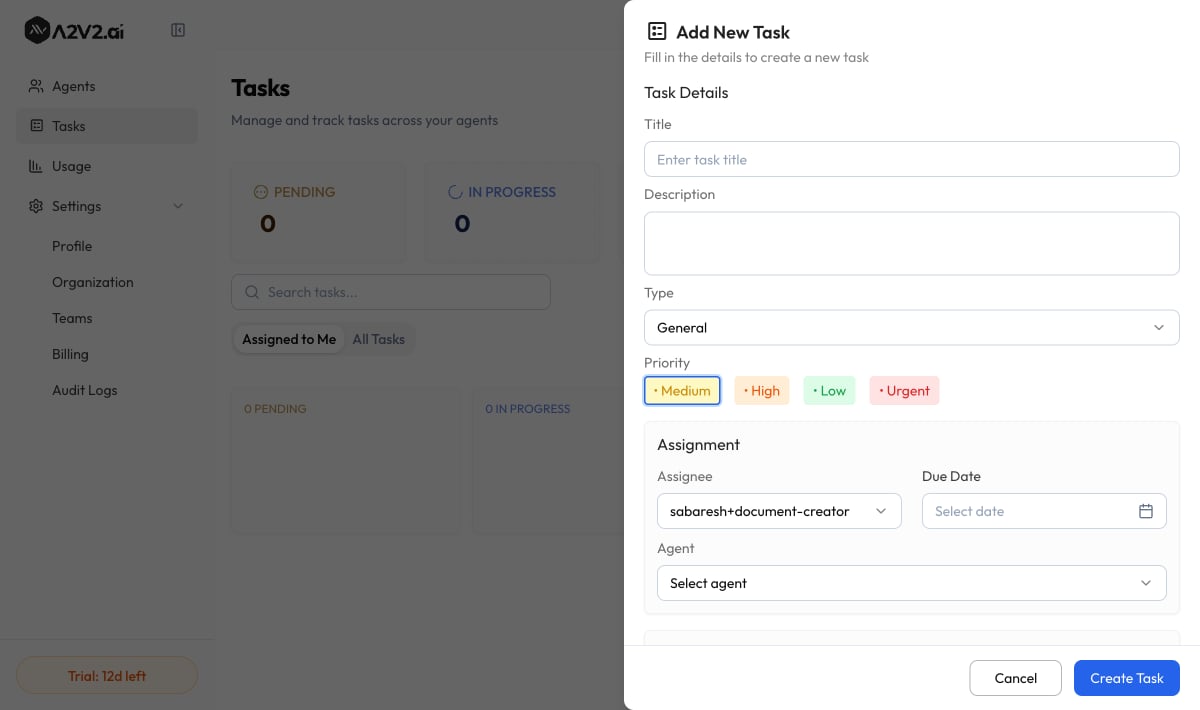 Under **Task Details**, give the task a **Title** ("Enter task title") and an optional
**Description**. Choose a **Type** and a **Priority** (see the reference tables below).
Titles are required and capped at 200 characters; descriptions can be up to 5,000.
Under **Assignment**, pick an **Assignee** ("Select assignee") — this is required —
and optionally a **Due Date** and the **Agent** the task relates to.
Expand **More Options** to link a **Contact**, add **Watchers**, apply **Tags**, or
build a **Checklist**. These are covered below.
Select **Create Task**. You'll see "Task created successfully" and the task appears on
the board. The assignee and any watchers are notified.
### Task types
Pick the type that matches the work so you can filter by it later.
| Type | Use it for |
| ------------- | ----------------------------------------- |
| **Call** | A phone call you need to make or return. |
| **Email** | An email to send or follow up on. |
| **Follow Up** | Checking back in with a lead or customer. |
| **Issue** | Something that's broken or needs fixing. |
| **Request** | A customer request to action. |
| **Meeting** | Scheduling or preparing for a meeting. |
| **General** | Anything that doesn't fit the above. |
### Priority
| Priority | Notes |
| ---------- | --------------------------- |
| **Low** | Nice-to-do, no urgency. |
| **Medium** | The default for a new task. |
| **High** | Should be handled soon. |
| **Urgent** | Needs attention now. |
Priority controls ordering — higher-priority tasks surface first when you filter the
board.
## Statuses
A task moves through statuses as the work progresses. On an open task, click a status to
move it — "Pending → In Progress → Done" — and the assignee and watchers are notified of
the change.
| Status | Meaning |
| --------------- | ---------------------------------------- |
| **Pending** | Created but not yet started. |
| **In Progress** | Someone is actively working on it. |
| **Completed** | The work is done. |
| **Overdue** | Past its due date and not yet completed. |
| **Rejected** | Declined or won't be done. |
## Assign and reassign
Every task has one **Assignee** — the person responsible for getting it done. You set the
assignee when you create the task.
To hand a task to someone else, open it and choose a different team member. Reassigning is
restricted to **admins** and **owners**, so day-to-day members can't quietly move work off
their plate. The new assignee is notified.
Use the **Assigned to Me** tab as your daily worklist, and sort the **All Tasks** view by
priority when you're running standup or clearing a backlog.
## Watchers
**Watchers** are team members who want to stay in the loop on a task without owning it — a
manager keeping an eye on a key account, or a colleague who'll pick the task up next.
On a task, select **+ Add Watcher** and search your team members to add them. Watchers get
notified on status changes, comments, and updates. Add watchers while creating a task under
**More Options**, or any time afterward from the open task.
## Checklists
Break a task into smaller steps with a **Checklist** — useful when "follow up with the
customer" actually means three or four sub-steps. Type a **Checklist item** and select
**Add checklist** to add it, then check items off as you complete them. The task itself
stays a single trackable unit while the checklist captures the detail.
## Comments and activity
Open a task to discuss it in context. Under **Comments**, type into "Add a comment…" and
select **Send**. Comments keep the conversation about the work attached to the work itself,
instead of scattered across chat and email. Use **View all Comments** to expand a long
thread and **Show less** to collapse it again.
The **Activity** log records what changed on the task — status moves, reassignments, and
updates — so anyone opening it later can see the full history. Use **View all Activities**
to see the complete trail.
## Tags
Add **Tags** to categorize and group related tasks. Type a tag and press **Enter** to add
it, and click **×** to remove one. Once tagged, you can use tags to filter the board down
to a campaign, a customer segment, or any grouping that fits how your team works.
## Link a task to a contact and agent
When a task comes out of a conversation, link it back to its source. Under **More Options**,
choose a **Contact** (search your CRM contacts) and, under **Assignment**, the **Agent** the
task relates to. This connects the follow-up to the person who asked and the agent that
handled them — so the next person to pick it up has the full picture without digging.
## Edit and delete a task
To change a task's details, open it and select **Edit Tasks** ("Update the details below
and save your changes"), make your changes, and select **Save Changes**.
Deleting a task is permanent. The confirmation reads "This action will permanently delete
this task. Are you sure?" — there's no undo. If a task is no longer relevant but you want to
keep the record, set its status to **Rejected** instead.
## Troubleshooting
Only **admins** and **owners** can reassign tasks. If you're a member, ask an admin or
owner to move it, or check your role under [Team members](/settings/members-and-roles).
A task becomes **Overdue** when it passes its **Due Date** without being completed. Open
it to update the status, push the due date out, or reassign it.
Notifications go to the **Assignee** and to **Watchers**. If someone needs updates on a
task they don't own, add them as a watcher with **+ Add Watcher**.
Switch to the **All Tasks** tab — the **Assigned to Me** tab only shows tasks assigned
to you. Then clear any **Status**, **Priority**, **Type**, or **Agent** filters, or
search by the task's title.
## Related
Link a task to the person it's about and see their full history.
Spot the follow-ups worth turning into tasks.
Add the teammates you'll assign tasks to and set who can reassign.
Route and organize contacts automatically as they arrive.
Under **Task Details**, give the task a **Title** ("Enter task title") and an optional
**Description**. Choose a **Type** and a **Priority** (see the reference tables below).
Titles are required and capped at 200 characters; descriptions can be up to 5,000.
Under **Assignment**, pick an **Assignee** ("Select assignee") — this is required —
and optionally a **Due Date** and the **Agent** the task relates to.
Expand **More Options** to link a **Contact**, add **Watchers**, apply **Tags**, or
build a **Checklist**. These are covered below.
Select **Create Task**. You'll see "Task created successfully" and the task appears on
the board. The assignee and any watchers are notified.
### Task types
Pick the type that matches the work so you can filter by it later.
| Type | Use it for |
| ------------- | ----------------------------------------- |
| **Call** | A phone call you need to make or return. |
| **Email** | An email to send or follow up on. |
| **Follow Up** | Checking back in with a lead or customer. |
| **Issue** | Something that's broken or needs fixing. |
| **Request** | A customer request to action. |
| **Meeting** | Scheduling or preparing for a meeting. |
| **General** | Anything that doesn't fit the above. |
### Priority
| Priority | Notes |
| ---------- | --------------------------- |
| **Low** | Nice-to-do, no urgency. |
| **Medium** | The default for a new task. |
| **High** | Should be handled soon. |
| **Urgent** | Needs attention now. |
Priority controls ordering — higher-priority tasks surface first when you filter the
board.
## Statuses
A task moves through statuses as the work progresses. On an open task, click a status to
move it — "Pending → In Progress → Done" — and the assignee and watchers are notified of
the change.
| Status | Meaning |
| --------------- | ---------------------------------------- |
| **Pending** | Created but not yet started. |
| **In Progress** | Someone is actively working on it. |
| **Completed** | The work is done. |
| **Overdue** | Past its due date and not yet completed. |
| **Rejected** | Declined or won't be done. |
## Assign and reassign
Every task has one **Assignee** — the person responsible for getting it done. You set the
assignee when you create the task.
To hand a task to someone else, open it and choose a different team member. Reassigning is
restricted to **admins** and **owners**, so day-to-day members can't quietly move work off
their plate. The new assignee is notified.
Use the **Assigned to Me** tab as your daily worklist, and sort the **All Tasks** view by
priority when you're running standup or clearing a backlog.
## Watchers
**Watchers** are team members who want to stay in the loop on a task without owning it — a
manager keeping an eye on a key account, or a colleague who'll pick the task up next.
On a task, select **+ Add Watcher** and search your team members to add them. Watchers get
notified on status changes, comments, and updates. Add watchers while creating a task under
**More Options**, or any time afterward from the open task.
## Checklists
Break a task into smaller steps with a **Checklist** — useful when "follow up with the
customer" actually means three or four sub-steps. Type a **Checklist item** and select
**Add checklist** to add it, then check items off as you complete them. The task itself
stays a single trackable unit while the checklist captures the detail.
## Comments and activity
Open a task to discuss it in context. Under **Comments**, type into "Add a comment…" and
select **Send**. Comments keep the conversation about the work attached to the work itself,
instead of scattered across chat and email. Use **View all Comments** to expand a long
thread and **Show less** to collapse it again.
The **Activity** log records what changed on the task — status moves, reassignments, and
updates — so anyone opening it later can see the full history. Use **View all Activities**
to see the complete trail.
## Tags
Add **Tags** to categorize and group related tasks. Type a tag and press **Enter** to add
it, and click **×** to remove one. Once tagged, you can use tags to filter the board down
to a campaign, a customer segment, or any grouping that fits how your team works.
## Link a task to a contact and agent
When a task comes out of a conversation, link it back to its source. Under **More Options**,
choose a **Contact** (search your CRM contacts) and, under **Assignment**, the **Agent** the
task relates to. This connects the follow-up to the person who asked and the agent that
handled them — so the next person to pick it up has the full picture without digging.
## Edit and delete a task
To change a task's details, open it and select **Edit Tasks** ("Update the details below
and save your changes"), make your changes, and select **Save Changes**.
Deleting a task is permanent. The confirmation reads "This action will permanently delete
this task. Are you sure?" — there's no undo. If a task is no longer relevant but you want to
keep the record, set its status to **Rejected** instead.
## Troubleshooting
Only **admins** and **owners** can reassign tasks. If you're a member, ask an admin or
owner to move it, or check your role under [Team members](/settings/members-and-roles).
A task becomes **Overdue** when it passes its **Due Date** without being completed. Open
it to update the status, push the due date out, or reassign it.
Notifications go to the **Assignee** and to **Watchers**. If someone needs updates on a
task they don't own, add them as a watcher with **+ Add Watcher**.
Switch to the **All Tasks** tab — the **Assigned to Me** tab only shows tasks assigned
to you. Then clear any **Status**, **Priority**, **Type**, or **Agent** filters, or
search by the task's title.
## Related
Link a task to the person it's about and see their full history.
Spot the follow-ups worth turning into tasks.
Add the teammates you'll assign tasks to and set who can reassign.
Route and organize contacts automatically as they arrive.