> ## Documentation Index
> Fetch the complete documentation index at: https://docs.a2v2.ai/llms.txt
> Use this file to discover all available pages before exploring further.
# Playground
> Compare models, temperatures, and instructions side-by-side — and test with your voice.
The **Playground** lets you run the same question against multiple
configurations at once, so you can see which **model**, **temperature**, and
**instructions** combination answers best before you make it live.
Open **Agent → Playground** from the agent sidebar.
The Playground is a desktop feature. On smaller screens you'll be asked to switch
to a larger display.
## Prerequisites
* An agent (see [Create an agent](/building/create-agent)).
* At least one [Completed knowledge source](/knowledge-base/overview).
## Compare configurations
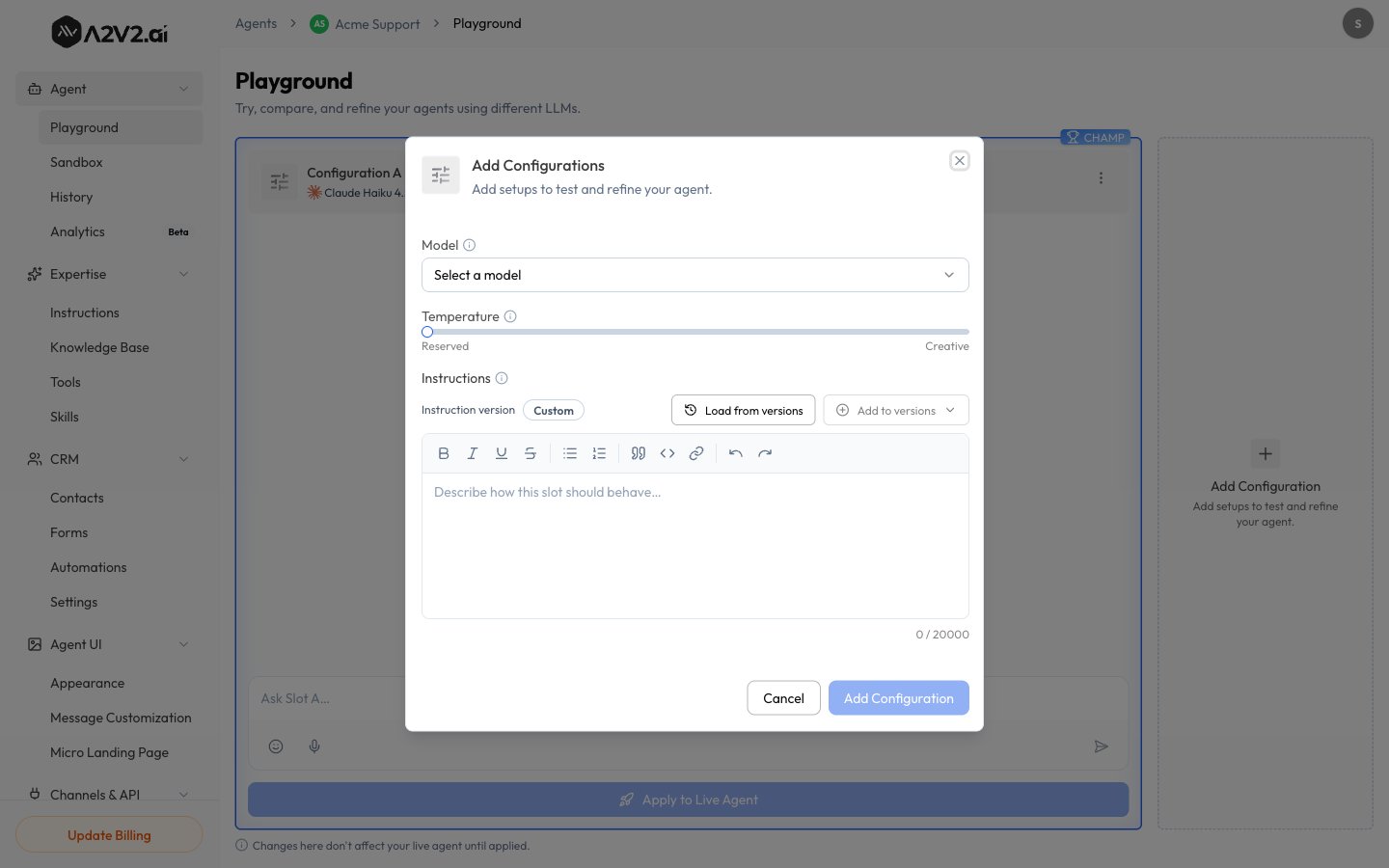
The Playground gives you side-by-side **configurations** — **Configuration A** and
**Configuration B** — each with its own model, temperature, and instruction
version, running in parallel.
In the agent sidebar, open **Agent → Playground**.
For **Configuration A** and **Configuration B**, pick a **model**, adjust
**temperature**, and choose the **instruction version** to use. Need a third?
Select **Add Configuration**.
Send the same question to every configuration and compare the answers
side-by-side.
Once you know which configuration wins, select **Apply to Live Agent** to make
it your agent's live setup.
 Changes here don't affect your live agent until applied — experiment freely, then
use **Apply to Live Agent** when you're ready.
## Voice input
Each configuration's input box lets you type your question or use **Start
recording** to speak it — handy for testing how the agent handles natural, spoken
phrasing.
Voice transcription consumes credits. See [Credits](/concepts#credits).
## Tips
* Change **one variable** between configurations (e.g. same instructions,
different model) so you can attribute the difference to that variable.
* Test your trickiest real-world questions here — the Playground is where
configuration decisions are cheapest to make.
* Playground testing is for iteration and doesn't represent your live visitor
experience; final-check in the [Sandbox](/testing/sandbox) preview.
## Related
Changes here don't affect your live agent until applied — experiment freely, then
use **Apply to Live Agent** when you're ready.
## Voice input
Each configuration's input box lets you type your question or use **Start
recording** to speak it — handy for testing how the agent handles natural, spoken
phrasing.
Voice transcription consumes credits. See [Credits](/concepts#credits).
## Tips
* Change **one variable** between configurations (e.g. same instructions,
different model) so you can attribute the difference to that variable.
* Test your trickiest real-world questions here — the Playground is where
configuration decisions are cheapest to make.
* Playground testing is for iteration and doesn't represent your live visitor
experience; final-check in the [Sandbox](/testing/sandbox) preview.
## Related