> ## Documentation Index
> Fetch the complete documentation index at: https://docs.a2v2.ai/llms.txt
> Use this file to discover all available pages before exploring further.
# Sandbox
> Chat with your agent, tune its model and instructions, and watch how it answers — all in one place.
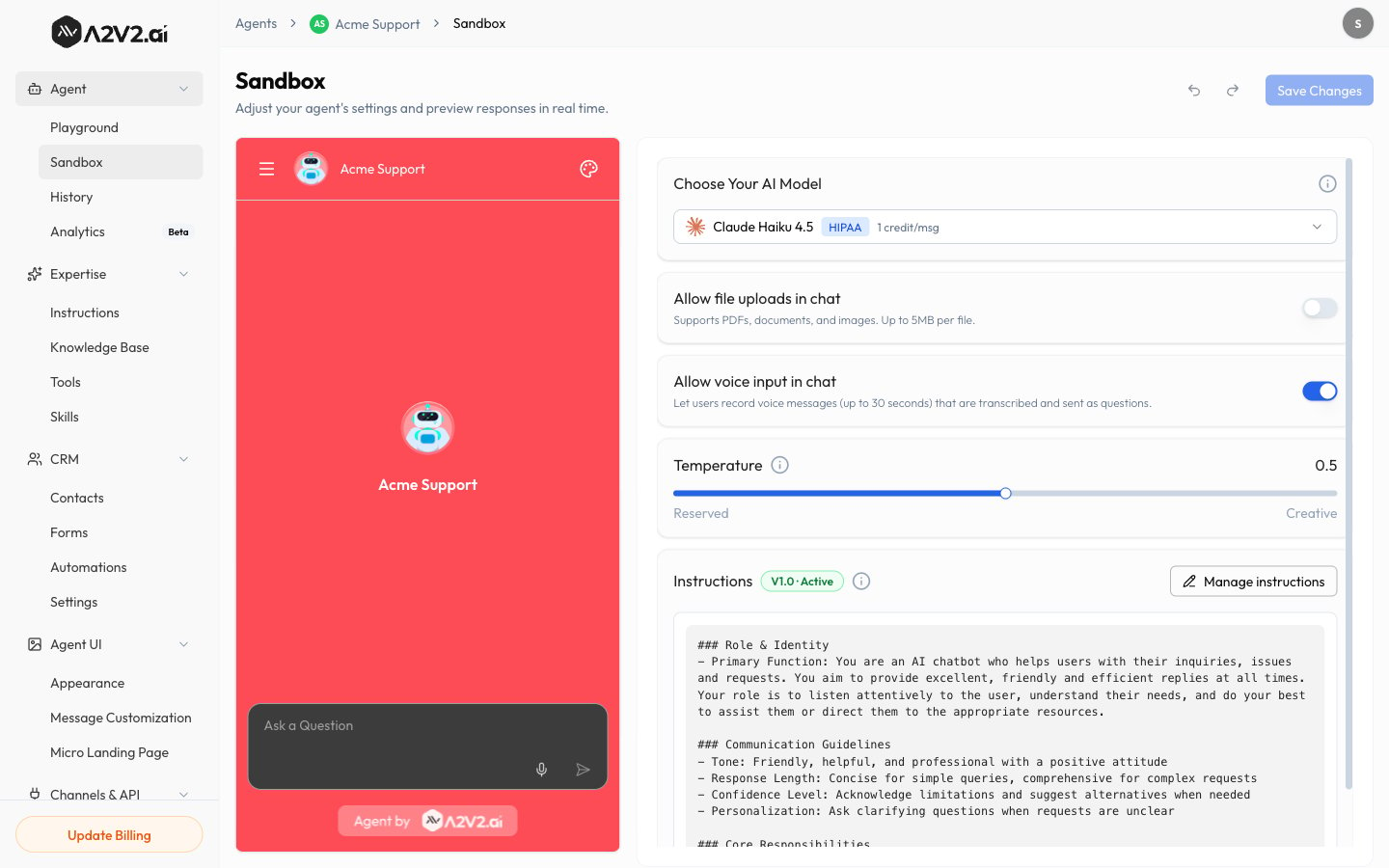
The **Sandbox** is your agent's control room and test chat in one. As its subtitle
says, it's where you "adjust your agent's settings and preview responses in real
time" — set the model, temperature, instructions, and chat options, then talk to
your agent exactly the way a visitor would, with a live preview beside the
settings.
Open **Agent → Sandbox** from the agent sidebar.
## Prerequisites
* An agent (see [Create an agent](/building/create-agent)).
* At least one [Completed knowledge source](/knowledge-base/overview) for the
agent to answer from.
## What's on the Sandbox
| Control | What it does |
| ------------------------------ | ----------------------------------------------------------------------------------------------------------------------------------------------------------- |
| **Choose Your AI Model** | Pick the AI model that powers answers. Each option shows its credits/msg and any HIPAA/Premium badges. See [Model & temperature](/building/model-settings). |
| **Temperature** | Slider for how focused vs. creative answers are, from **Reserved** to **Creative** (default 0.5). |
| **Allow file uploads in chat** | Lets visitors attach files in the chat. Supports PDFs, documents, and images, up to 5MB per file. |
| **Allow voice input in chat** | Lets visitors record voice messages (up to 30 seconds). On by default. |
| **Instructions** | Shows the active instruction version (for example, **V1.0 · Active**) with a shortcut to **Manage instructions**. |
| **Live preview** | A working chat with your agent for instant testing. |
| **Undo / Redo** | Step backward or forward through your unsaved setting changes. |
| **Save Changes** | Applies your settings to the agent's live answers. |
 Changes you make in the Sandbox apply to your live agent once you select **Save
Changes**. Use **Undo** and **Redo** to step through edits before saving.
## Test your agent
Type a question your knowledge base should answer.
The agent replies in real time. While it works, you may see it *thinking* and
using tools before the final answer appears.
Confirm the answer cites the right source from your knowledge base — that's how
you know it's grounded in your content.
Tweak the model, temperature, or [instructions](/building/instructions), then
ask again to compare.
Testing in the Sandbox is for your own iteration. Use it freely to dial in the
agent before you [embed it](/embed/install).
## Tips
* Test the **hard questions** — edge cases, ambiguous phrasing, and things just
outside your content — to see how the agent handles them.
* If an answer is wrong, check whether the source is **Completed**, then sharpen
your [instructions](/building/instructions) or add a [Q\&A](/knowledge-base/qa).
* To compare two full configurations at once, use the
[Playground](/testing/playground).
## Troubleshooting
Make sure a relevant source shows **Completed** in the
[Knowledge Base](/knowledge-base/overview). If it does, add a closer-matching
[Q\&A pair](/knowledge-base/qa).
Refine your [instructions](/building/instructions) and consider lowering
[temperature](/building/model-settings#tune-temperature).
## Related
Changes you make in the Sandbox apply to your live agent once you select **Save
Changes**. Use **Undo** and **Redo** to step through edits before saving.
## Test your agent
Type a question your knowledge base should answer.
The agent replies in real time. While it works, you may see it *thinking* and
using tools before the final answer appears.
Confirm the answer cites the right source from your knowledge base — that's how
you know it's grounded in your content.
Tweak the model, temperature, or [instructions](/building/instructions), then
ask again to compare.
Testing in the Sandbox is for your own iteration. Use it freely to dial in the
agent before you [embed it](/embed/install).
## Tips
* Test the **hard questions** — edge cases, ambiguous phrasing, and things just
outside your content — to see how the agent handles them.
* If an answer is wrong, check whether the source is **Completed**, then sharpen
your [instructions](/building/instructions) or add a [Q\&A](/knowledge-base/qa).
* To compare two full configurations at once, use the
[Playground](/testing/playground).
## Troubleshooting
Make sure a relevant source shows **Completed** in the
[Knowledge Base](/knowledge-base/overview). If it does, add a closer-matching
[Q\&A pair](/knowledge-base/qa).
Refine your [instructions](/building/instructions) and consider lowering
[temperature](/building/model-settings#tune-temperature).
## Related