

Prerequisites
- Owner or Admin role — only Owners and Admins can create or change API keys.
- The agent you want the key to act on, already created.
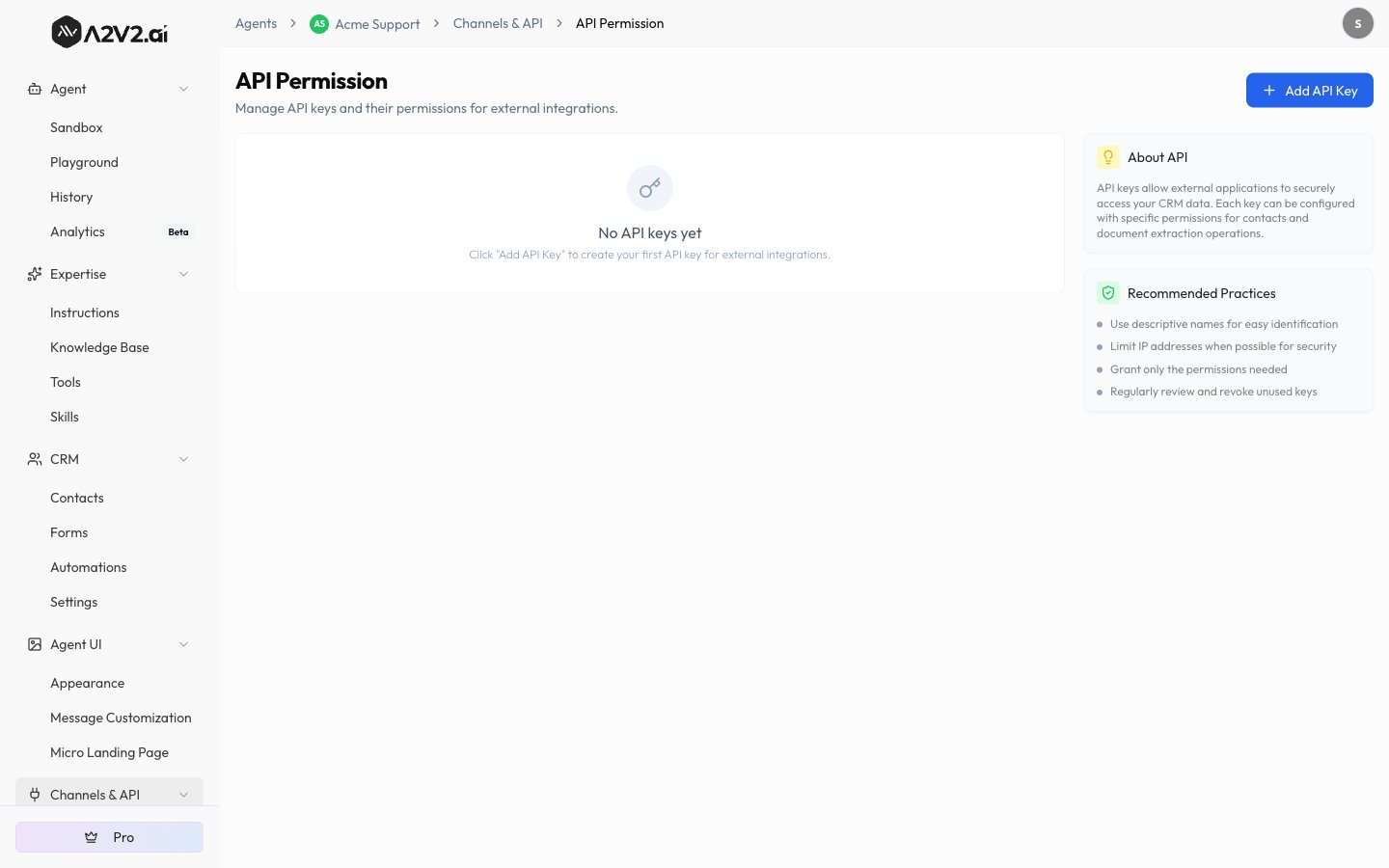
Create an API key
1
Open API Permissions
Go to Settings → API Permissions and select
Add API Key.
2
Name the key and pick the agent
Give the key a recognizable name (for example, “Production sync”) and choose
the agent it should act on. A key is scoped to one agent.
3
Grant permissions
Select which operations the key may perform. See
Permission scopes below.
4
Save and copy the secret
Save the key. Copy the API key and secret immediately and store them
securely — treat the secret like a password.
Authenticate a request
Send both the key and the secret as headers on every request:x-api-key and x-api-secret headers.
- cURL
- Node.js
- Python
https://api.a2v2.ai is the production API base URL
(see API Overview). Replace <AGENT_ID> with the ID of the
agent the key is scoped to.Permission scopes
Each key is granted permissions per resource, with separate create, read, update, and delete actions. A request that needs a permission the key doesn’t have is rejected.Grant the narrowest set of actions a key actually needs. A read-only reporting
integration, for example, only needs read on Contact Access.
Key settings
When you create or edit a key, you can also configure:Scoping and isolation
- A key only works for the agent it’s scoped to. Calling another agent’s endpoint with the wrong key is rejected.
- Keys are scoped to your organization’s data only — there is no cross-tenant access.
- Usage is tracked per key, so you can review activity in the dashboard.
Troubleshooting
401 / 'API key and secret are required'
401 / 'API key and secret are required'
Both
X-API-Key and X-API-Secret headers must be present and spelled exactly.
Confirm your client isn’t dropping custom headers on redirects.403 / permission denied
403 / permission denied
The key lacks the required scope or action. Edit the key in Settings → API
Permissions and grant the needed permission (for example, create on
Contact Access to create contacts).
Requests work from one server but not another
Requests work from one server but not another
The key may have an Allowed IPs restriction. Add the new server’s IP, or
remove the restriction.
A key suddenly stopped working
A key suddenly stopped working
Check whether it reached its expiry date or was deleted. Create a new key
and update your integration’s stored credentials.
Related
API Overview
Base URL, response format, and rate limits.
Endpoints
Every Open API endpoint, grouped by domain.
API keys in Settings
Manage keys from the dashboard.
CRM Contacts
Understand the contact data your API reads and writes.