

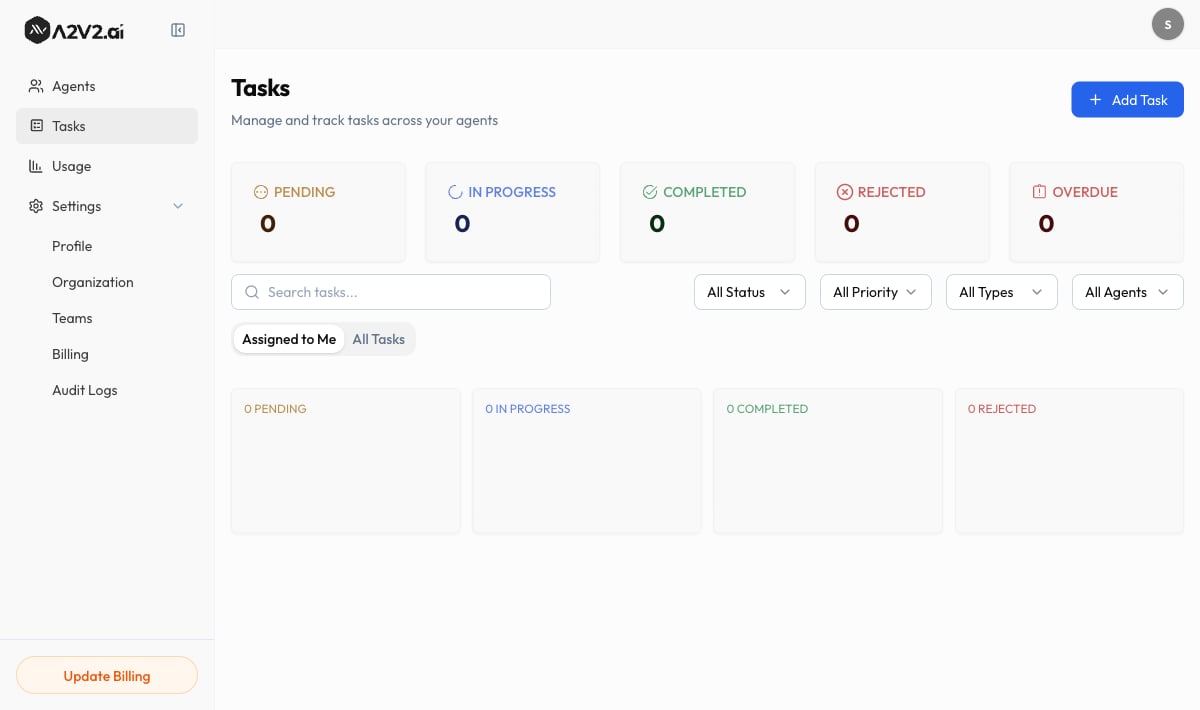
/tasks). The page is titled Tasks, with the
subtitle “Manage and track tasks across your agents.”
Prerequisites
- A task always needs an Assignee, so you’ll want at least one team member — including yourself.
- Linking a task to an Agent or Contact is optional but recommended when the task came out of a conversation.
- Reassigning a task to a different person is limited to admins and owners.
Find your way around the board
The Tasks page gives you two tabs and a row of filters so you can cut a long list down to exactly what you need.
Each task appears as a card showing its Assignee and a View action. Higher-priority
tasks appear first in filtered views.
Create a task
1
Open the task form
Select Add Task. The Add New Task drawer opens with the subtitle “Fill in the
details to create a new task.”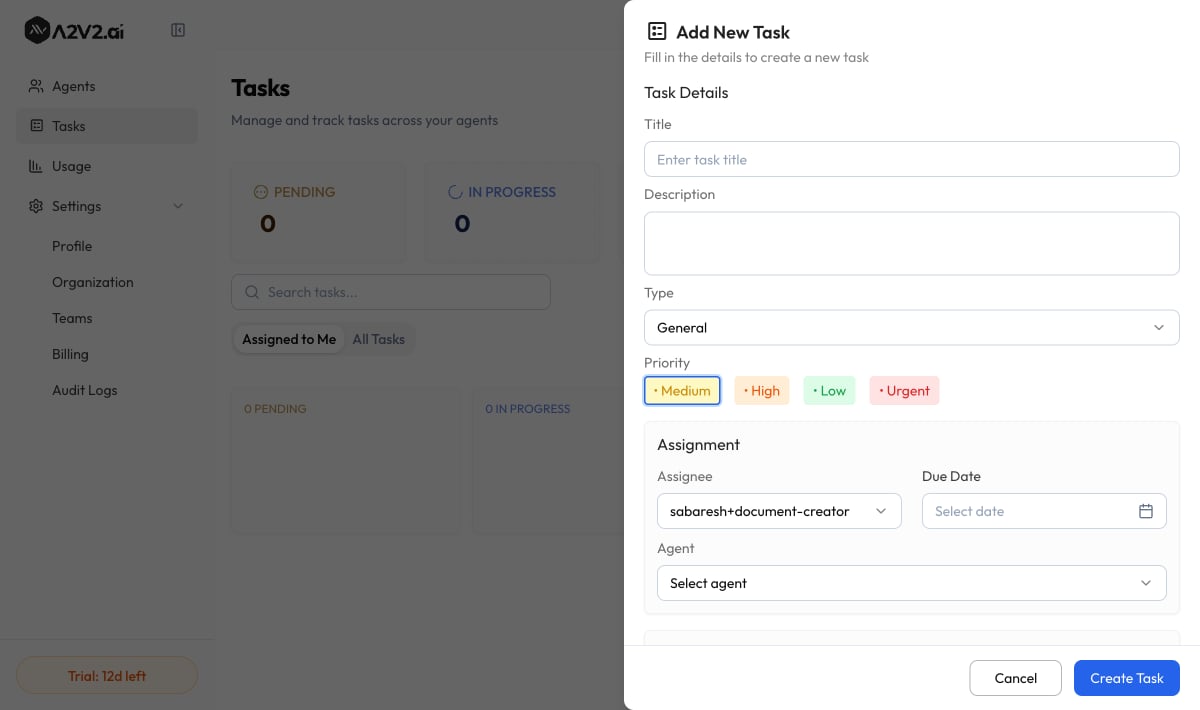
2
Fill in the task details
Under Task Details, give the task a Title (“Enter task title”) and an optional
Description. Choose a Type and a Priority (see the reference tables below).
Titles are required and capped at 200 characters; descriptions can be up to 5,000.
3
Assign it and set a due date
Under Assignment, pick an Assignee (“Select assignee”) — this is required —
and optionally a Due Date and the Agent the task relates to.
4
Add the extras (optional)
Expand More Options to link a Contact, add Watchers, apply Tags, or
build a Checklist. These are covered below.
5
Create
Select Create Task. You’ll see “Task created successfully” and the task appears on
the board. The assignee and any watchers are notified.
Task types
Pick the type that matches the work so you can filter by it later.Priority
Priority controls ordering — higher-priority tasks surface first when you filter the
board.
Statuses
A task moves through statuses as the work progresses. On an open task, click a status to move it — “Pending → In Progress → Done” — and the assignee and watchers are notified of the change.Overdue isn’t a status you set — it’s an automatic flag. A task is shown as overdue
when it passes its Due Date without being Completed or Rejected. It appears as a badge
on the task and a count on the board, but you won’t find it in the status filter. To clear
it, complete the task, push its due date out, or reject it.
Assign and reassign
Every task has one Assignee — the person responsible for getting it done. You set the assignee when you create the task. To hand a task to someone else, open it and choose a different team member. Reassigning is restricted to admins and owners, so day-to-day members can’t quietly move work off their plate. The new assignee is notified.Watchers
Watchers are team members who want to stay in the loop on a task without owning it — a manager keeping an eye on a key account, or a colleague who’ll pick the task up next. On a task, select + Add Watcher and search your team members to add them. Watchers get notified on status changes, comments, and updates. Add watchers while creating a task under More Options, or any time afterward from the open task.Checklists
Break a task into smaller steps with a Checklist — useful when “follow up with the customer” actually means three or four sub-steps. Type a Checklist item and select Add checklist to add it, then check items off as you complete them. The task itself stays a single trackable unit while the checklist captures the detail.Comments and activity
Open a task to discuss it in context. Under Comments, type into “Add a comment…” and select Send. Comments keep the conversation about the work attached to the work itself, instead of scattered across chat and email. Use View all Comments to expand a long thread and Show less to collapse it again. The Activity log records what changed on the task — status moves, reassignments, and updates — so anyone opening it later can see the full history. Use View all Activities to see the complete trail.Tags
Add Tags to categorize and group related tasks. Type a tag and press Enter to add it, and click × to remove one. Once tagged, you can use tags to filter the board down to a campaign, a customer segment, or any grouping that fits how your team works.Link a task to a contact and agent
When a task comes out of a conversation, link it back to its source. Under More Options, choose a Contact (search your CRM contacts) and, under Assignment, the Agent the task relates to. This connects the follow-up to the person who asked and the agent that handled them — so the next person to pick it up has the full picture without digging.Edit and delete a task
To change a task’s details, open it and select Edit Tasks (“Update the details below and save your changes”), make your changes, and select Save Changes.Troubleshooting
I can't reassign a task to someone else
I can't reassign a task to someone else
Only admins and owners can reassign tasks. If you’re a member, ask an admin or
owner to move it, or check your role under Team members.
A task is marked Overdue
A task is marked Overdue
A task becomes Overdue when it passes its Due Date without being completed. Open
it to update the status, push the due date out, or reassign it.
A teammate isn't getting notified about a task
A teammate isn't getting notified about a task
Notifications go to the Assignee and to Watchers. If someone needs updates on a
task they don’t own, add them as a watcher with + Add Watcher.
I can't find a task I created
I can't find a task I created
Switch to the All Tasks tab — the Assigned to Me tab only shows tasks assigned
to you. Then clear any Status, Priority, Type, or Agent filters, or
search by the task’s title.
Related
Contacts
Link a task to the person it’s about and see their full history.
Conversation history
Spot the follow-ups worth turning into tasks.
Team members & roles
Add the teammates you’ll assign tasks to and set who can reassign.
Automations
Route and organize contacts automatically as they arrive.