

When does a visitor hit a gate?
Restricted agents: email sign-in
When an agent is Restricted, only the contacts in your CRM can use it. Visitors verify their email with a one-time code (OTP) — no password to remember.What the visitor does
1
Enter their email
The chat shows Authenticate To Use the Chatbot with an email box (“Your Email
Address”). A helper line makes the rule clear: “Only users added in the CRM can
access this chatbot.” The visitor enters their email and selects Send code.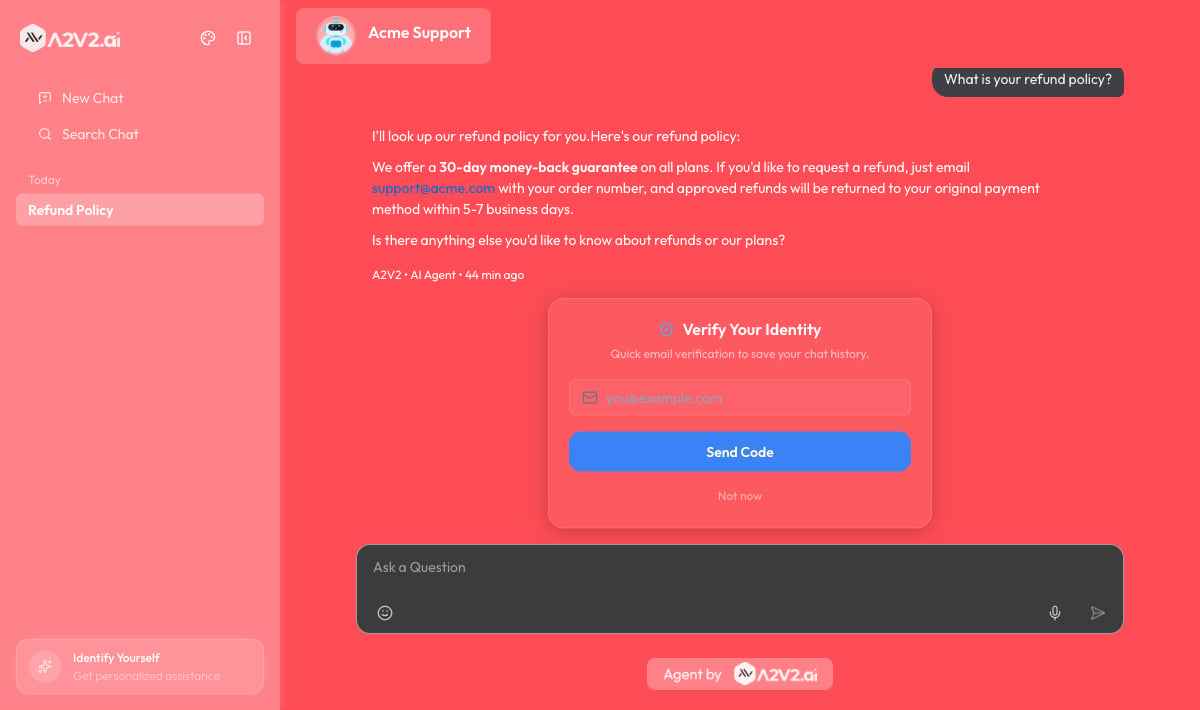
2
Enter the code from their inbox
A 6-digit code is emailed to them: “An OTP has been sent to your email. Please
enter it to authenticate.” The screen confirms Code sent to their address,
with a quick Open Gmail shortcut and a countdown (Expires in…).
3
Start chatting
Once the code checks out, they’re in and can chat. Their conversation is now tied
to their verified identity, so their history follows them when they return.
If they don’t get the code
The sign-in screen helps visitors recover without contacting you. They can Resend the code (after a short cooldown — “Resend in…”), or Change email if they typed it wrong. A Need help? section spells out the usual fixes:- “Check your spam folder”
- “Make sure your email is correct”
- “Wait a moment and try Resend”
For security, too many wrong attempts temporarily locks sign-in — “Too many attempts.
Please request a new code.” The visitor simply requests a fresh code to continue.
Codes also expire after a while, so very old codes won’t work.
Pay-for-Access agents: the paywall
When an agent uses Pay for Access, visitors pay you for access before they can chat. Payment is handled securely through Stripe — visitors never enter card details inside your site.What the visitor does
1
See the paywall
Instead of the chat, the visitor sees a paywall headed This Chatbot is Monetized
by the Creator, with the invitation “Get continued access to insights,
responses, and features by subscribing.” The button shows your price — for
example Subscribe for $X.
2
Identify and pay
The visitor enters their email to start (“Please enter your email address to start
with your account”), then selects Subscribe Now and completes payment on
Stripe’s secure checkout.
3
Return and chat
After paying, they’re returned to the chat and can start talking. A banner confirms
they’re subscribed and shows how much access remains: “You’re now subscribed to
the chatbot. You have … of access remaining.”
Running low or expiring
Access is metered by the duration and message allowance you configured (see Paid agents). As a visitor approaches the limit, the chat nudges them:The access a visitor buys is their allowance for your agent — it’s separate from
your own A2V2.ai plan credits. For how you set the price, duration, and message
allowance (and track revenue), see Paid agents.
Tips
Troubleshooting
A visitor can't sign in to a restricted agent
A visitor can't sign in to a restricted agent
Their email must be a contact in your CRM. Add them as a contact, then have them
try Send code again.
The code email never arrives
The code email never arrives
Ask the visitor to check spam, confirm the email is spelled correctly, and use
Resend after the cooldown. Codes expire, so they should use the most recent one.
A paying visitor can't chat after paying
A paying visitor can't chat after paying
Their access duration may have ended or their message allowance may be used
up. Check their status under the agent’s Subscriptions — see
Paid agents.
I want to remove the gate
I want to remove the gate
Switch the agent’s access mode on the Visibility screen.
Choosing Use for Free removes sign-in and payment entirely.
Related
Visibility & access
Where you set the access mode for each agent.
Paid agents
Set the price, duration, and allowance, and track revenue.
Visitor experience
What the chat itself looks like once visitors are in.
Install on your platform
Add the gated agent to your website.