

Prerequisites
- An agent (see Create an agent).
- A public YouTube video that has captions/a transcript available.
- Enough credits to process the transcript (see Credits).
Add a YouTube video
1
Open the Knowledge Base
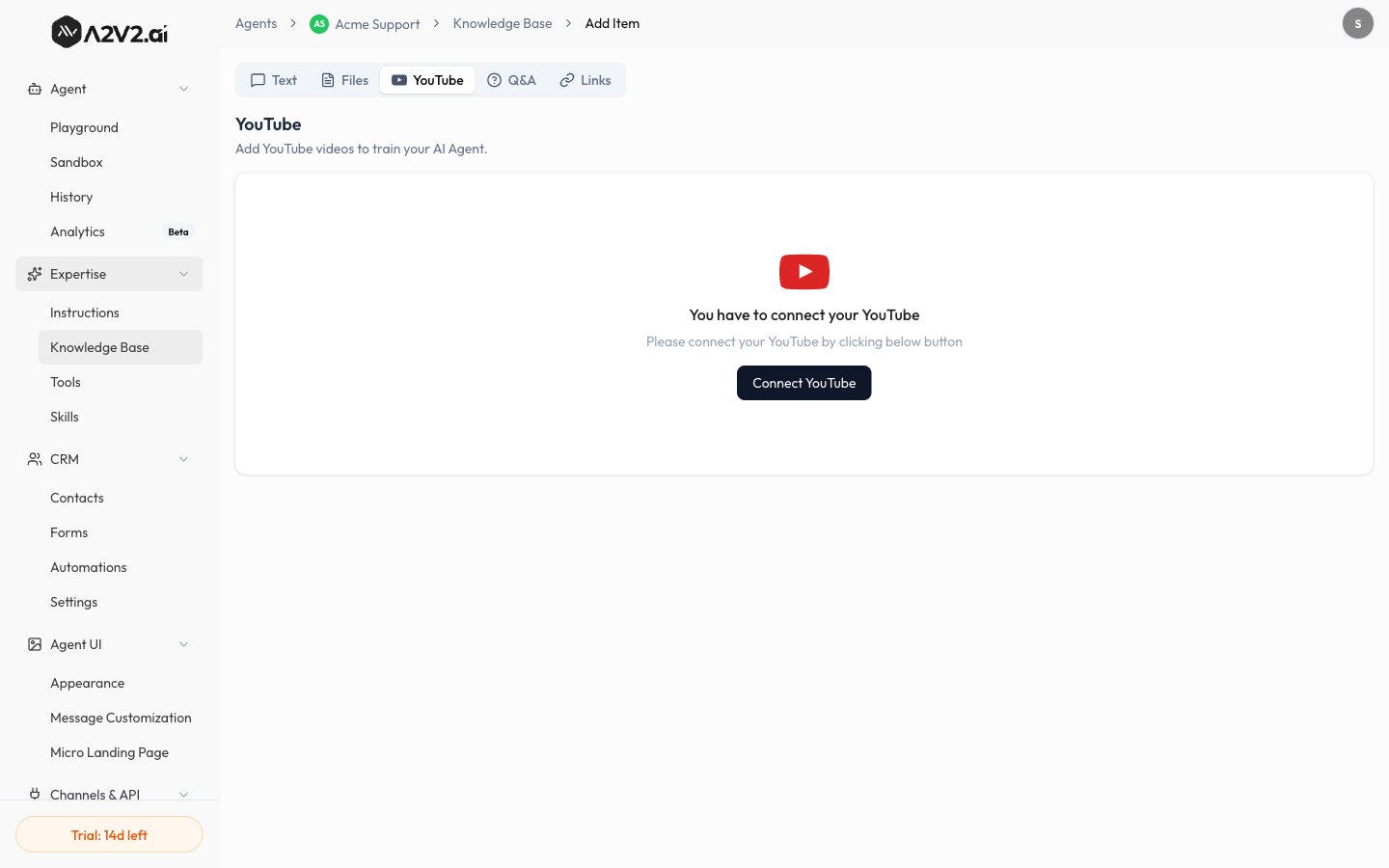
In the agent sidebar, go to Expertise → Knowledge Base.
2
Open the YouTube tab
Select New Knowledge Item, then open the YouTube tab.
3
Paste the video link
Enter the full YouTube URL.
4
Process the transcript
Confirm. A2V2.ai fetches the transcript, extracts the text, and indexes it.
The source shows Processing until it’s done.
5
Wait for Completed
When the status turns Completed, the video’s content is live in your agent.
Options & limits
Videos without captions can’t be transcribed. If a video has no transcript,
summarize its key points as Q&A pairs instead.
Tips
Troubleshooting
The source failed or returned no transcript
The source failed or returned no transcript
The video likely has no captions, or it’s private/restricted. Use a public
video with captions, or add the content another way.
Answers miss on-screen details
Answers miss on-screen details
Only spoken words are transcribed. Add slides or visuals as an
uploaded file or Q&A.