

Prerequisites
- A signed-in A2V2.ai account. Your profile is personal — every member edits their own.
What you can set
1
Open your profile
From the dashboard sidebar, select Settings → Profile.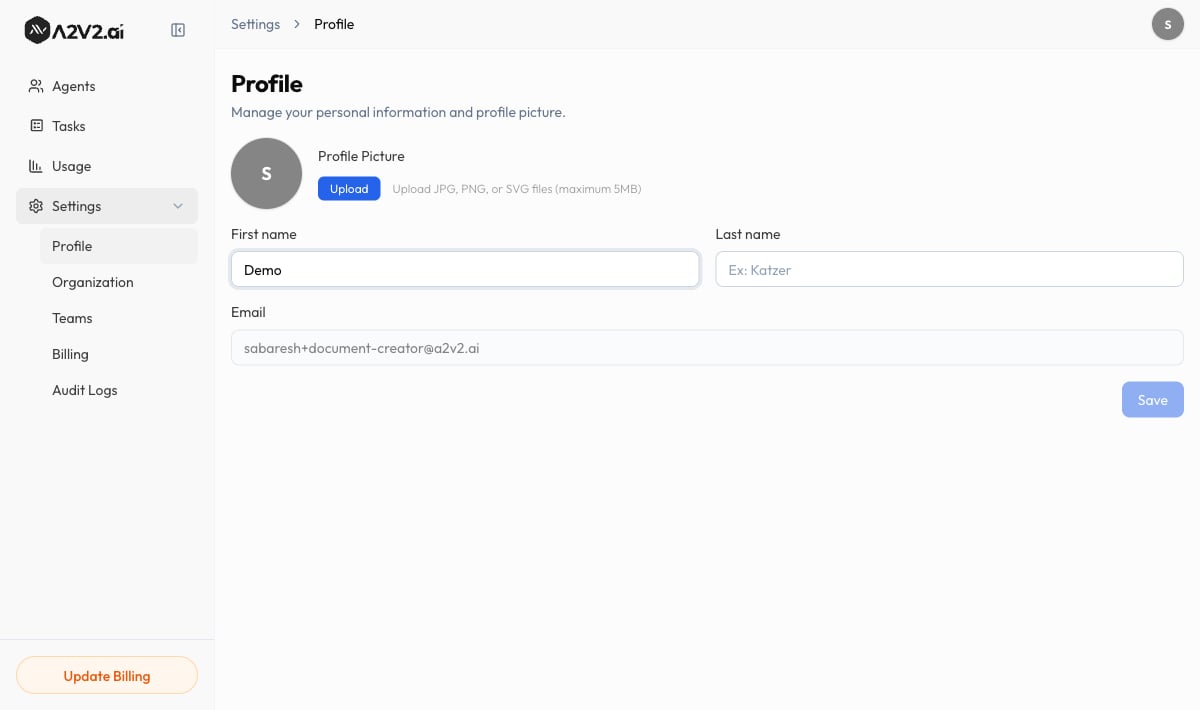
2
Add a profile picture
Under Profile Picture, select Upload and choose an image. A2V2.ai opens a
Crop Profile Picture window so you can frame it before saving.
3
Set your name
Fill in First name and Last name. These are the names shown on your audit-log
entries, team list, notes, and contact ownership.
4
Save
Select Save. The button stays disabled until you’ve made a change. You’ll see
“Profile updated successfully” when it’s done.
Fields reference
Your email is shown for reference but can’t be changed from Profile — it’s the
identity you sign in with. To use a different email, reach out to
support@a2v2.ai.
Troubleshooting
My profile picture won't upload
My profile picture won't upload
Pictures must be JPG, PNG, or SVG and no larger than 5MB. If your file is bigger,
resize it first, then upload again.
I need to change the email on my account
I need to change the email on my account
Email is read-only on the Profile page because it’s your sign-in identity. Contact
support@a2v2.ai to change it.
Related
Organization
Set your workspace’s name and details.
Members & roles
Invite teammates and choose what each can do.
Audit logs
See the activity your profile is attached to.