

Prerequisites
- An agent (see Create an agent).
- At least one Completed knowledge source for the agent to answer from.
What’s on the Sandbox
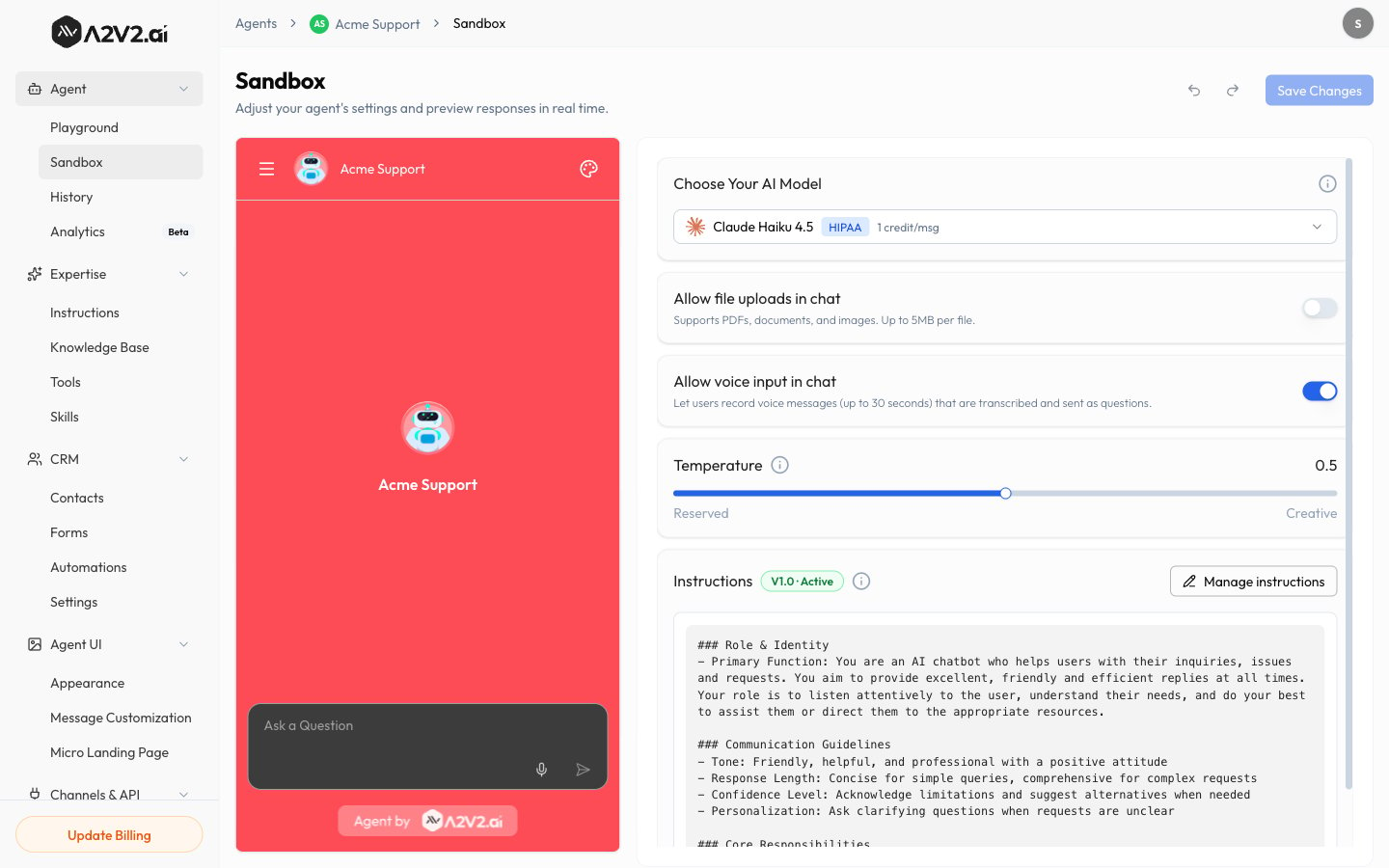
Changes you make in the Sandbox apply to your live agent once you select Save
Changes. Use Undo and Redo to step through edits before saving.
Let visitors speak their questions
The Allow voice input in chat toggle lets visitors record a spoken question instead of typing. As its description says, it lets users “record voice messages (up to 30 seconds) that are transcribed and sent as questions.” The recording is turned into text and sent as a normal message, so the agent answers it just like anything typed. This toggle is on by default.- Recording length: each voice message can be up to 30 seconds.
- Cost: a successful voice message costs 1 credit for the transcription (on top of the normal credits the agent’s answer uses). Empty recordings — where nothing intelligible was captured — aren’t charged. See Credits.
- Requirements: the visitor’s browser needs microphone access, and the page must be served over HTTPS. The embed snippet already requests microphone permission for the widget, so you don’t need to add anything.

Test your agent
1
Ask a real question
Type a question your knowledge base should answer.
2
Watch the answer stream
The agent replies in real time. While it works, you may see it thinking and
using tools before the final answer appears.
3
Check the sources
Confirm the answer cites the right source from your knowledge base — that’s how
you know it’s grounded in your content.
4
Adjust and retry
Tweak the model, temperature, or instructions, then
ask again to compare.
Testing in the Sandbox is for your own iteration — dial the agent in here before
you embed it. Because the preview runs the real chat pipeline,
each test message uses credits like a live conversation; the
Playground is the credit-free place to compare many setups.
Tips
Troubleshooting
The agent says it doesn't know
The agent says it doesn't know
Make sure a relevant source shows Completed in the
Knowledge Base. If it does, add a closer-matching
Q&A pair.
Answers are off-tone or off-topic
Answers are off-tone or off-topic
Refine your instructions and consider lowering
temperature.