

Prerequisites
- You must be an organization Admin. Duplicate is an admin-only action.
- Your plan must have a free agent slot — a duplicate becomes a new, separate agent (see Credits & plans).
- The source agent must already be set up and have at least one document in its knowledge base.
What gets copied
When you duplicate an agent, the copy starts as a near-identical twin — with a few deliberate exceptions. Anything tied to money or an outside service is reset so you review it before the new agent goes live, and anything tied to the original’s real-world activity is left behind.The new agent also gets a fresh, empty CRM (and, for a Medical agent, a fresh
health-metrics schema) — the structure carries over, but no contact records do.
Duplicate an agent
1
Open the agent's menu
On the Agents dashboard, find the agent you want to copy and open its
⋯ (more) menu. You’ll see Share, Embed, Duplicate,
Rename, and Delete.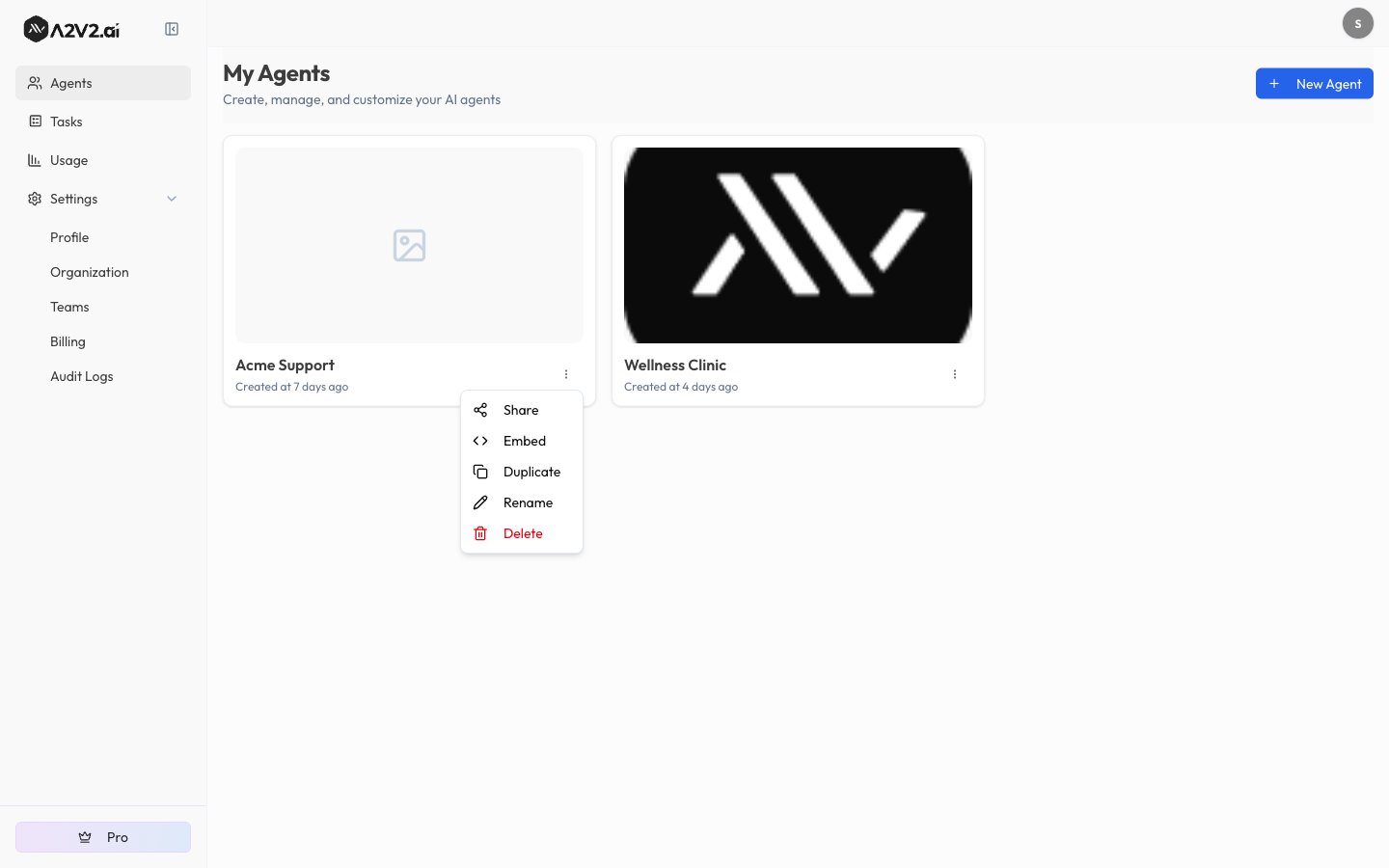
2
Choose Duplicate
Select Duplicate. The Duplicate Agent dialog opens, titled
“Make a copy of [your agent].”
3
Name the copy
Enter a New agent name. A2V2 pre-fills a unique name with a (Copy)
suffix — if that’s taken it suggests (Copy 2), (Copy 3), and so on.
The name must be unique within your organization and 100 characters or fewer.The dialog also lists exactly what’s Included, Reset on the new agent,
and Not copied, so there are no surprises.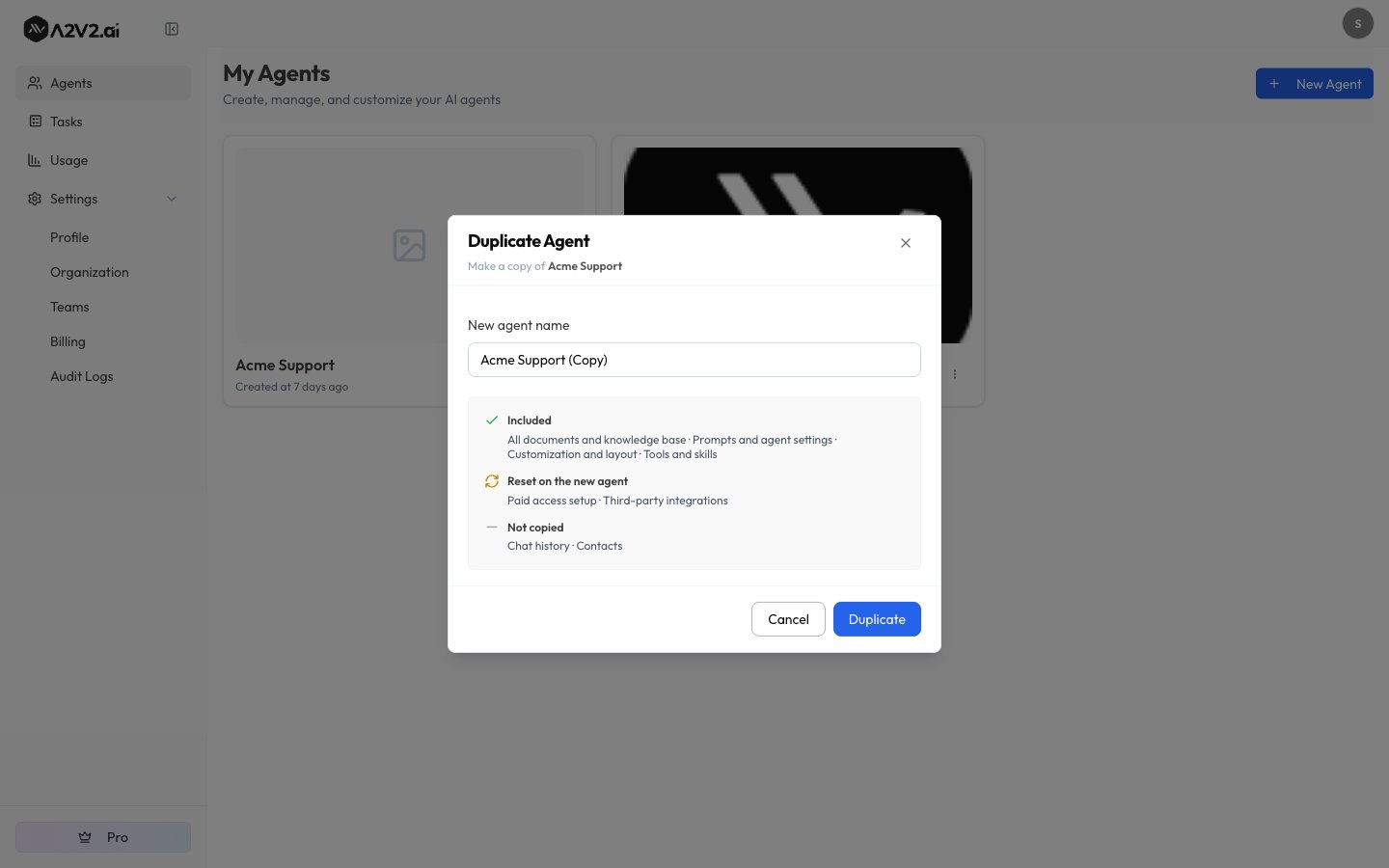
4
Start the copy
Select Duplicate to confirm. Copying runs in the background, so you can
keep working — you don’t have to wait on the dialog.
5
Watch it build
A Duplicating… card appears on your dashboard with a live progress
percentage. When it finishes, you’ll see “[name] is ready” and the new
agent appears in your list, ready to open and edit.
Cancel a copy in progress
Changed your mind while it’s still building? Select Cancel on the Duplicating… card. A2V2 stops the job and removes the half-built new agent — you’ll see “Duplication cancelled and the new agent has been removed.” Nothing about the original is affected. Cancelling is admin-only, the same as starting a copy.Troubleshooting
Duplicate is greyed out — why can't I select it?
Duplicate is greyed out — why can't I select it?
The most common reason is no free agent slots: the menu shows the hint
“No agent slots left.” A duplicate is a new agent, so it needs an open
slot — remove an unused agent or upgrade your plan (see
Credits & plans). Duplicate is also unavailable while the
source agent is still being set up — wait for it to finish provisioning.
It says a copy is already in progress.
It says a copy is already in progress.
You can only run one active copy of a given agent at a time. Wait for the
current Duplicating… card to finish (or cancel it), then start the next
copy.
It won't let me copy this agent at all.
It won't let me copy this agent at all.
The source needs at least one document in its knowledge base, and its
document count can’t exceed your plan’s per-agent document limit. Add a
document to an empty agent, or check your plan’s limits, then try again.
The name is rejected as already in use.
The name is rejected as already in use.
Agent names must be unique within your organization. Accept the suggested
(Copy) name or enter a different one (100 characters or fewer).
I don't see a Duplicate option.
I don't see a Duplicate option.
Duplicating is an Admin-only action. If you’re not an organization Admin,
ask one to run the copy for you (see
Members & roles).
Related
Create an agent
Start a brand-new agent from scratch instead.
Knowledge base
The documents that carry over — and how to add more.
Paid agents
Reconfigure paid access on the copy (it’s reset).
Integrations
Reconnect third-party services on the copy (also reset).