

Prerequisites
- You must be the organization Owner — add-ons are marked Owner Only.
- An active subscription (see Plans).
What you can add
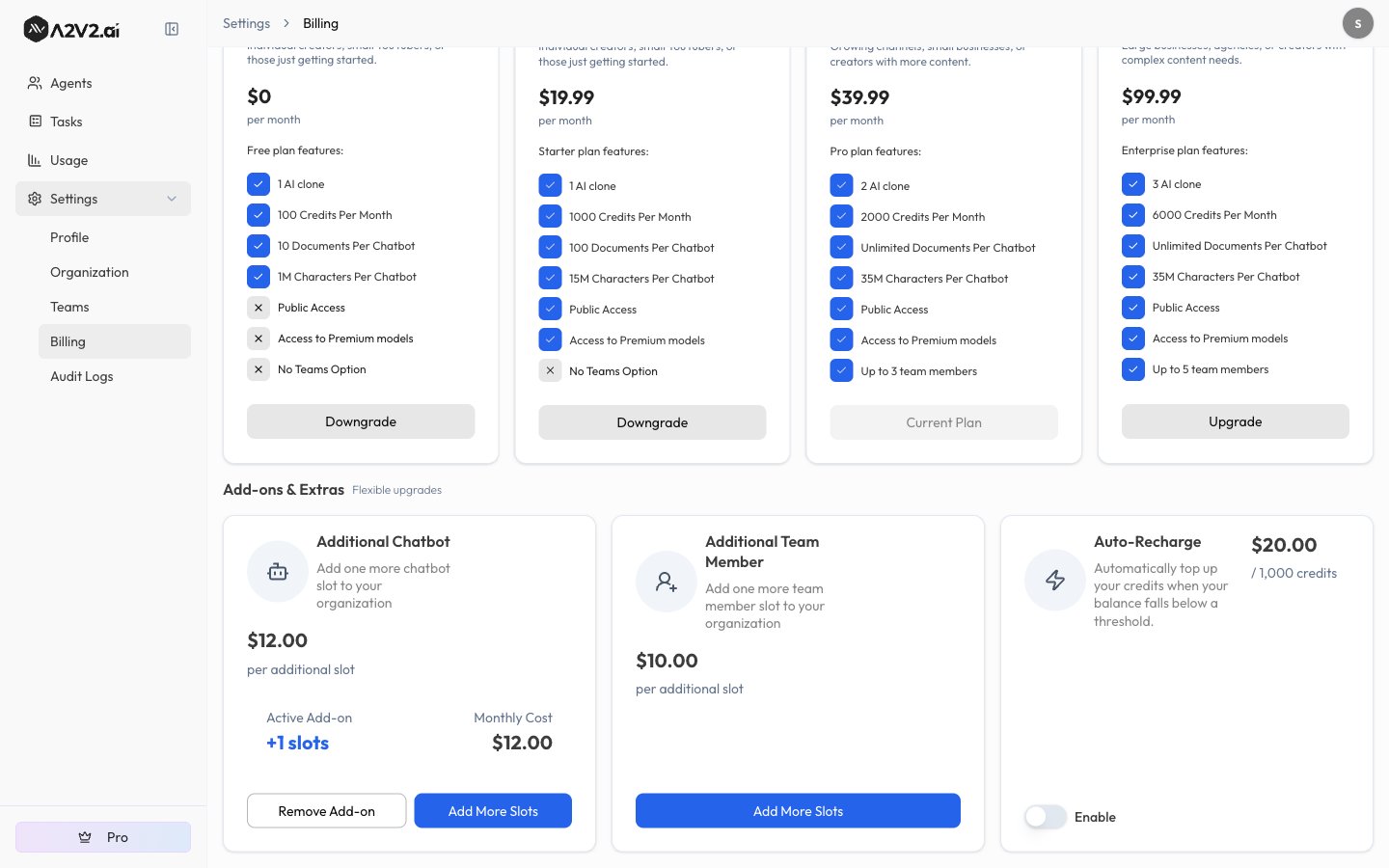
Each add-on is priced per additional slot, billed monthly. The Add-ons panel
shows the price per slot and, for any add-on you’ve already bought, an
Active Add-on card with your current +N slots and its Monthly Cost.
Add slots
1
Open the add-on
In Add-ons & Extras, choose Add Additional Chatbot Slots or Add
Additional Team Member Slots (or Add More Slots on an existing add-on).
2
Choose how many
Set the Quantity. The dialog shows the Price per slot and your new
Monthly total.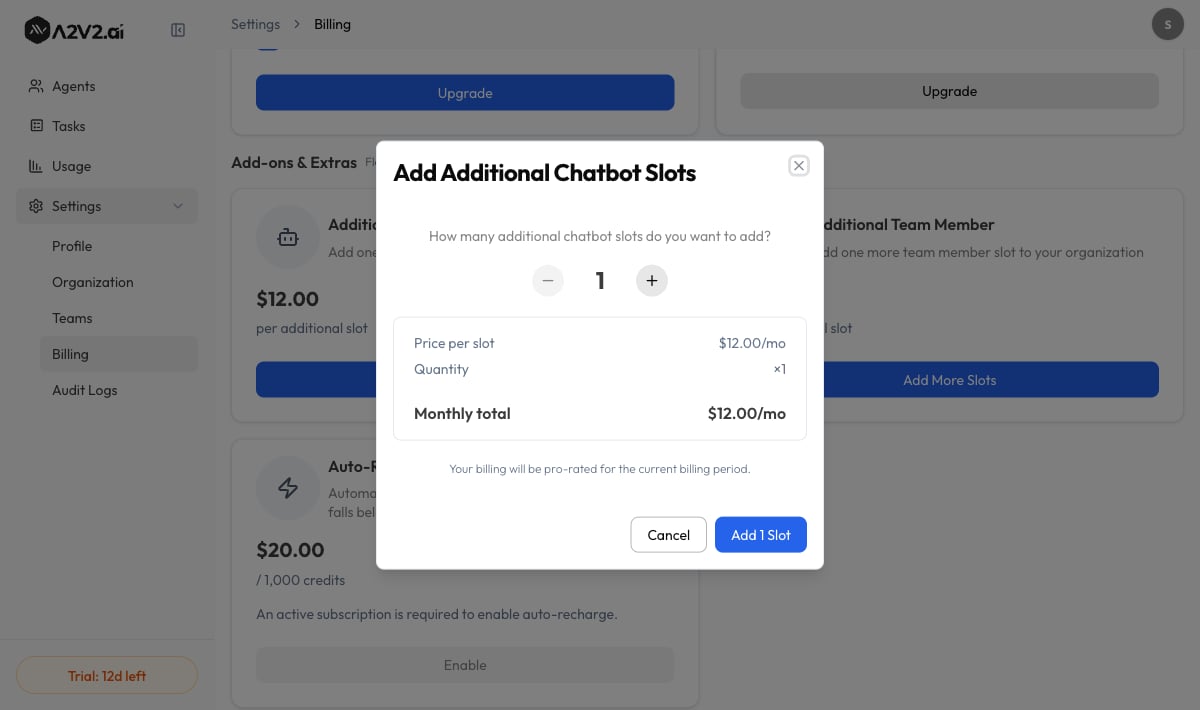
3
Confirm
Select Add Slots. Your billing is pro-rated for the current billing
period, and you’ll see “Slots added successfully.”
Buy more seats appears in the Teams area when you’ve hit your team-member
limit, and links to the same team-member add-on. Upgrade to use team appears
when your current plan has no team option at all — in that case, move to a plan
that includes teams first (see Plans).
Remove slots
You can scale back down when you no longer need the extra capacity:1
Open the add-on
Choose Remove Additional Chatbot Slots or Remove Additional Team Member
Slots (or Remove Add-on to remove it entirely).
2
Choose how many to remove
The dialog shows what you currently have, what you’re removing, and your new
total capacity and new monthly cost.
3
Confirm
You’ll see “Slots removed successfully.”
Troubleshooting
I can't add or remove add-ons
I can't add or remove add-ons
Add-ons are Owner Only. Ask your organization owner to make the change.
It won't let me remove a slot
It won't let me remove a slot
You’re likely still using that capacity. The dialog tells you how many agents
or members to archive or delete first before the removal can go through.
I was charged a partial amount
I was charged a partial amount
Added slots are pro-rated for the days left in your current billing period,
so the first charge is often less than a full month.
I just need a bigger jump in capacity
I just need a bigger jump in capacity
If you need a lot more of everything (agents, credits, and seats), moving up a
plan tier may be simpler than stacking add-ons.
Related
Plans
Compare what each tier includes.
Checkout & billing portal
Manage your payment method.
Credits explained
Add-ons add capacity; credits power answers.
Paid agents
Charge your own visitors for agent access.