

Prerequisites
- An agent (see Create an agent).
- At least one real conversation — History fills in once visitors start chatting with your embedded or shared agent. You can also generate conversations yourself from the Sandbox or Playground.
How History is organized
History is grouped by the person who chatted (the visitor or client), then by each conversation that person had. A signed-in visitor shows by name; an unidentified visitor shows as Anonymous User.1
Open History
In the agent sidebar, open Agent → History.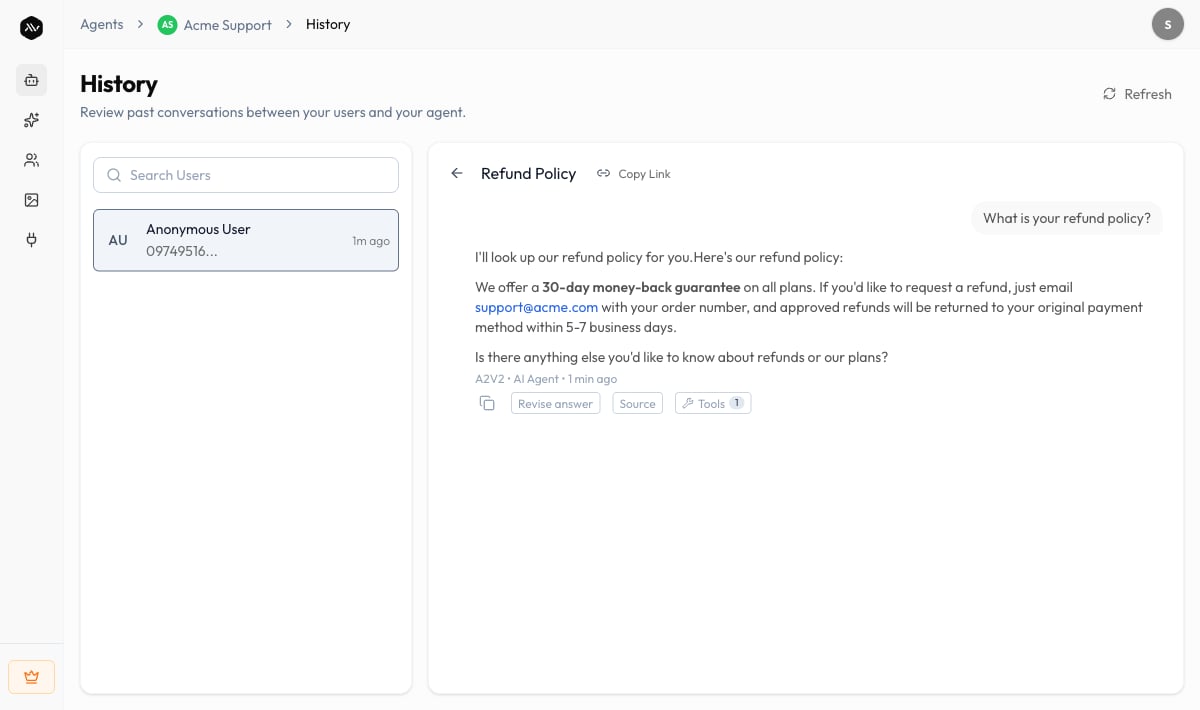
2
Pick a user
The left list shows everyone who has chatted with this agent. Use Search Users
to find someone by name. Before you select anyone, the panel reads “Select a user —
Choose a user from the list to view their conversations.” If no one has chatted yet,
you’ll see No users yet.
3
Open a conversation
Selecting a user shows their list of conversations (titled “Name’s Chats”).
Click any conversation to read it. A conversation without a set title shows as
Untitled Conversation.
4
Read the transcript
The conversation detail pane shows the full back-and-forth — the visitor’s questions
and your agent’s answers, in order. Use Refresh to pull in new messages from
conversations still in progress.
Source citations on answers
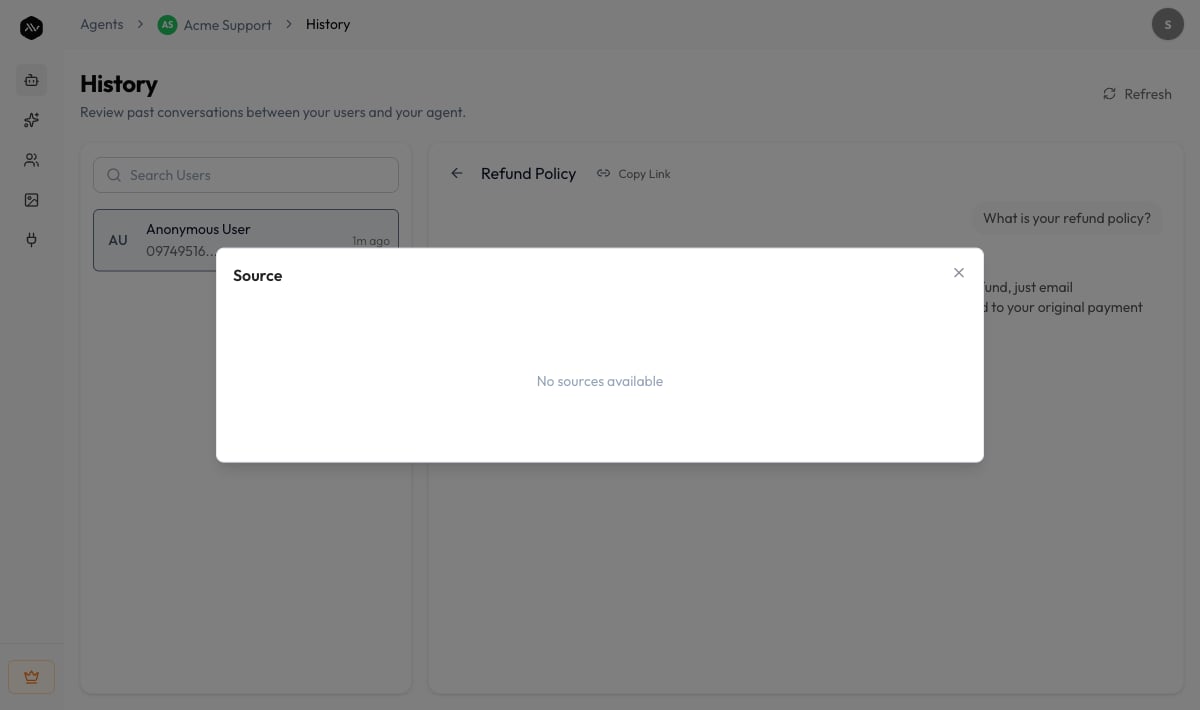
Every answer your agent gives is grounded in your knowledge base — it retrieves the most relevant content from your sources and writes the answer from that, rather than guessing. History lets you see exactly which sources backed each answer. On an answer in the transcript, open Source to see the list of knowledge sources the agent drew from for that specific reply. Each entry shows the source’s ID, Name, Type, whether it’s Archived, and when it was Created. If an answer wasn’t built from any stored source, you’ll see No sources available.Source citations are your fastest way to audit answer quality. If an answer is wrong,
the citations tell you why: either the agent pulled from the wrong source, or the right
source isn’t in your knowledge base yet. See
how grounding works for the bigger picture.
Viewing Source requires an Admin or Owner role. If you’re a member without
admin access, the Source option won’t be available to you.
Correct an answer that missed
When you find an answer that wasn’t right, you don’t have to leave History to fix it. Revise Answer turns a wrong reply into a Q&A knowledge source: it pairs the visitor’s question with the corrected answer you write and adds it to your knowledge base, so the agent answers correctly the next time someone asks something similar.1
Open Revise Answer
On the agent message you want to correct, open Revise Answer. The dialog shows
the original User message and the Bot Response for context.
2
Write the expected response
In Expected Response, type the answer the agent should have given (at least 10
characters). Save it — you’ll see “Answer revised successfully.” The visitor’s message
becomes the question and your expected response becomes the answer in a new Q&A source.
Share a conversation
To hand a conversation to a teammate, open it and use Copy link to this conversation. The link is copied to your clipboard (“Link copied to clipboard”) so you can paste it into a chat or ticket. Teammates need access to the agent to open it.Delete a conversation or client
You can remove individual conversations, or remove a client and everything they sent.- Delete a conversation — use Delete conversation on the conversation you want to remove.
- Delete a client — use Delete client on a person in the users list. This opens Delete Client: “This action will permanently delete this client and all their conversation history.”
Options reference
Tips
Troubleshooting
No users or conversations appear
No users or conversations appear
History only fills in once people actually chat with your agent. Confirm your agent
is live and reachable (check Visibility and your
embed), then send yourself a test message from the
Sandbox and use Refresh.
An answer shows “No sources available”
An answer shows “No sources available”
That answer wasn’t built from a stored knowledge source — for example a greeting, a
general reply, or a question your knowledge base doesn’t cover yet. If it should have
been grounded, add the missing material in
Knowledge Base.
A visitor shows as “Anonymous User”
A visitor shows as “Anonymous User”
That’s expected for visitors who chatted without signing in. Identified visitors —
such as those who log in to a restricted agent — show by name.
Related
Knowledge Base
Add and improve the sources your answers are grounded in.
Instructions
Refine your agent’s behavior based on what you read in transcripts.
Sandbox
Reproduce and test fixes before they reach visitors.
Message customization
Turn common questions into suggested questions.