

API Permissions is desktop-only. Open it on a larger screen — on mobile A2V2.ai
shows a “Desktop Only” notice for this feature.
Prerequisites
- An agent (see Create an agent).
- A place to store the key securely (a secrets manager or your app’s environment), since a key grants programmatic access to your data.
How keys and permissions work
Each API key carries its own set of permissions across two areas — Contact Access and Document Extraction Access — and you choose which actions it can perform. A2V2.ai recommends granting only the permissions an integration actually needs and revoking keys you no longer use.
For each area you grant any combination of these actions:
Create an API key
1
Open API Permissions
On your agent, go to Channels & API → API Permissions and select Add API Key.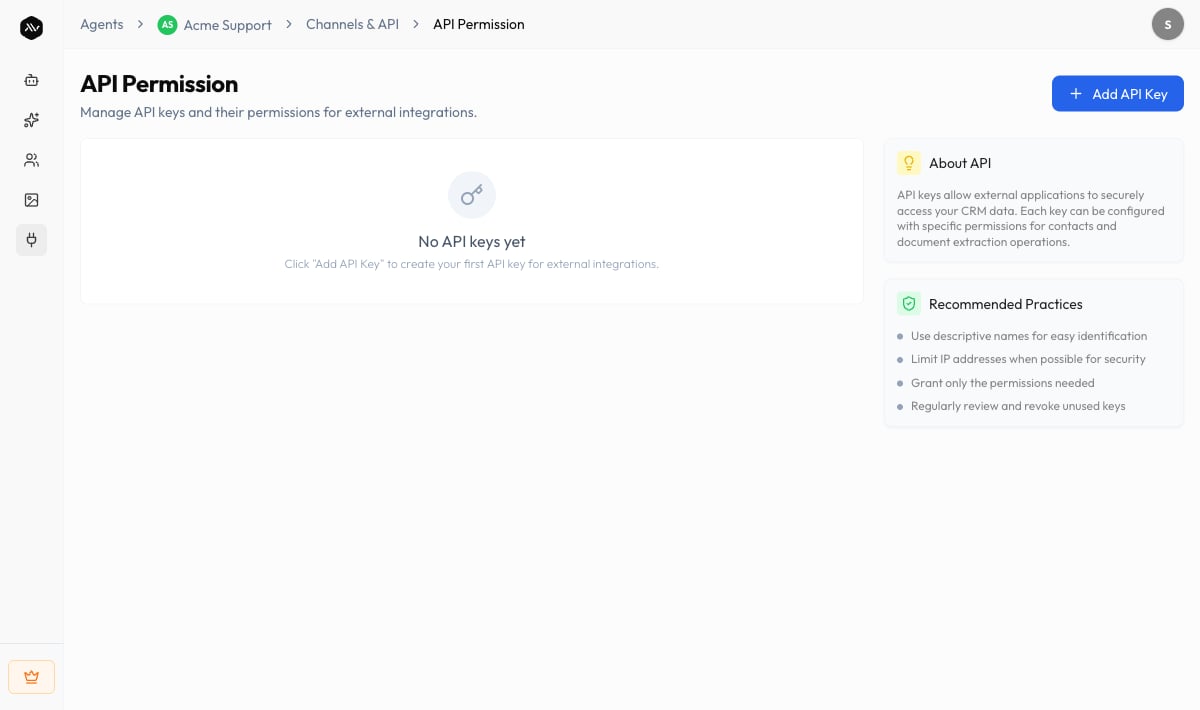
2
Enter basic information
This is Step 1 of 2 — Enter basic information. Give the key a Name (up to 100
characters) and an optional Description (up to 500 characters). You can also enter
one or more comma-separated IP Address values to restrict which addresses may use
the key (for example 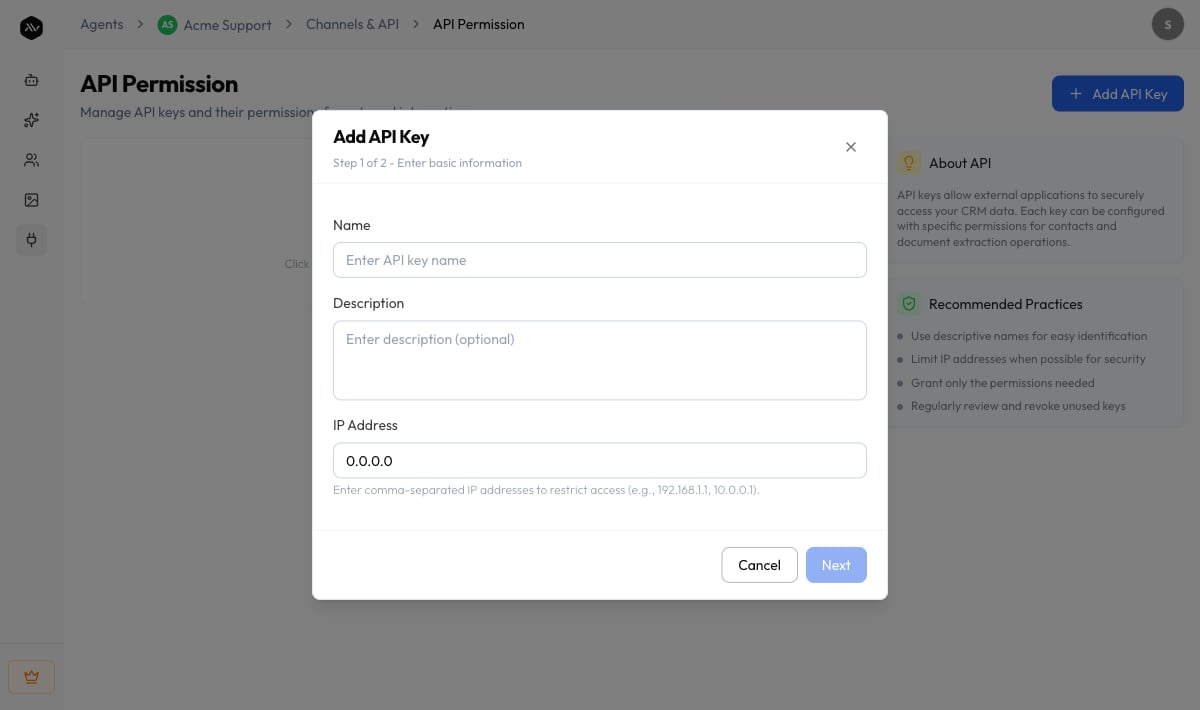
192.168.1.1, 10.0.0.1). Select Next.3
Configure permissions
On Step 2 of 2 — Configure permissions, choose the Create / Read / Update /
Delete actions you want under Contact Access and Document Extraction Access.
Then select Give Access. You’ll see “API key created successfully.”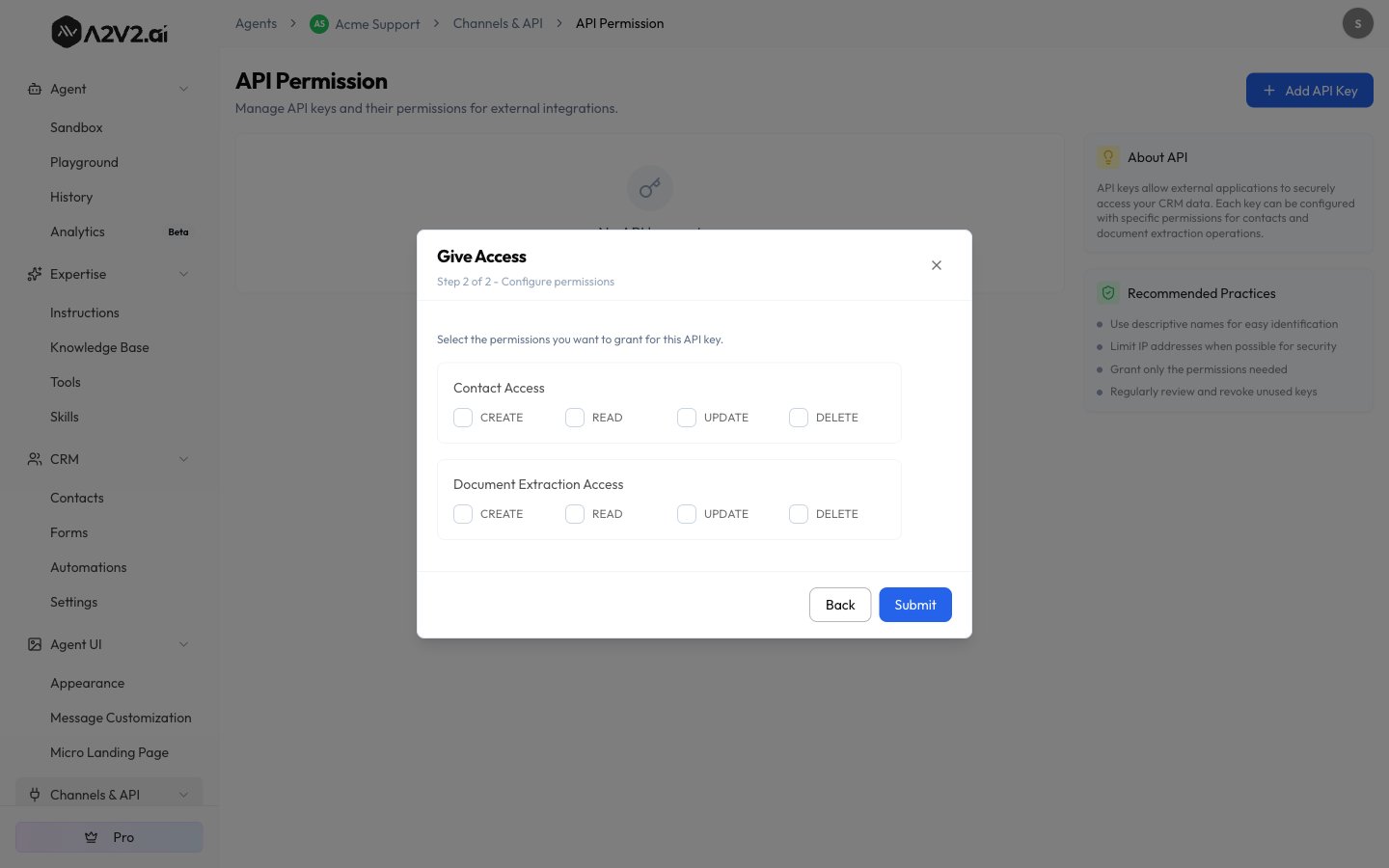
4
Copy and store the key
Use Copy API Key to copy it to your clipboard (“API key copied to clipboard”),
then store it somewhere secure in your integration.
The keys list
Each key appears as a row with these columns:
From a row you can Copy API Key, edit it, or delete it. Before you create any, the
page reads “No API keys yet.”
Edit or delete a key
- Edit a key to rename it, change its description or IP restrictions, or adjust its permissions. Saving shows “API key updated successfully.”
- Delete a key to revoke it. The confirmation warns that the key is permanently deleted and “Any applications using this key will lose access.”
Troubleshooting
The page shows a 'Desktop Only' message
The page shows a 'Desktop Only' message
API Permissions is available on desktop only. Open A2V2.ai on a larger screen to
create or manage keys.
My integration gets denied even though the key is valid
My integration gets denied even though the key is valid
Check two things: the key must include the permission for the action you’re
making (Create / Read / Update / Delete in the right access area), and if you set IP
Address restrictions, the request must come from a listed address.
I lost the key value
I lost the key value
Copy it again from the key’s row with Copy API Key. If you can’t use it, delete
the key and create a new one, then update your integration.
Related
Contacts
The CRM data your Contact Access keys read and write.
Embed & install
Add the agent to your site with the chat bubble or iframe.
Members & roles
Control who on your team can manage the workspace.
Audit logs
Track activity across your organization.