

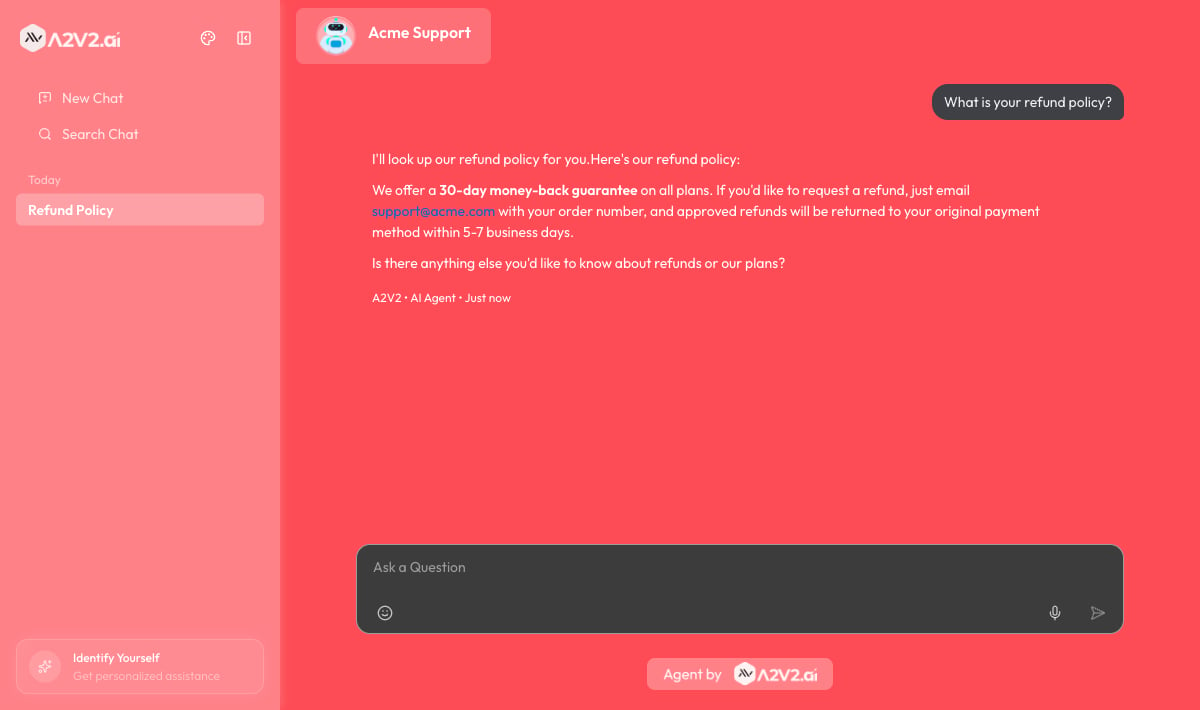
Opening the chat
How visitors enter depends on how you embedded the agent:
If you’ve turned on the auto-show welcome message, the bubble can open with your
greeting after a short delay.
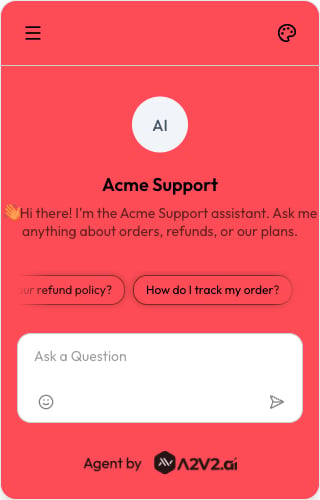
The first thing they see
A new visitor lands on a welcoming starting view, which can include:- A welcome message — the greeting you set in Message customization.
- Suggested questions — tappable chips of starter questions. A visitor can click one instead of typing, which is often how a conversation begins. You define these as the agent’s suggested messages.
Asking a question and getting an answer
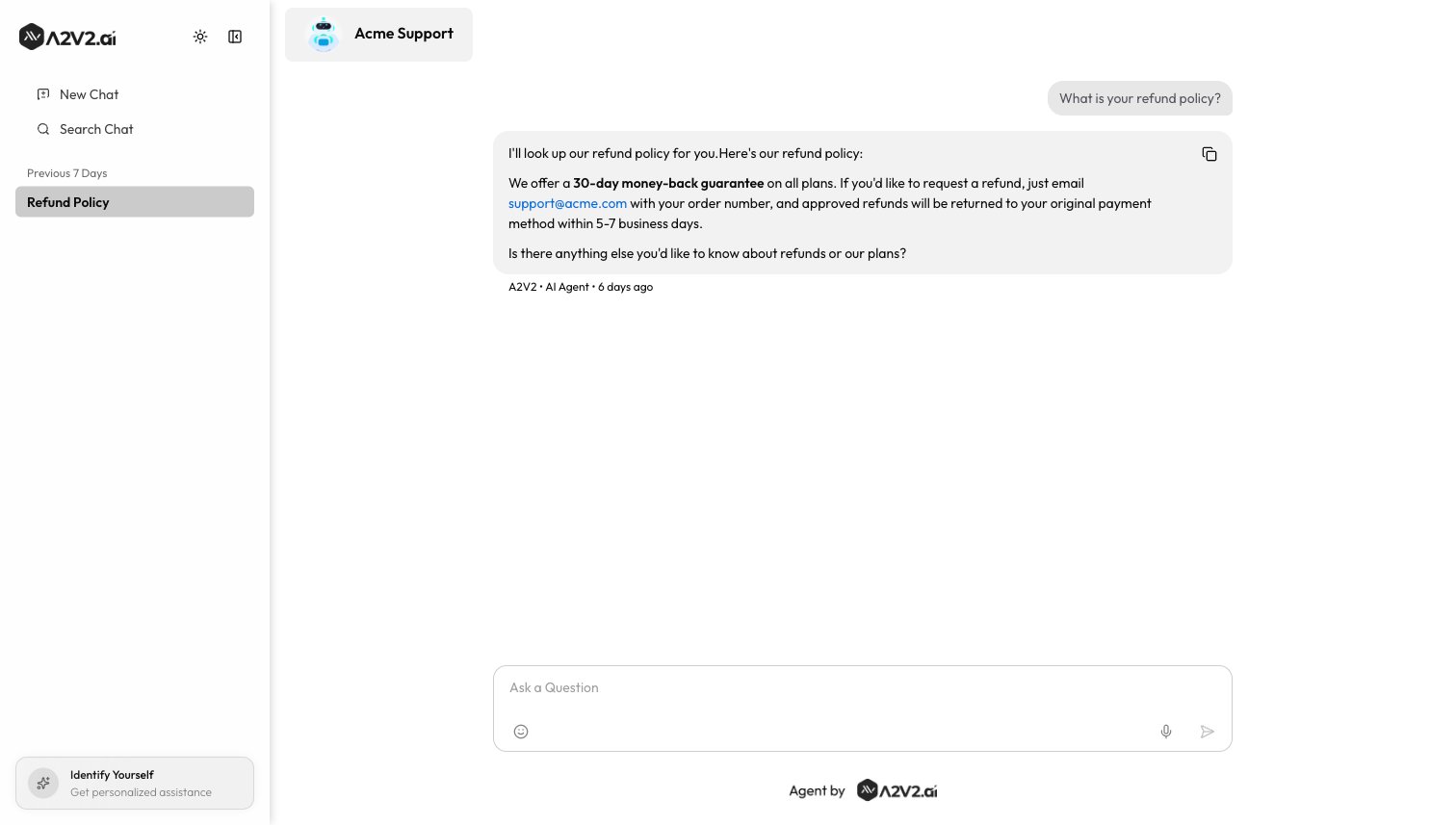
The visitor types in the Ask a Question box and sends with the Send button (or Enter). As the agent works, they see live status indicators rather than a frozen spinner:
The answer then streams in word by word, so visitors start reading immediately
instead of waiting for the whole reply. Answers are formatted (headings, lists, links,
tables), and any links open in a new tab.
Answers are drawn from the agent’s knowledge base. The
agent only answers from what you’ve given it, which is what keeps responses grounded
and on-topic.
Acting on an answer
Each answer carries a few lightweight controls so visitors can react without leaving the conversation:
If you’ve enabled feedback collection on a dislike, the visitor is asked to say what
went wrong — “Please tell us what went wrong with this response” — in a short
Feedback box. That feedback flows back to you so you can spot weak answers and
improve the knowledge base.
Sending more than text
Depending on what you’ve enabled for the agent, visitors can also:- Attach a file
- Speak instead of type
Visitors use Attach file to add a document or image for the agent to consider
in the conversation. The file uploads (showing Uploading…) and then becomes
part of the question’s context.This is available only when you’ve turned on file uploads for the agent. The
setting notes the supported types and size limit (PDFs, documents, and images, up
to 5 MB per file) — see the Sandbox settings in
Test your agent.
Speaking a question
When voice input is enabled, visitors can ask by speaking instead of typing — useful on mobile or when a question is easier to say than to write. The widget captures a short recording, turns it into text, and drops that text into the message box so it can be sent like any other question. The flow visitors see:1
Start recording
The visitor taps Start recording and speaks their question. Recordings can be
up to 30 seconds.
2
Stop or cancel
They tap Stop recording when finished, or Cancel recording to discard it
without sending.
3
Transcribing
The widget shows Transcribing… while it converts the audio to text.
4
Review and send
The transcribed text lands in the message box, where the visitor can edit it
before sending — or send it straight away.
Voice input is on by default and can be turned off per agent from the
Sandbox settings. It needs a
microphone and an HTTPS page; the embed snippet already requests
microphone permission, so no extra setup is required.
Picking up where they left off
The chat keeps a visitor’s conversation history in their browser, so returning visitors don’t start from scratch:- New Chat starts a fresh conversation.
- A History list (with Search chats…) lets them reopen earlier conversations, grouped as Today, Yesterday, Previous 7 Days, and so on.
- Conversations persist for that visitor on that browser, even across page reloads.
History is tied to the visitor’s browser. Someone on a different device or browser
starts a new history — unless they sign in to a
restricted or paid agent, which ties the
conversation to their verified identity.
The A2V2.ai branding
The chat shows a small Agent by A2V2.ai mark in the footer, and each answer is tagged with an “AI Agent” label and timestamp. This tells visitors they’re talking to an AI assistant, which keeps the experience honest and sets the right expectations.Tips
Troubleshooting
Visitors don't see suggested questions
Visitors don't see suggested questions
Suggested questions only appear if you’ve added them. Set them in
Message customization.
Voice input isn't working for a visitor
Voice input isn't working for a visitor
Voice needs microphone permission and an HTTPS page. If a visitor sees Microphone
access denied, they need to allow the microphone in their browser settings and
reload. Voice input is not available on this device means no microphone was
found, and Voice input is not supported in this browser means they should try a
different, modern browser. If it captured nothing, they’ll see Couldn’t catch
that, try again. In every case, typing the question always works.
A visitor lost their chat history
A visitor lost their chat history
History is stored in the visitor’s browser. Clearing site data, switching devices,
or using a private window starts a fresh history. For history that follows a person
across devices, use a restricted or paid agent
so visitors sign in.
The agent says it can't answer
The agent says it can't answer
The agent only answers from its knowledge base. Add the
missing information as a source so future visitors get an answer.
Related
Message customization
Set the welcome message and suggested questions.
Appearance
Style the chat to match your brand.
Restricted & paid access
What sign-in and paywalls look like to visitors.
Install on your platform
Add the chat to your website.