

Prerequisites
- An agent (see Create an agent).
- A publicly reachable URL (pages behind a login can’t be crawled).
- Enough credits to process the page (see Credits).
Add a link
1
Open the Knowledge Base
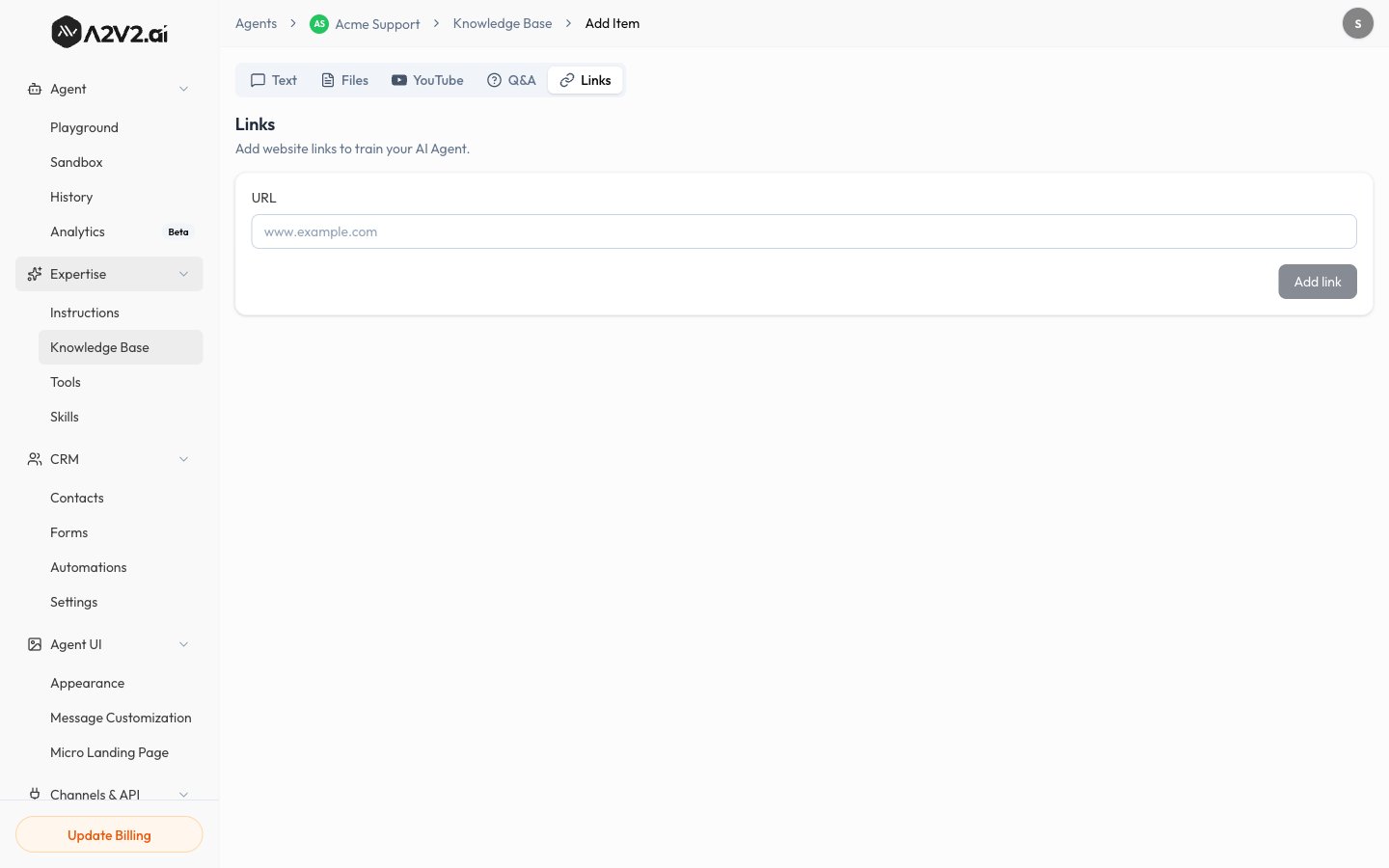
In the agent sidebar, go to Expertise → Knowledge Base.
2
Open the Links tab
Select New Knowledge Item, then open the Links tab.
3
Enter the URL
Type the full address of the website you want to index (for example,
www.example.com).4
Add the link
Select Add link. A2V2.ai fetches the page, extracts its text, and indexes
it. The source shows Processing until it’s done.
5
Wait for Completed
When the status turns Completed, the page content is live in your agent.
Options & limits
A website source captures the page as it is at processing time. If you update
the page later, reprocess the source so the agent learns the new content.
Tips
Troubleshooting
The crawl returned little or no content
The crawl returned little or no content
The page may render its content with JavaScript, or hide it behind a login or
cookie wall. Try a more static URL, or paste the key content as an
uploaded file or Q&A.
The source failed
The source failed
Confirm the URL is correct, public, and reachable in a normal browser, then
reprocess.