

Prerequisites
- A signed-in account with an available agent slot (see Create an agent).
- Authority to agree to a Business Associate Agreement on behalf of your organization — the BAA is a real contract about handling protected health information (PHI).
Create a Medical Agent
1
Start a new agent
From the Agents dashboard, select New Agent to open the Add Agent dialog.
2
Choose Medical Agent
Set the Agent Type to Medical Agent — “Assist patients with health-related
questions, symptom guidance, and basic medical support through conversational AI.”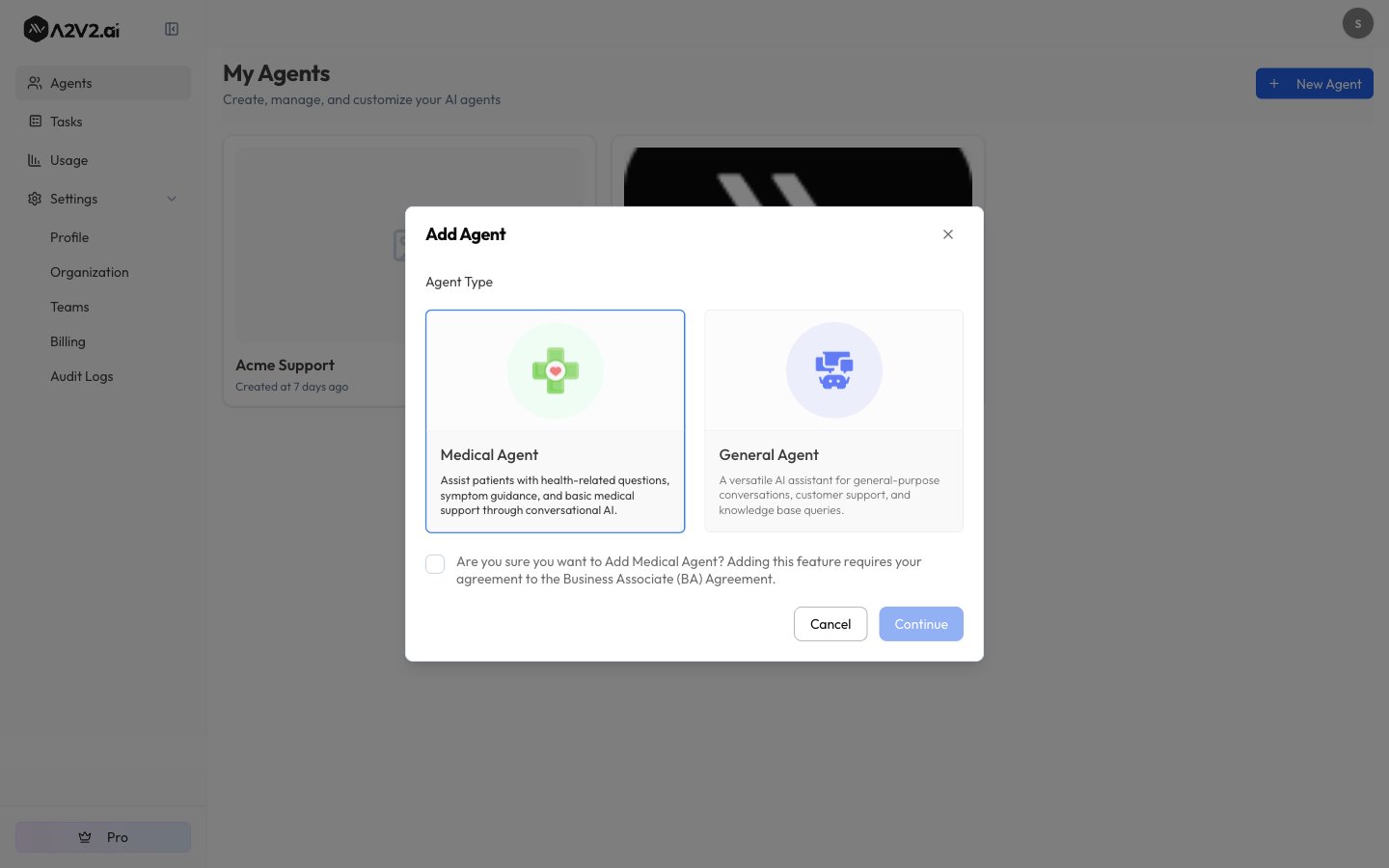
3
Agree to the BAA
A checkbox appears that you must tick to continue:
“Are you sure you want to Add Medical Agent? Adding this feature requires your agreement to the Business Associate (BA) Agreement.”Ticking this both acknowledges the agreement and sends a BAA request to the A2V2.ai team. Until it’s ticked, Continue stays disabled.
4
Name it and create
Enter an Agent Name, then select Create. The new Medical Agent opens on its
Sandbox, ready for you to add knowledge, set instructions, and test it privately.
The agent type is set when you create the agent. There’s no control to convert a general
agent into a Medical Agent (or the reverse) afterward, so choose the right type up front.
If you started with the wrong type, create a new agent of the correct type.
The Business Associate Agreement (BAA)
A BAA is the contract that lets A2V2.ai handle PHI on your behalf under HIPAA. Because a Medical Agent is built for health data, that agreement has to be in place before real patients use it.How the BAA flows
When you tick the agreement checkbox while creating the agent, A2V2.ai is notified and begins processing your BAA. The status then moves through three stages, shown on a BAA Agreement tile in the agent’s sidebar:
The BAA is handled by the A2V2.ai team, not a self-serve toggle — ticking the box during
creation starts the request; it doesn’t sign the agreement. The status advances as the
team processes it.
HIPAA-eligible models only
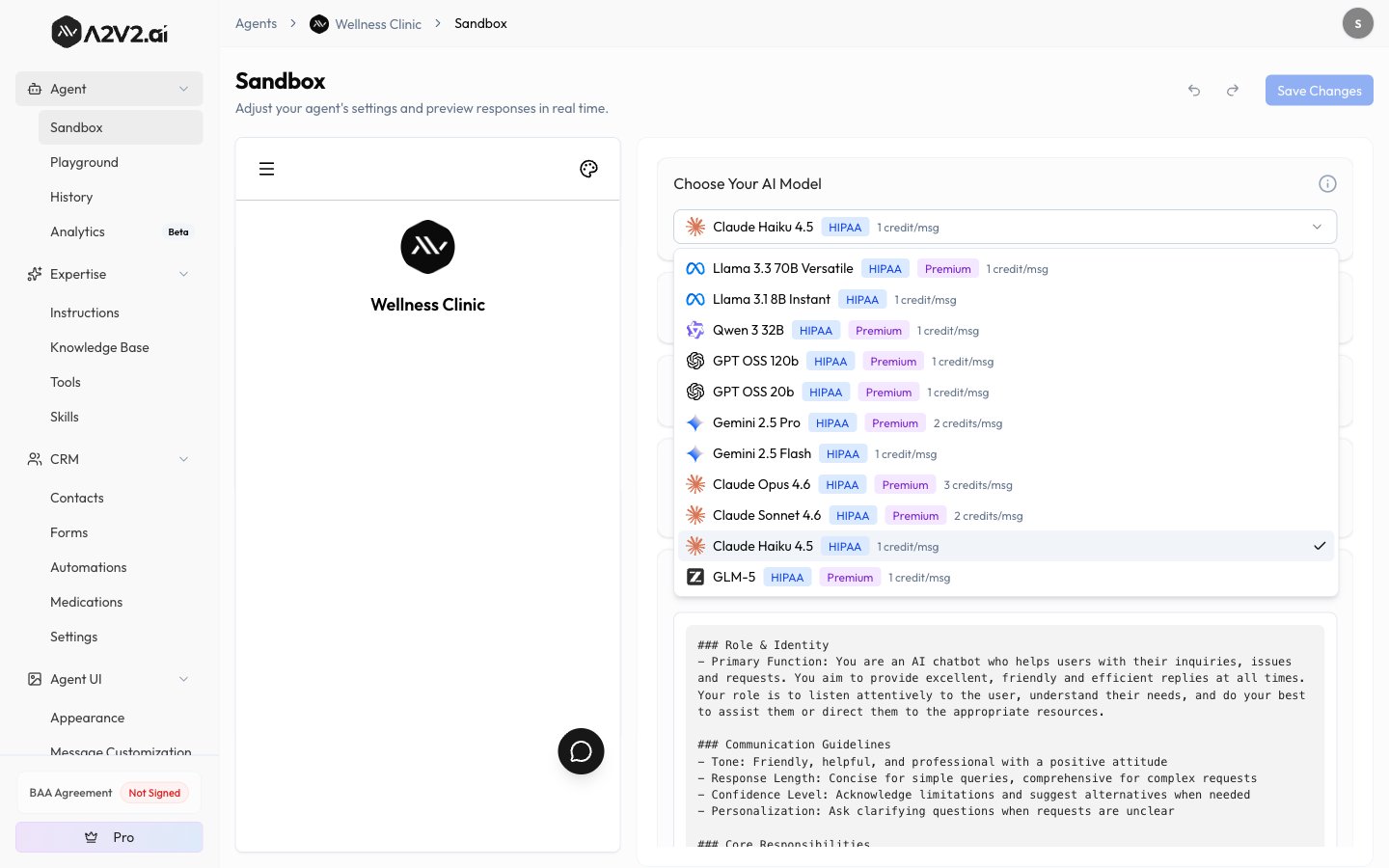
A Medical Agent can only use models that are HIPAA-eligible. When you create your first Medical Agent and the organization becomes HIPAA-compliant, the model list narrows to those models everywhere in the org.- The default model for a Medical Agent is Claude Haiku 4.5, which is HIPAA-eligible and costs 1 credit per message.
- Higher-capability HIPAA-eligible models are available in the model selector, some at a higher credit cost per message.
- The same restriction applies to document processing across the organization.
Build now, publish when the BAA is active
You don’t have to wait for the BAA to start working. The two gates work independently:- The clinical suite is available immediately. As soon as the agent is a Medical Agent, you get health tracking, prescriptions, the medications catalog, and field encryption. See Medical Agents for the full list.
- Publishing waits for the BAA. You can’t make the agent public — embed it or share it with patients — until the BAA status is Active.
Troubleshooting
Continue is greyed out in the Add Agent dialog
Continue is greyed out in the Add Agent dialog
You’ve selected Medical Agent but haven’t ticked the BAA agreement checkbox.
Tick it to enable Continue.
I can't make my Medical Agent public
I can't make my Medical Agent public
The BAA has to be Active first. Check the BAA Agreement tile in the agent
sidebar — if it reads Not Signed or In Progress, publishing is blocked until
it becomes Active.
My model options shrank after creating a medical agent
My model options shrank after creating a medical agent
That’s expected. Creating a Medical Agent sets the whole organization to
HIPAA-compliant, so the model list is filtered to HIPAA-eligible models everywhere —
including for your general agents and document processing.
I picked the wrong agent type
I picked the wrong agent type
There’s no way to convert an agent between types. Create a new agent with the correct
type and move your content over.
Related
Medical Agents
The full clinical suite a Medical Agent unlocks.
Choose a model
Compare the HIPAA-eligible models and their credit costs.
Data privacy & isolation
How A2V2.ai isolates and protects your data.
Test in the Sandbox
Build and test your agent privately before publishing.